Dashboard
The Dashboard screen serves as the main overview page of the Socialer application, providing users with real-time insights into communication activities and system performance.It displays summarized statistics for different communication channels such as SMS, Email, and WhatsApp in a structured and visually appealing format.
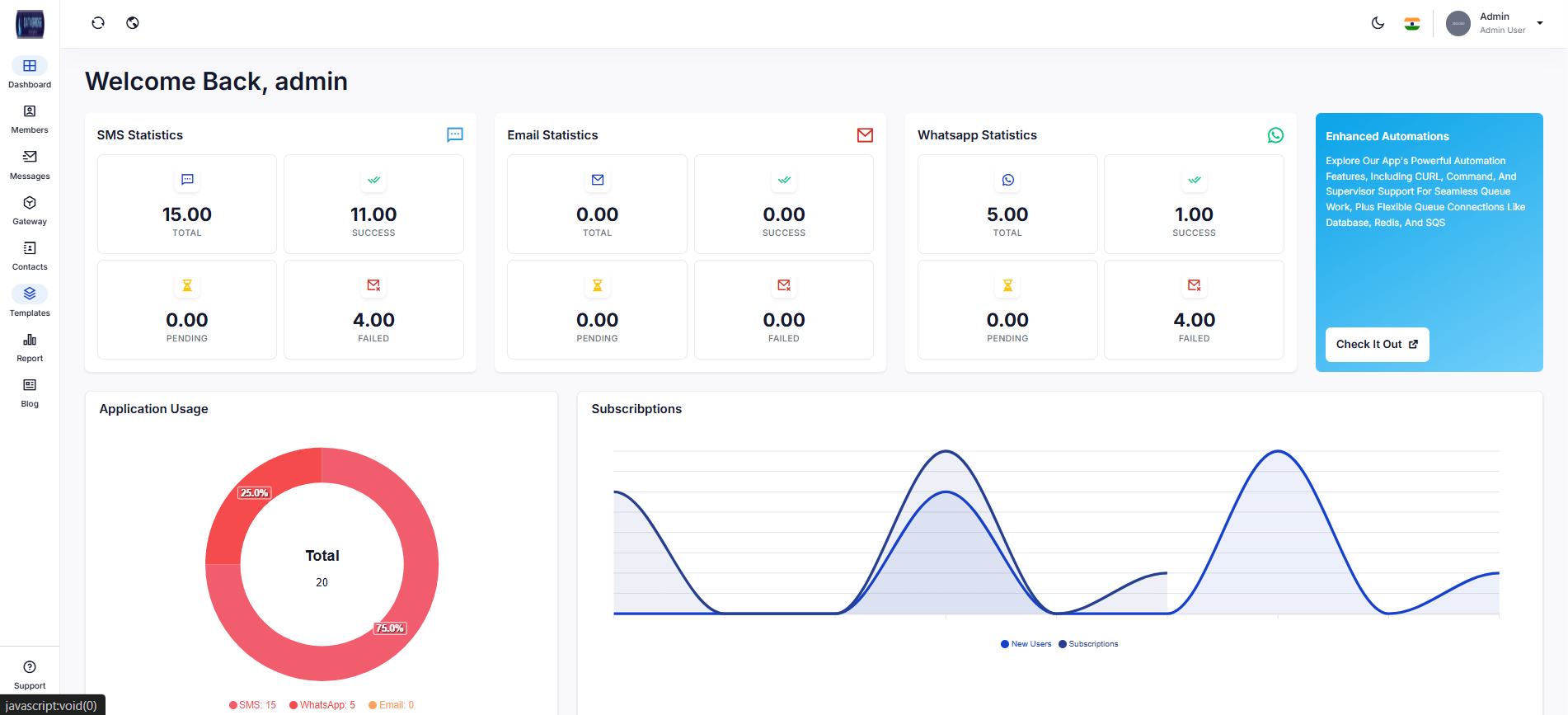
The dashboard also includes graphical representations such as charts and visual analytics to present data in an easy-to-understand format.These visuals help users monitor trends across different communication channels over time.
It enables efficient tracking of system performance and message activity.This ultimately supports users in making informed, data-driven decisions.
Features:
1.Welcome header with user identification
2.SMS, Email, and WhatsApp statistics cards
3.Metrics breakdown (Total, Success, Pending, Failed)
4.Application usage donut chart
5.Subscription analytics graph
6.Real-time data visualization
7.Multi-channel performance tracking
8.Sidebar navigation for modules
9.Quick insights for decision making
10.Enhanced automation info panel
Functionality:
1.Displays real-time communication statistics across multiple channels
2.Provides detailed breakdown of message status (success, pending, failed)
3.Visualizes application usage through a donut chart
4.Tracks subscription trends using line/area graphs
5.Allows users to monitor system performance at a glance
6.Helps identify failures and pending tasks quickly
7.Supports data-driven decision making through analytics
8.Navigation panel allows quick access to other modules
UI Sections Breakdown
1. Header Section
-Displays welcome message (e.g., “Welcome Back, admin”)
-pIncludes user profile, language selector, and theme controls
2. Statistics Cards
-SMS Statistics
->Total messages
->Successful messages
->Pending messages
->Failed messages
-Email Statistics
->Total emails
->Successful emails
->Pending emails
->Failed emails
-WhatsApp Statistics
->Total messages
->Successful messages
->Pending messages
->Failed messages
3. Application Usage (Donut Chart)
-Shows distribution of usage across channels (SMS, WhatsApp, Email)
-Provides percentage-based visualization
-Displays total usage count
4. Subscriptions Graph
-Displays trends of:
->New users
->Subscriptions
-Helps analyze growth and engagement over time
5. Enhanced Automation Panel
-Highlights automation capabilities of the application
-Provides quick access to advanced features
-Promotes integrations like queues, database, Redis, etc.
Purpose of the Screen:
-Provide a centralized overview of system activity
-Help users track communication performance
-Enable quick decision-making using analytics
-Improve monitoring and operational efficiency
It enables efficient tracking of system performance and message activity.This ultimately supports users in making informed, data-driven decisions.
Features:
1.Welcome header with user identification
2.SMS, Email, and WhatsApp statistics cards
3.Metrics breakdown (Total, Success, Pending, Failed)
4.Application usage donut chart
5.Subscription analytics graph
6.Real-time data visualization
7.Multi-channel performance tracking
8.Sidebar navigation for modules
9.Quick insights for decision making
10.Enhanced automation info panel
Functionality:
1.Displays real-time communication statistics across multiple channels
2.Provides detailed breakdown of message status (success, pending, failed)
3.Visualizes application usage through a donut chart
4.Tracks subscription trends using line/area graphs
5.Allows users to monitor system performance at a glance
6.Helps identify failures and pending tasks quickly
7.Supports data-driven decision making through analytics
8.Navigation panel allows quick access to other modules
UI Sections Breakdown
1. Header Section
-Displays welcome message (e.g., “Welcome Back, admin”)
-pIncludes user profile, language selector, and theme controls
2. Statistics Cards
-SMS Statistics
->Total messages
->Successful messages
->Pending messages
->Failed messages
-Email Statistics
->Total emails
->Successful emails
->Pending emails
->Failed emails
-WhatsApp Statistics
->Total messages
->Successful messages
->Pending messages
->Failed messages
3. Application Usage (Donut Chart)
-Shows distribution of usage across channels (SMS, WhatsApp, Email)
-Provides percentage-based visualization
-Displays total usage count
4. Subscriptions Graph
-Displays trends of:
->New users
->Subscriptions
-Helps analyze growth and engagement over time
5. Enhanced Automation Panel
-Highlights automation capabilities of the application
-Provides quick access to advanced features
-Promotes integrations like queues, database, Redis, etc.
Purpose of the Screen:
-Provide a centralized overview of system activity
-Help users track communication performance
-Enable quick decision-making using analytics
-Improve monitoring and operational efficiency
Dashboard
Member Management
The Member Management screen serves as the central hub for managing all user-related operations within the system. It allows administrators to organize, monitor, and control different categories of users such as active, banned, and trashed members. This section ensures efficient user administration and smooth system management.
Member List:
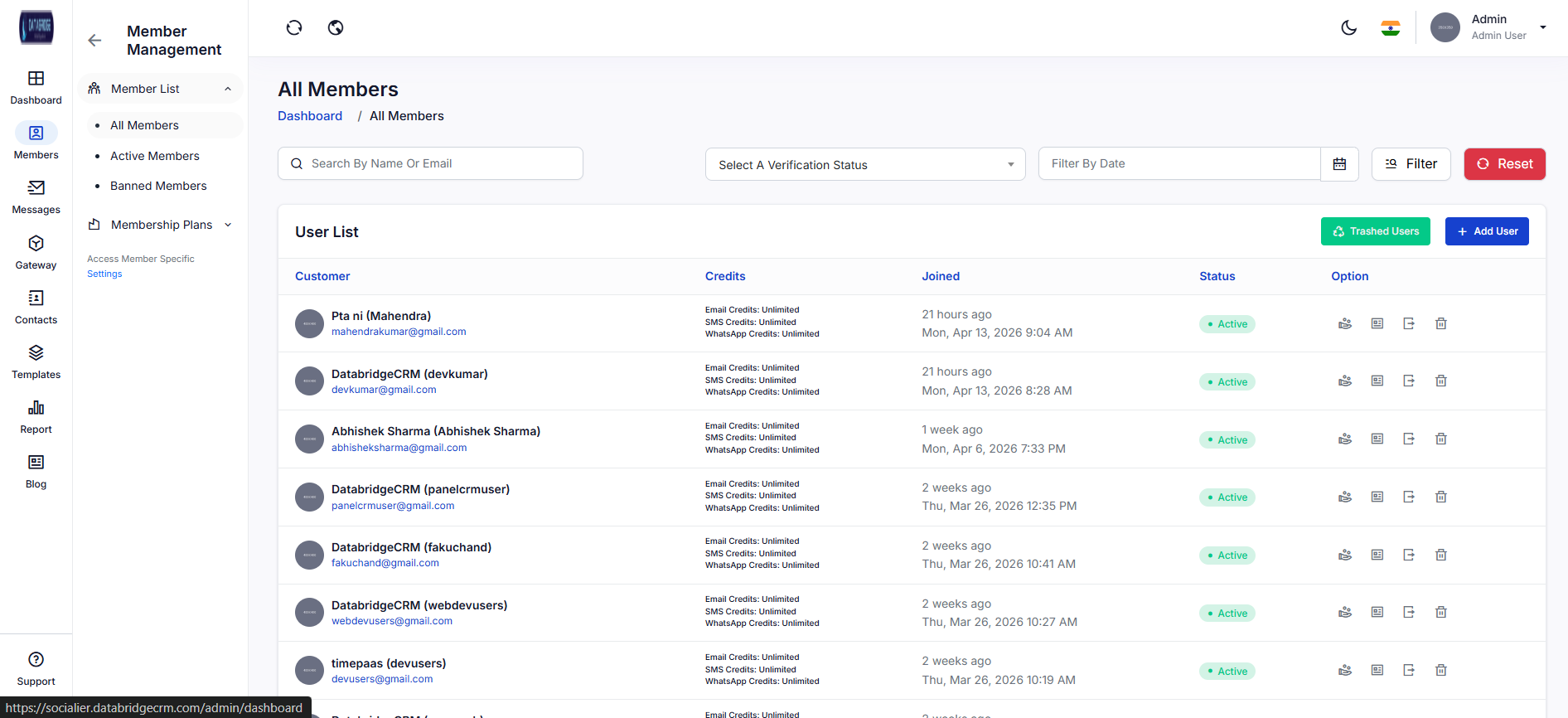
The Member List screen displays a detailed list of all users along with their key information such as name, email, credits, status, and joining date. It provides search, filter, and action options to easily manage users, making it simple to view, update, or remove user records.
The Member List screen displays a detailed list of all users along with their key information such as name, email, credits, status, and joining date. It provides search, filter, and action options to easily manage users, making it simple to view, update, or remove user records.
1
Member
2
Member List
All Members:
The All Members screen provides a centralized interface to view and manage all registered users within the system. It displays detailed user information including name, email, credits, joining date, and account status.
Administrators can easily search, filter, and perform actions on users from a single dashboard. This screen ensures efficient monitoring and control over the entire user base.
Features:
-Search users by name or email
-Filter by verification status and date
-Display user credits (Email, SMS, WhatsApp)
-Real-time user status (Active/Inactive)
-Action buttons (View, Edit, Delete, etc.)
-Quick access to “Add User” and “Trashed Users”
Functionality:
-Fetches and displays all registered users
-Allows filtering based on selected criteria
-Provides CRUD operations (Create, Read, Update, Delete)
-Enables navigation to add new users or view deleted users
-Updates user status dynamically
The All Members screen provides a centralized interface to view and manage all registered users within the system. It displays detailed user information including name, email, credits, joining date, and account status.
Administrators can easily search, filter, and perform actions on users from a single dashboard. This screen ensures efficient monitoring and control over the entire user base.
Features:
-Search users by name or email
-Filter by verification status and date
-Display user credits (Email, SMS, WhatsApp)
-Real-time user status (Active/Inactive)
-Action buttons (View, Edit, Delete, etc.)
-Quick access to “Add User” and “Trashed Users”
Functionality:
-Fetches and displays all registered users
-Allows filtering based on selected criteria
-Provides CRUD operations (Create, Read, Update, Delete)
-Enables navigation to add new users or view deleted users
-Updates user status dynamically
1
Member
2
Member List
3
All Members
Add New User:
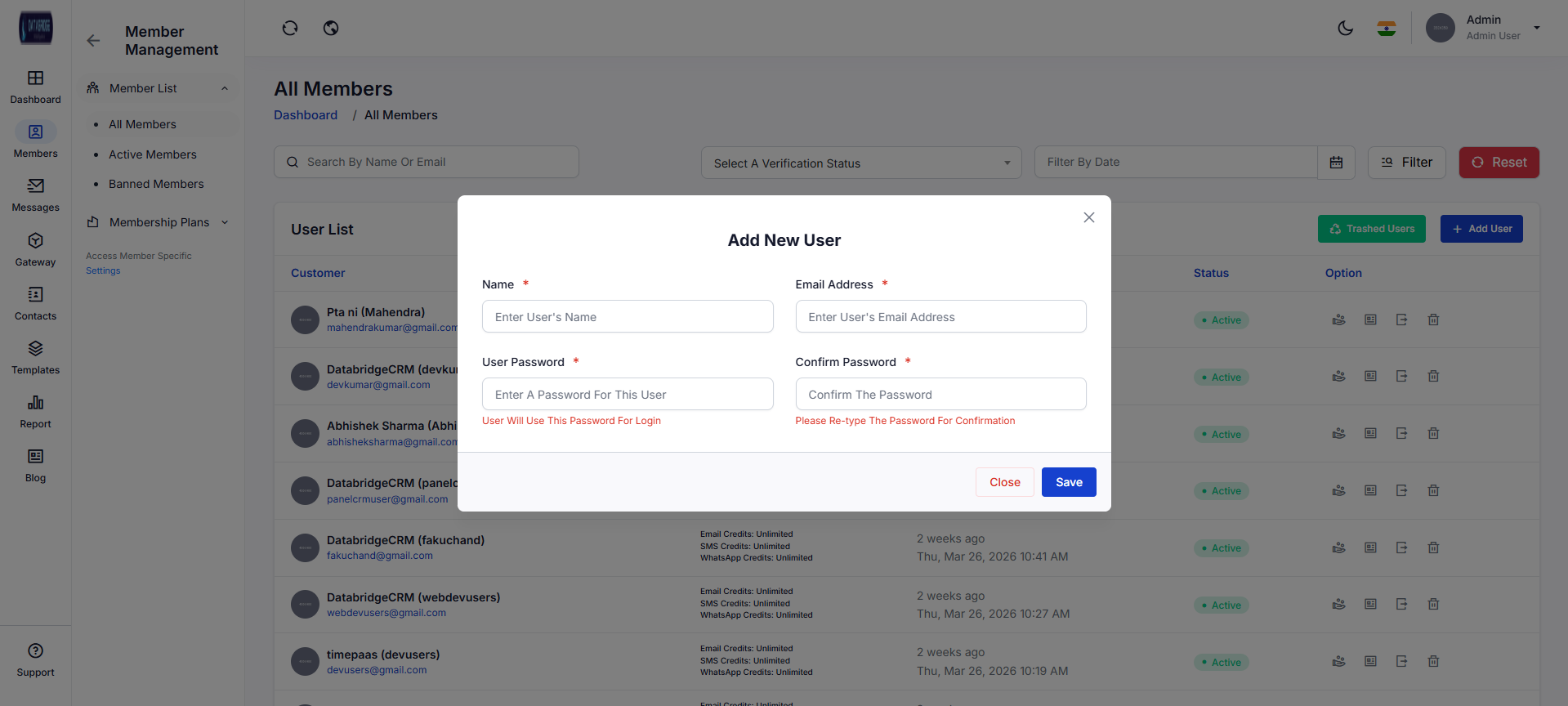
The Add New User modal allows administrators to create new user accounts within the system. It captures essential details such as name, email, and password required for user authentication.
This interface ensures secure and structured onboarding of new users with proper validation.
Features:
-Input fields for Name, Email, Password, Confirm Password
-Required field validation
-Password confirmation check
-Simple and clean modal UI
-Quick Save and Close options
Functionality:
-Validates user input before submission
-Ensures password and confirm password match
-Creates new user record in the database
-Assigns login credentials to the user
-Closes modal on successful submission
The Add New User modal allows administrators to create new user accounts within the system. It captures essential details such as name, email, and password required for user authentication.
This interface ensures secure and structured onboarding of new users with proper validation.
Features:
-Input fields for Name, Email, Password, Confirm Password
-Required field validation
-Password confirmation check
-Simple and clean modal UI
-Quick Save and Close options
Functionality:
-Validates user input before submission
-Ensures password and confirm password match
-Creates new user record in the database
-Assigns login credentials to the user
-Closes modal on successful submission
1
Member
2
Member List
3
All Members
4
Add User
Trashed Users:
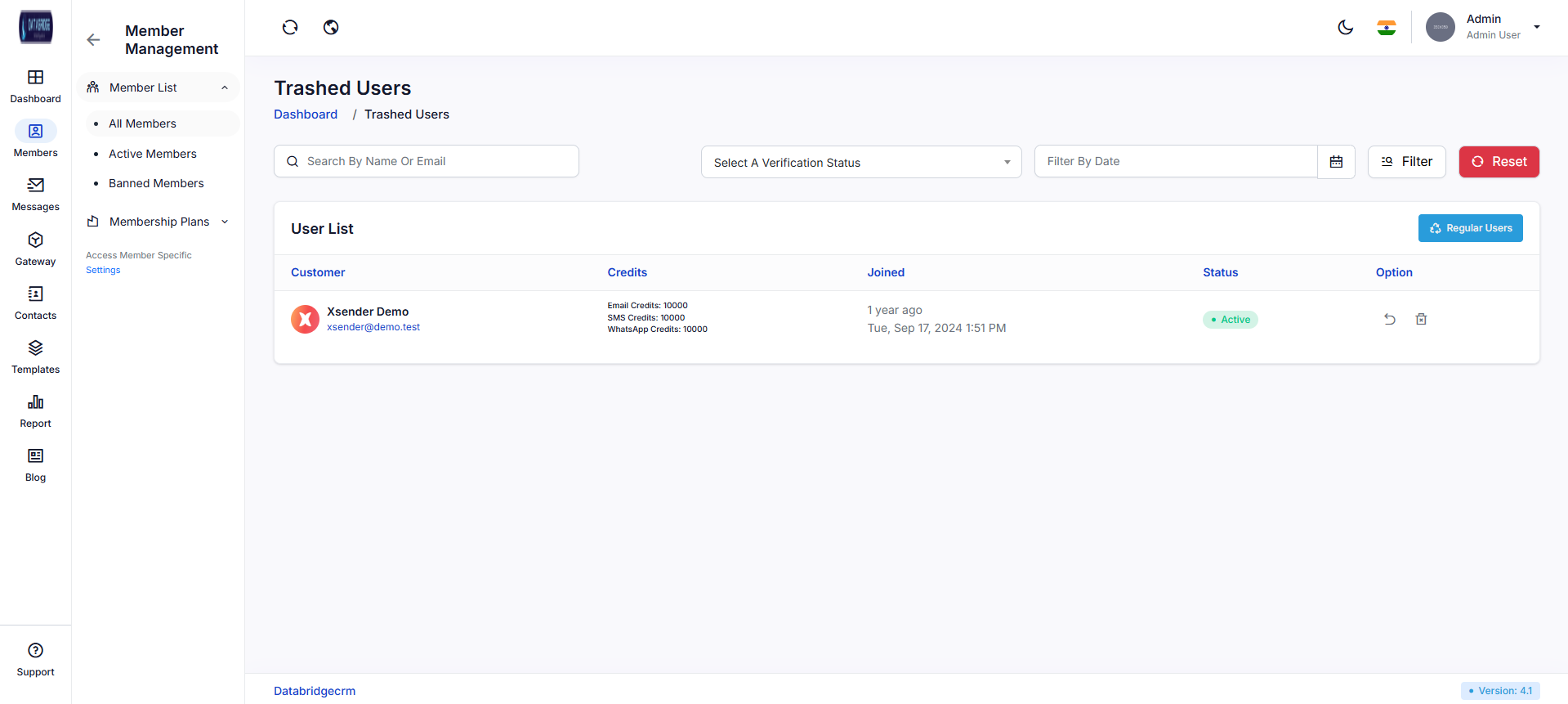
The Trashed Users screen displays all users who have been removed (soft deleted) from the system. It acts as a temporary storage area where deleted users can be reviewed and restored if needed.
This helps prevent accidental data loss and provides recovery options.
Features:
-List of deleted users with details
-Display of user credits and join date
-Restore user option
-Permanent delete option
-Navigation back to regular users
Functionality:
-Retrieves all soft-deleted users
-Allows restoring users back to active list
-Enables permanent deletion from the system
-Maintains audit trail of deleted records
The Trashed Users screen displays all users who have been removed (soft deleted) from the system. It acts as a temporary storage area where deleted users can be reviewed and restored if needed.
This helps prevent accidental data loss and provides recovery options.
Features:
-List of deleted users with details
-Display of user credits and join date
-Restore user option
-Permanent delete option
-Navigation back to regular users
Functionality:
-Retrieves all soft-deleted users
-Allows restoring users back to active list
-Enables permanent deletion from the system
-Maintains audit trail of deleted records
1
Member
2
Member List
3
All Members
4
Trashed Users
Active Members:
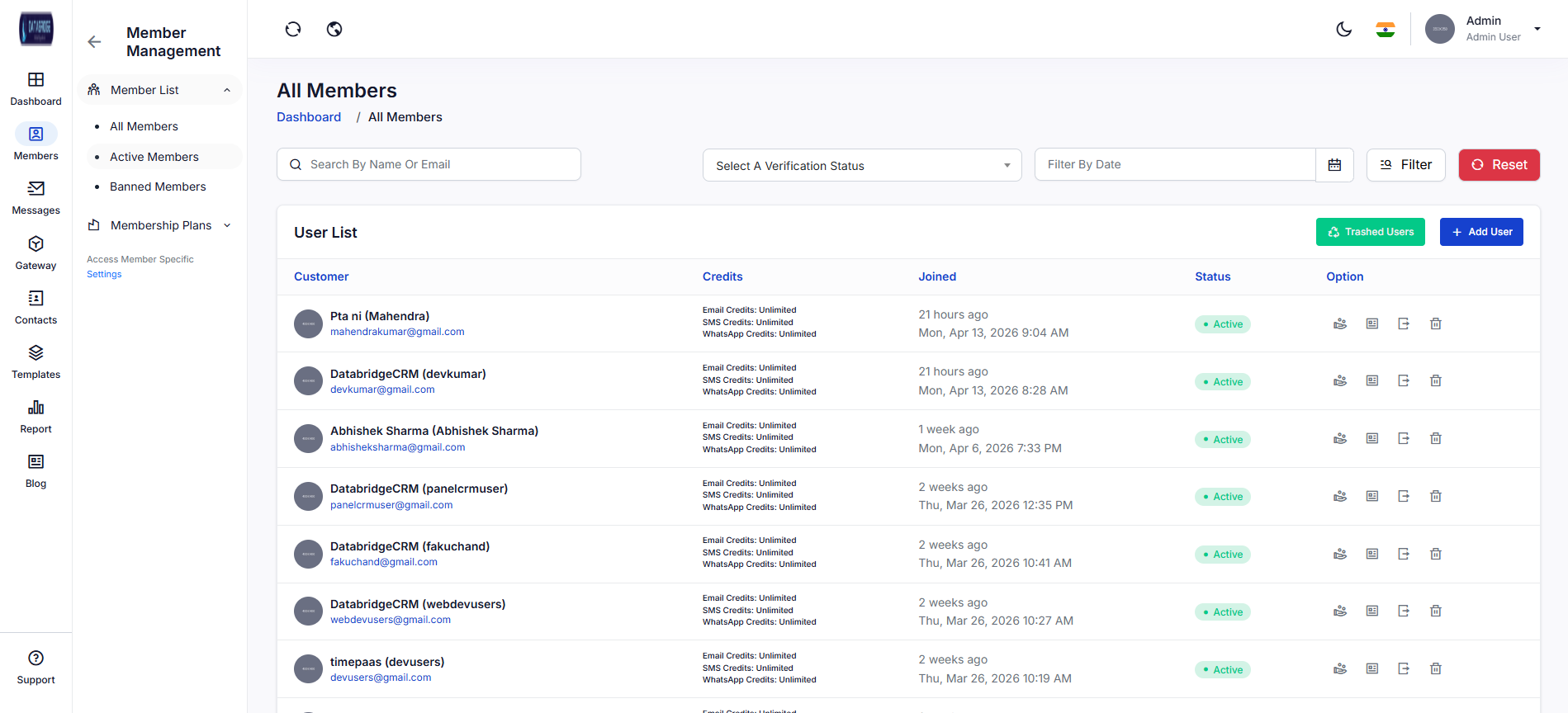
The Active Members screen specifically lists users who are currently active in the system. It helps administrators quickly identify engaged users without viewing inactive or banned accounts.
This improves monitoring and user segmentation.
Features:
-Filtered list of only active users
-Search and filter options
-Display of user credits and activity
-Action buttons for management
Functionality:
-Filters users based on active status
-Displays real-time active user data
-Allows admin actions like edit or deactivate
-Helps in monitoring user engagement
The Active Members screen specifically lists users who are currently active in the system. It helps administrators quickly identify engaged users without viewing inactive or banned accounts.
This improves monitoring and user segmentation.
Features:
-Filtered list of only active users
-Search and filter options
-Display of user credits and activity
-Action buttons for management
Functionality:
-Filters users based on active status
-Displays real-time active user data
-Allows admin actions like edit or deactivate
-Helps in monitoring user engagement
1
Member
2
Member List
3
Active Members
Banned Members:
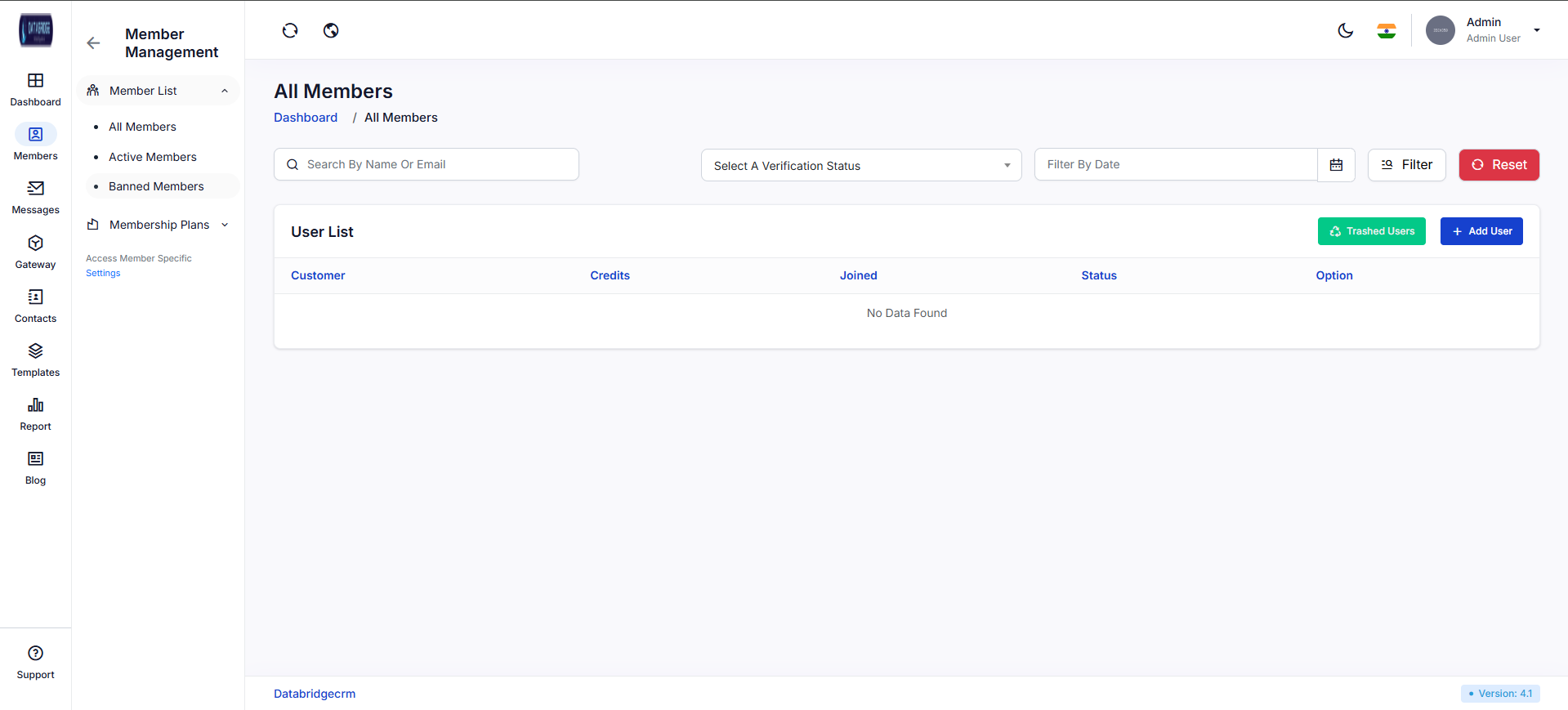
The Banned Members screen displays users who have been restricted or blocked from accessing the system. It helps administrators manage security and enforce platform policies.
Admins can review and take further actions on banned accounts.
Features:
-List of banned users
-Search and filter options
-View user details
-Option to unban users
Functionality:
-Fetches all banned users
-Allows admin to reinstate users if required
-Maintains system security and compliance
-Tracks restricted accounts
The Banned Members screen displays users who have been restricted or blocked from accessing the system. It helps administrators manage security and enforce platform policies.
Admins can review and take further actions on banned accounts.
Features:
-List of banned users
-Search and filter options
-View user details
-Option to unban users
Functionality:
-Fetches all banned users
-Allows admin to reinstate users if required
-Maintains system security and compliance
-Tracks restricted accounts
1
Member
2
Member List
3
Banned Member
Member Ship Plans:
Create Plans:
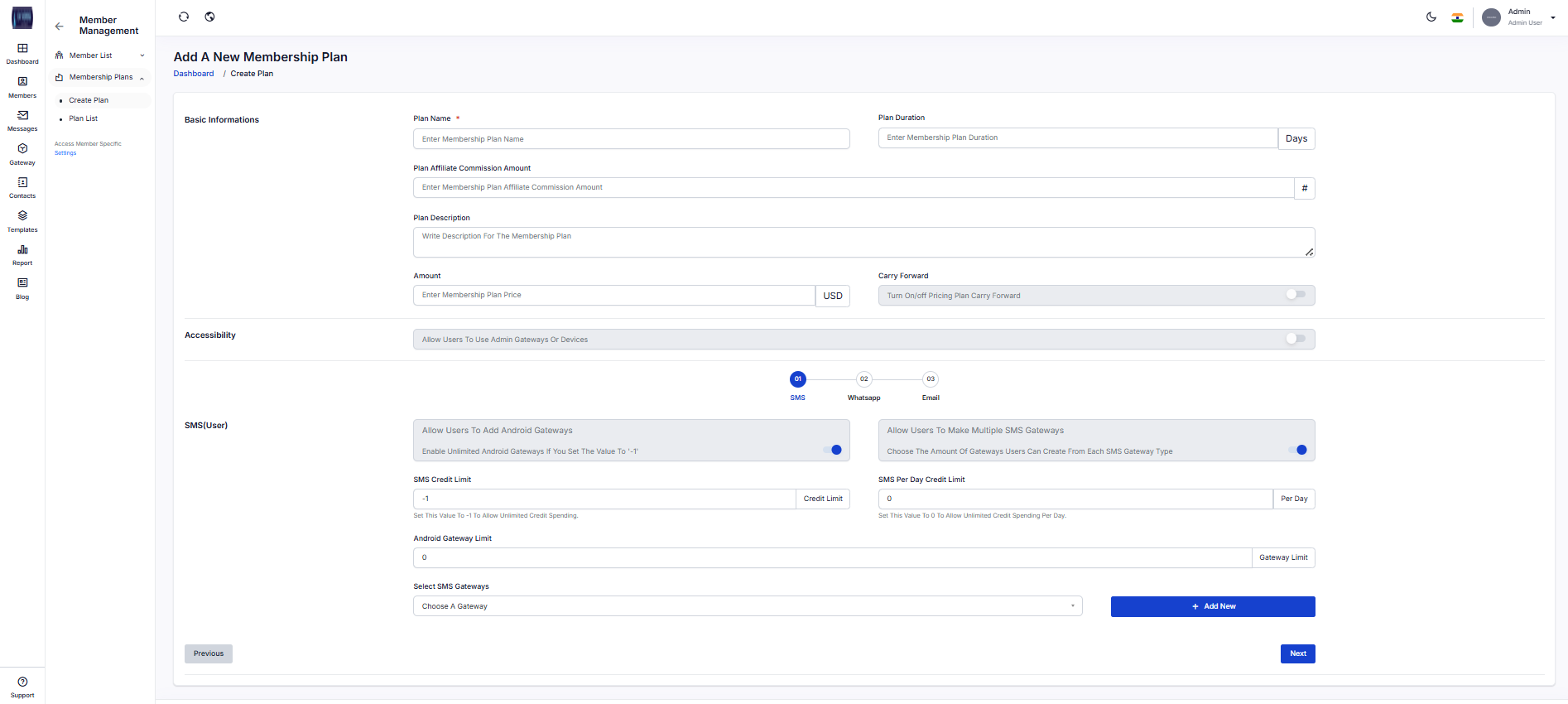
The Add Membership Plan screen allows administrators to create and configure new subscription plans for users. It includes options to define pricing, duration, commission, and feature access.
Admins can customize communication limits for SMS, Email, and WhatsApp along with gateway permissions. This ensures flexible and scalable plan creation based on business needs.
Features:
-Create plans with name, price, and duration
-Set affiliate commission
-Enable/disable carry-forward option
-Configure SMS, Email, WhatsApp limits
-Allow or restrict gateway access
-Set credit limits (limited/unlimited)
-Multi-step plan configuration
Functionality:
-Admin enters plan details and configurations
-Sets communication limits and permissions
-Uses toggles to enable/disable features
-Assigns gateways or allows open access
-Saves plan after validation
-Plan becomes available in the system
Create Plans:
The Add Membership Plan screen allows administrators to create and configure new subscription plans for users. It includes options to define pricing, duration, commission, and feature access.
Admins can customize communication limits for SMS, Email, and WhatsApp along with gateway permissions. This ensures flexible and scalable plan creation based on business needs.
Features:
-Create plans with name, price, and duration
-Set affiliate commission
-Enable/disable carry-forward option
-Configure SMS, Email, WhatsApp limits
-Allow or restrict gateway access
-Set credit limits (limited/unlimited)
-Multi-step plan configuration
Functionality:
-Admin enters plan details and configurations
-Sets communication limits and permissions
-Uses toggles to enable/disable features
-Assigns gateways or allows open access
-Saves plan after validation
-Plan becomes available in the system
1
Members
2
Membership Plans
3
Create Plan
Plan List:
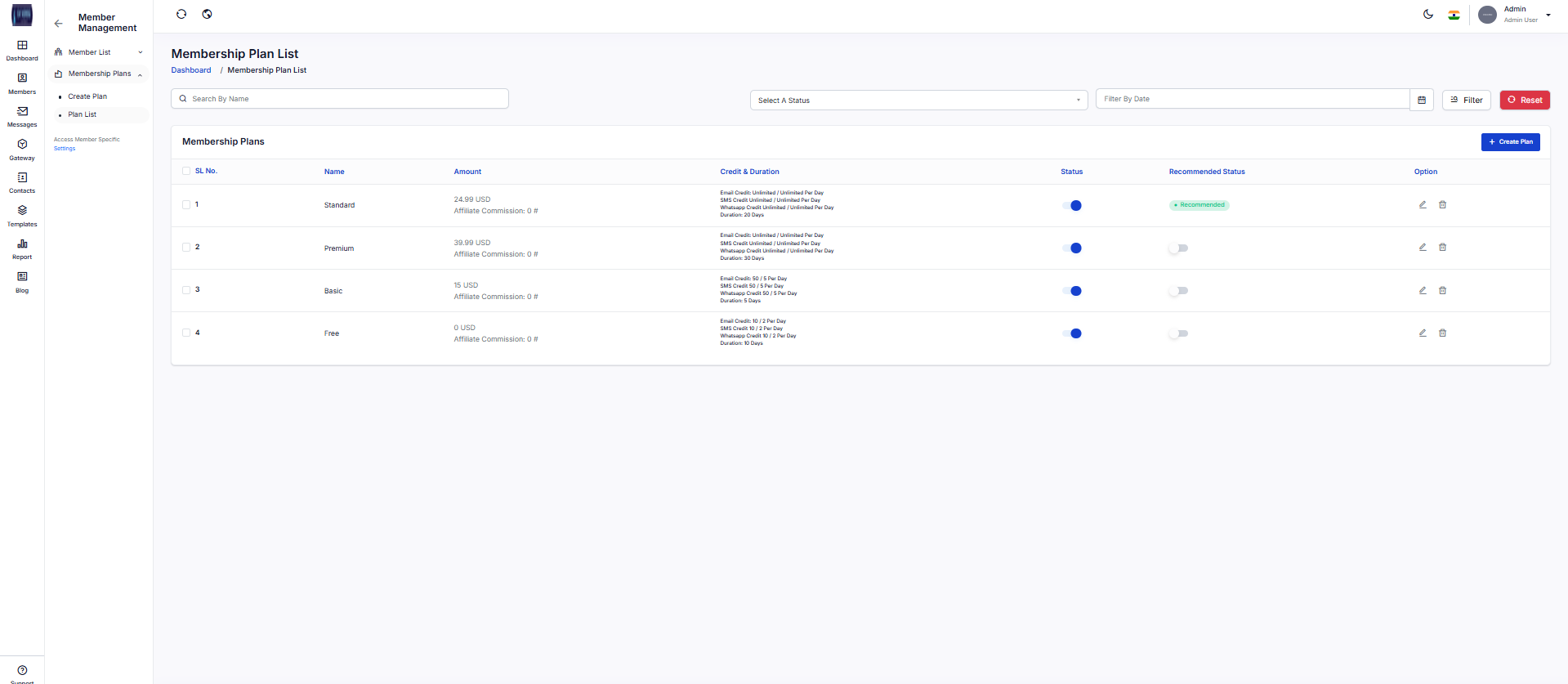
The Membership Plan List screen displays all subscription plans with details like pricing, credits, and duration. It helps administrators manage plans efficiently through a structured interface.
Admins can update, activate, or highlight plans to control user subscriptions.
Features:
-View all plans in table format
-Display pricing, credits, and duration
-Enable/disable plans
-Mark plans as recommended
-Search and filter options
-Edit and delete actions
Functionality:
-System loads and displays all plans
-Admin can search and filter plans
-Toggle to activate/deactivate plans
-Edit option updates plan details
-Delete removes plans from system
-Recommended tag highlights plans
The Membership Plan List screen displays all subscription plans with details like pricing, credits, and duration. It helps administrators manage plans efficiently through a structured interface.
Admins can update, activate, or highlight plans to control user subscriptions.
Features:
-View all plans in table format
-Display pricing, credits, and duration
-Enable/disable plans
-Mark plans as recommended
-Search and filter options
-Edit and delete actions
Functionality:
-System loads and displays all plans
-Admin can search and filter plans
-Toggle to activate/deactivate plans
-Edit option updates plan details
-Delete removes plans from system
-Recommended tag highlights plans
1
Members
2
Membership Plans
3
Plan List
Messages
The Messages module allows users to send, receive, and manage communications across different channels like Email, SMS, and WhatsApp. It acts as a centralized hub for handling both individual and bulk messaging. This ensures smooth and organized communication within the system.
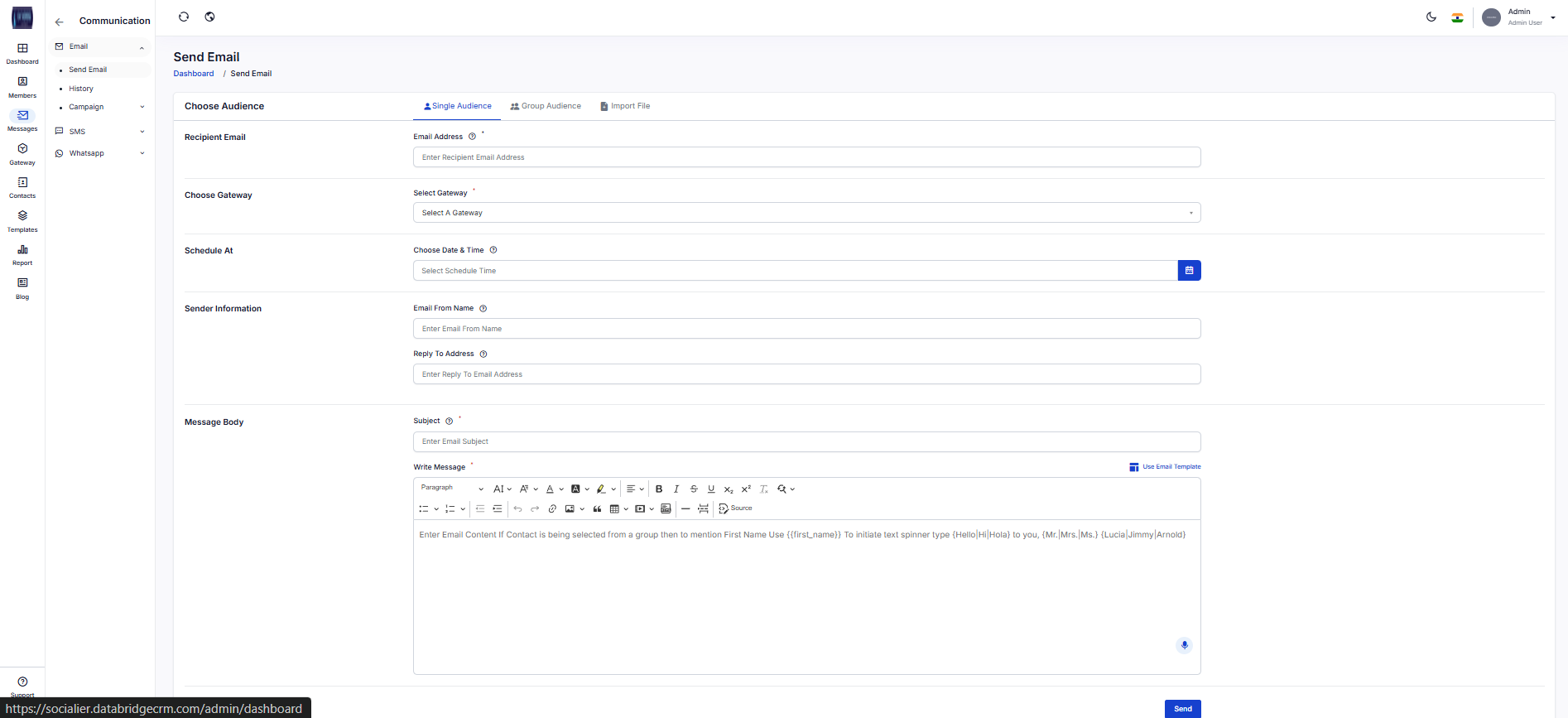
Send Email – Single Audience:
This screen allows users to send emails to a single recipient directly. It provides fields to enter recipient details, select gateway, schedule delivery, and compose the message.
It is ideal for one-to-one communication with full control over sender details and content.
Features:
-Send email to a single recipient
-Select email gateway
-Schedule email delivery
-Add sender name and reply email
-Rich text editor for message
-Use predefined email templates
Functionality:
-User enters recipient email and selects gateway
-Optional scheduling can delay sending
-Message is composed using editor or template
-On clicking send, system processes and delivers email
-Validations ensure required fields are completed
This screen allows users to send emails to a single recipient directly. It provides fields to enter recipient details, select gateway, schedule delivery, and compose the message.
It is ideal for one-to-one communication with full control over sender details and content.
Features:
-Send email to a single recipient
-Select email gateway
-Schedule email delivery
-Add sender name and reply email
-Rich text editor for message
-Use predefined email templates
Functionality:
-User enters recipient email and selects gateway
-Optional scheduling can delay sending
-Message is composed using editor or template
-On clicking send, system processes and delivers email
-Validations ensure required fields are completed
1
Messages
2
Email
3
Send Email
4
Single Audience
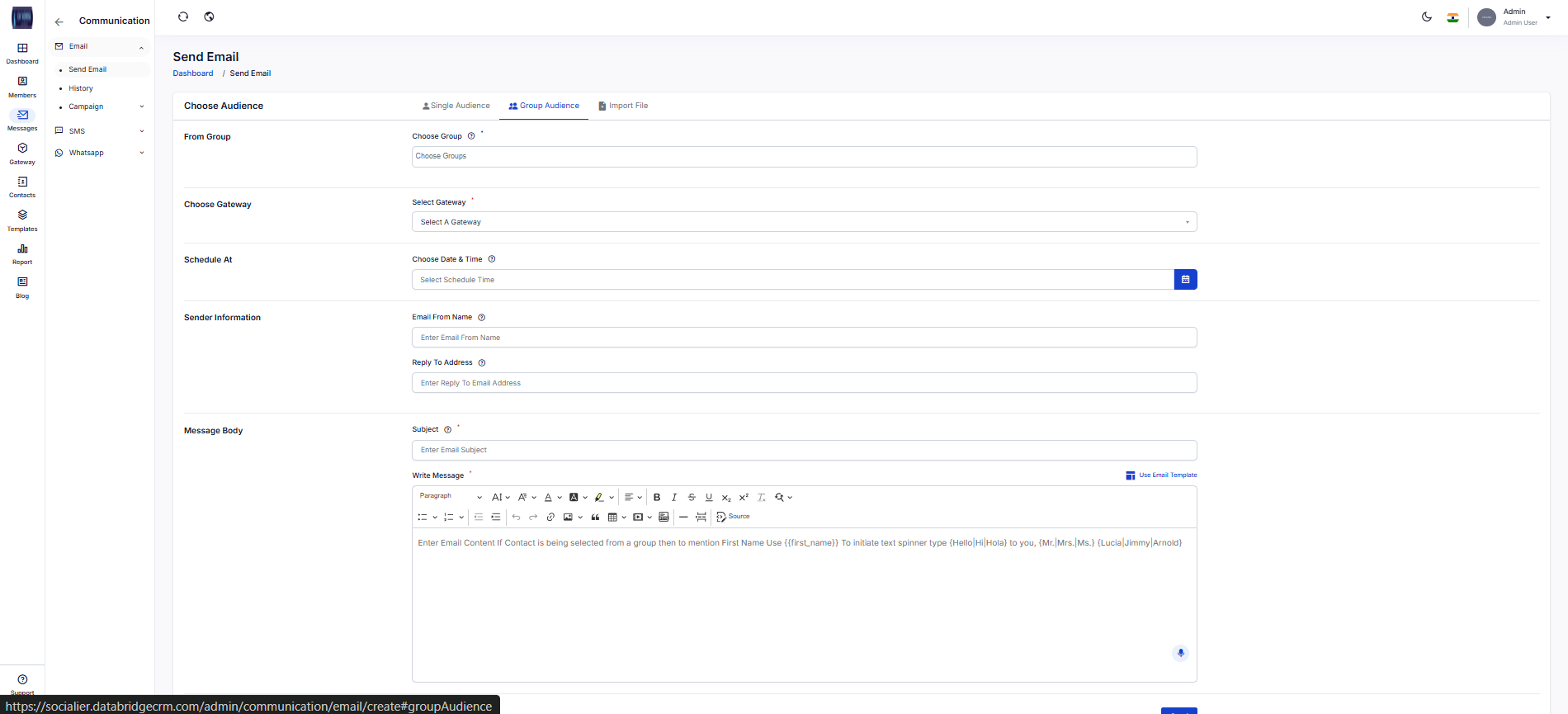
Send Email – Group Audience:
This screen enables sending emails to multiple users by selecting a predefined contact group. It simplifies bulk communication without manual entry of individual emails.
It is useful for announcements, updates, or bulk messaging campaigns.
Features:
-Select recipient group
-Bulk email sending
-Gateway selection
-Schedule email option
-Rich text editor support
-Template usage
Functionality:
-User selects a group containing multiple contacts
-System fetches all group emails automatically
-Email is composed and configured
-On send, system dispatches email to all recipients
-Logs are generated for tracking delivery
This screen enables sending emails to multiple users by selecting a predefined contact group. It simplifies bulk communication without manual entry of individual emails.
It is useful for announcements, updates, or bulk messaging campaigns.
Features:
-Select recipient group
-Bulk email sending
-Gateway selection
-Schedule email option
-Rich text editor support
-Template usage
Functionality:
-User selects a group containing multiple contacts
-System fetches all group emails automatically
-Email is composed and configured
-On send, system dispatches email to all recipients
-Logs are generated for tracking delivery
1
Messages
2
Email
3
Send Email
4
Group Audience
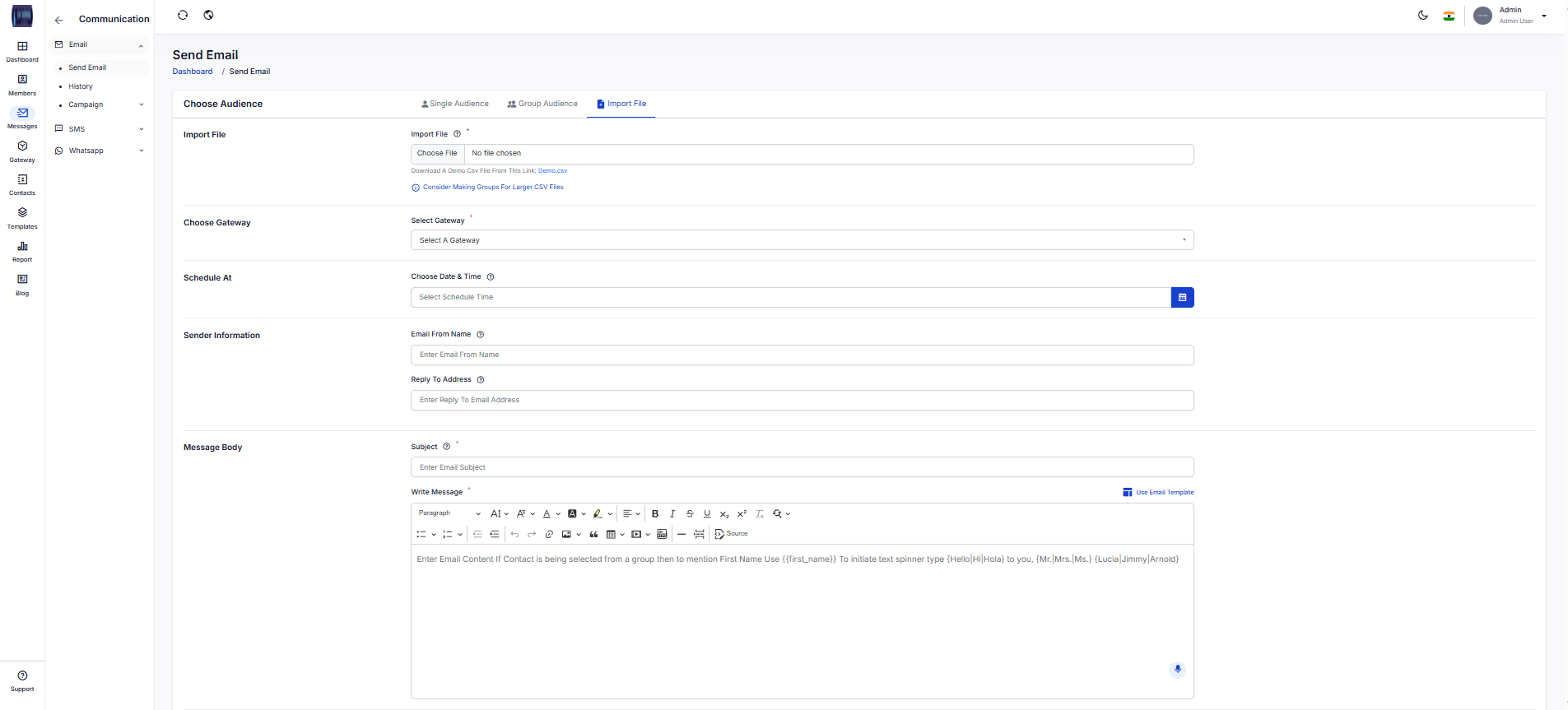
Send Email – Import File:
This screen allows users to upload a CSV file containing multiple email addresses for bulk email sending. It is designed for large-scale communication where contacts are externally managed.
It ensures efficient email distribution without manual input.
Features:
-Upload CSV file with contacts
-Bulk email sending
-Download sample CSV format
-Gateway selection
-Schedule email option
-Template support
Functionality:
-User uploads CSV file with email data
-System reads and validates file format
-Email is composed and configured
-Emails are sent to all imported contacts
-System logs each email activity
This screen allows users to upload a CSV file containing multiple email addresses for bulk email sending. It is designed for large-scale communication where contacts are externally managed.
It ensures efficient email distribution without manual input.
Features:
-Upload CSV file with contacts
-Bulk email sending
-Download sample CSV format
-Gateway selection
-Schedule email option
-Template support
Functionality:
-User uploads CSV file with email data
-System reads and validates file format
-Email is composed and configured
-Emails are sent to all imported contacts
-System logs each email activity
1
Messages
2
Email
3
Send Email
4
Send Email
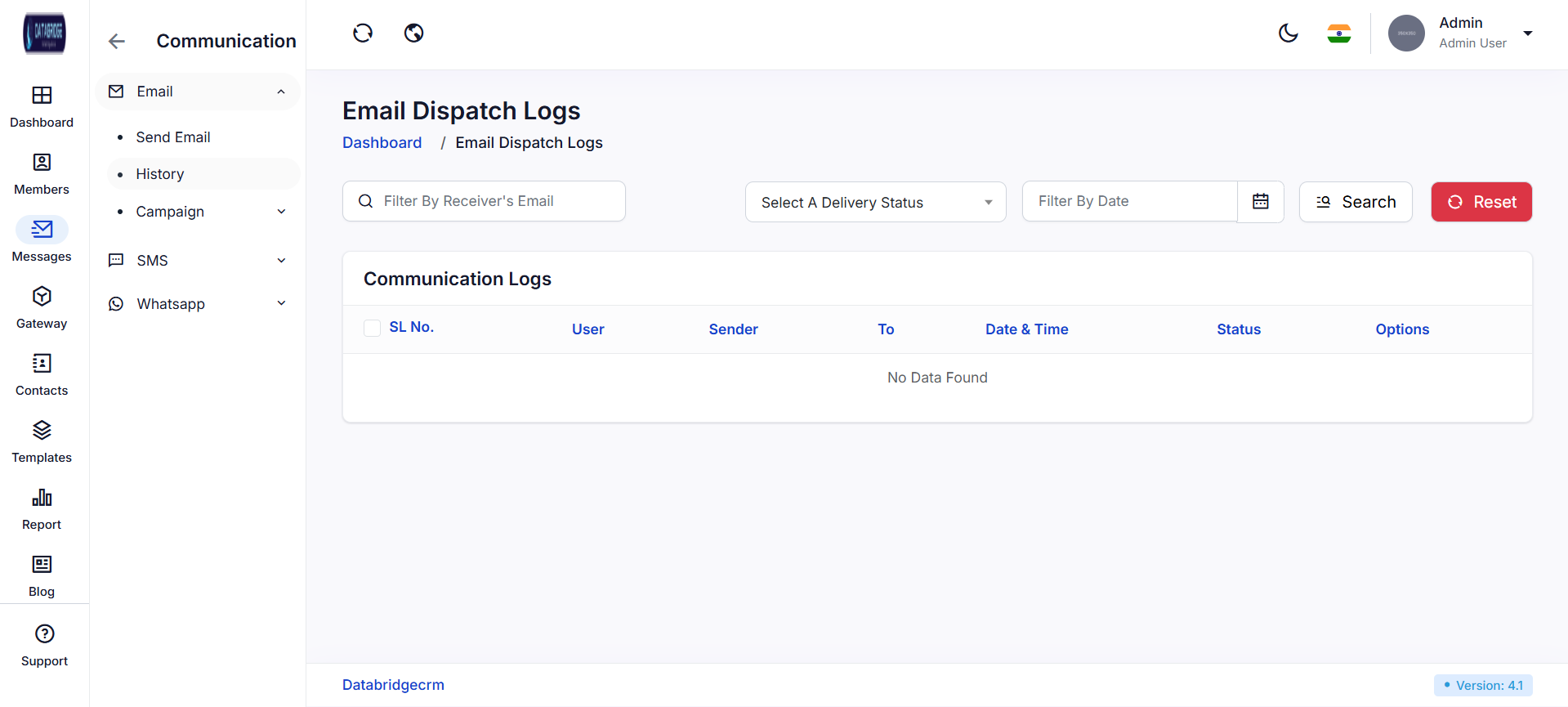
Email Dispatch Logs:
This screen displays all email communication logs including sender, receiver, date, and delivery status. It helps users track email performance and troubleshoot issues.
It provides filtering and search capabilities for easy log management.
Features:
-View all email logs
-Filter by email, date, and status
-Search functionality
-Delivery status tracking
-Organized tabular view
Functionality:
-System records every email transaction
-User can search logs using filters
-Displays status like sent, failed, pending
-Helps in monitoring communication history
-Data updates dynamically
This screen displays all email communication logs including sender, receiver, date, and delivery status. It helps users track email performance and troubleshoot issues.
It provides filtering and search capabilities for easy log management.
Features:
-View all email logs
-Filter by email, date, and status
-Search functionality
-Delivery status tracking
-Organized tabular view
Functionality:
-System records every email transaction
-User can search logs using filters
-Displays status like sent, failed, pending
-Helps in monitoring communication history
-Data updates dynamically
1
Messages
2
Email
3
History
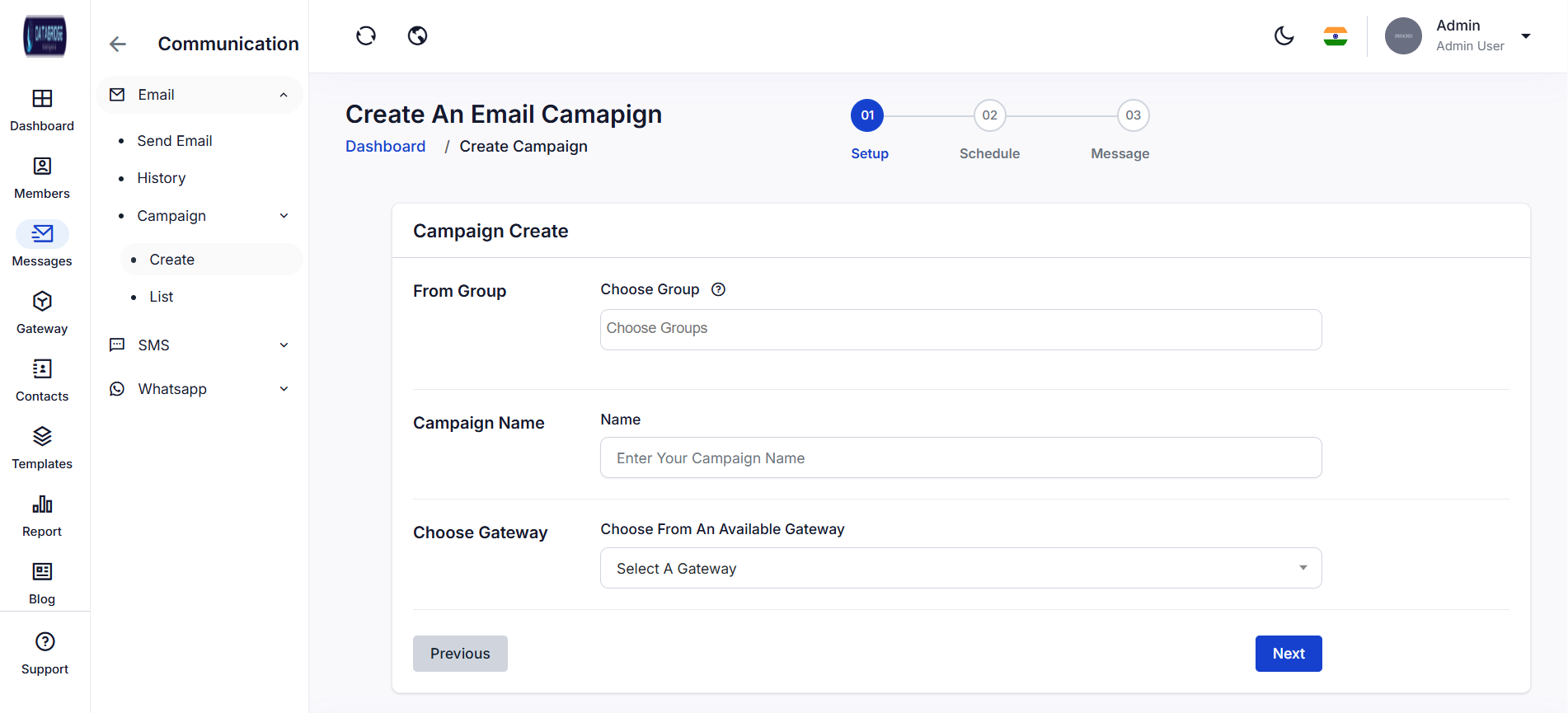
Create Email:
This screen allows users to create structured email campaigns for targeted communication. It follows a step-based process including setup, scheduling, and message composition.
It is ideal for marketing, promotions, and automated email sequences.
Features:
-Multi-step campaign creation
-Select audience group
-Assign campaign name
-Choose email gateway
-Structured workflow (Setup → Schedule → Message)
Functionality:
-User defines campaign details and audience
-Selects gateway and proceeds to next steps
-Configures scheduling and message content
-System saves campaign for execution
-Campaign runs based on defined schedule
This screen allows users to create structured email campaigns for targeted communication. It follows a step-based process including setup, scheduling, and message composition.
It is ideal for marketing, promotions, and automated email sequences.
Features:
-Multi-step campaign creation
-Select audience group
-Assign campaign name
-Choose email gateway
-Structured workflow (Setup → Schedule → Message)
Functionality:
-User defines campaign details and audience
-Selects gateway and proceeds to next steps
-Configures scheduling and message content
-System saves campaign for execution
-Campaign runs based on defined schedule
1
Messages
2
Email
3
Campaign
4
Create Email
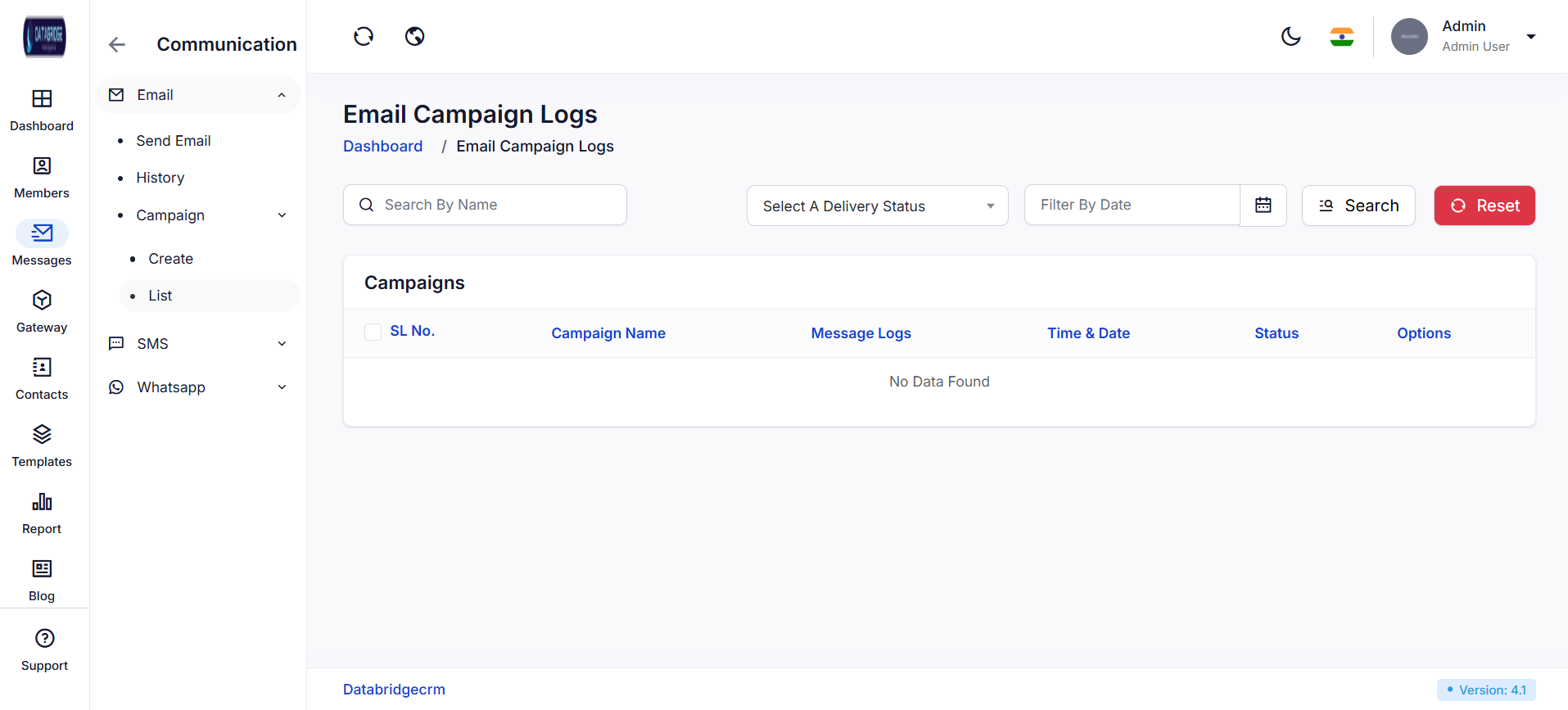
Email Campaign Logs (Campaign List):
This screen displays all created email campaigns along with their execution status and logs. It helps users track campaign performance and manage existing campaigns.
It acts as a centralized view for monitoring all campaign activities.
Features:
-View all campaigns in list format
-Display campaign name and logs
-Status tracking
-Search and filter campaigns
-Action options for management
Functionality:
-System lists all created campaigns
-User can search and filter campaigns
-Displays execution status and timing
-Logs help analyze campaign performance
-Enables management of campaign lifecycle
This screen displays all created email campaigns along with their execution status and logs. It helps users track campaign performance and manage existing campaigns.
It acts as a centralized view for monitoring all campaign activities.
Features:
-View all campaigns in list format
-Display campaign name and logs
-Status tracking
-Search and filter campaigns
-Action options for management
Functionality:
-System lists all created campaigns
-User can search and filter campaigns
-Displays execution status and timing
-Logs help analyze campaign performance
-Enables management of campaign lifecycle
1
Massage
2
Email
3
Campaign
4
List
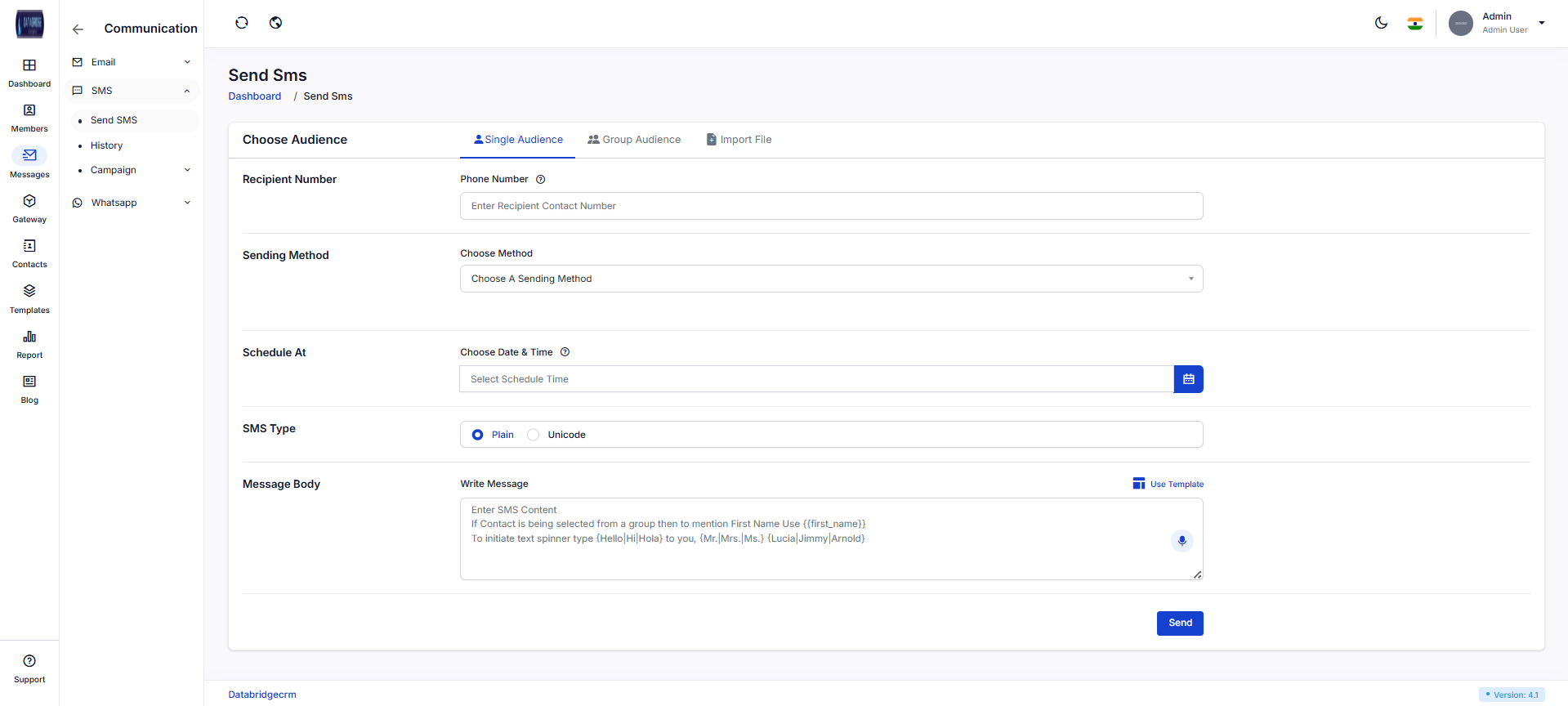
Send SMS - Single Audience:
This screen allows users to send SMS messages to a single recipient directly by entering the phone number. It provides options to choose sending methods, schedule delivery, and compose messages efficiently. The interface ensures quick and simple communication for one-to-one messaging.
Features:
-Single recipient SMS sending
-Select sending method (gateway/device)
-Schedule SMS delivery
-SMS type selection (Plain / Unicode)
-Template support for quick messaging
-Voice input for message typing
Functionality:
-User enters recipient phone number manually
-Selects a sending method from available gateways
-Chooses optional scheduling date and time
-Selects SMS type based on language/content
-Writes message or uses a template
-Clicks Send to dispatch SMS instantly or as scheduled
This screen allows users to send SMS messages to a single recipient directly by entering the phone number. It provides options to choose sending methods, schedule delivery, and compose messages efficiently. The interface ensures quick and simple communication for one-to-one messaging.
Features:
-Single recipient SMS sending
-Select sending method (gateway/device)
-Schedule SMS delivery
-SMS type selection (Plain / Unicode)
-Template support for quick messaging
-Voice input for message typing
Functionality:
-User enters recipient phone number manually
-Selects a sending method from available gateways
-Chooses optional scheduling date and time
-Selects SMS type based on language/content
-Writes message or uses a template
-Clicks Send to dispatch SMS instantly or as scheduled
1
Messages
2
SMS
3
Send SMS
4
Single Audience
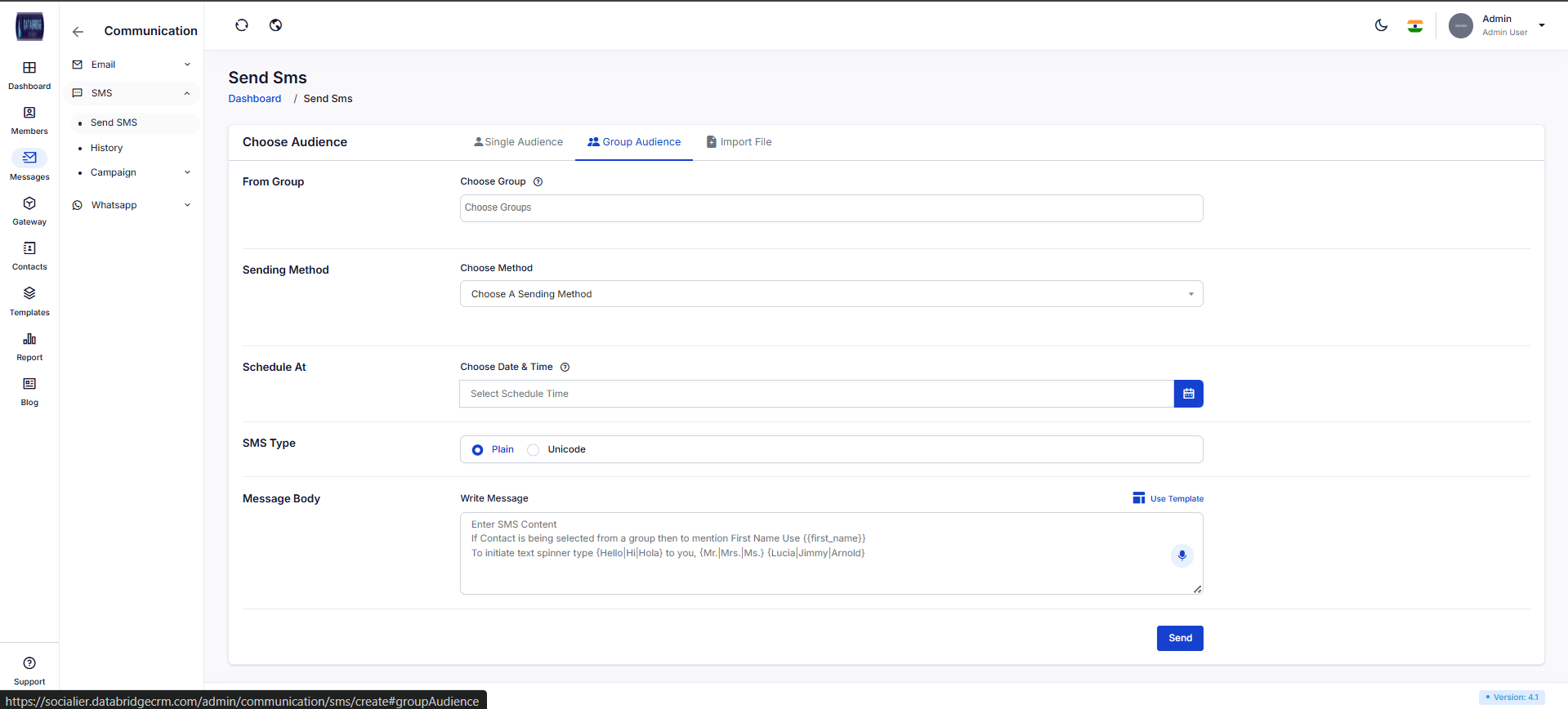
Send SMS – Group Audience:
This screen enables sending SMS messages to multiple users by selecting predefined contact groups. It simplifies bulk messaging and ensures efficient communication with multiple recipients at once.
Features:
-Group-based bulk SMS sending
-Multiple group selection
-Scheduling option for campaigns
-SMS type selection (Plain / Unicode)
-Template integration
-Bulk communication support
Functionality:
-User selects one or more groups
-System fetches all contacts within selected groups
-User selects sending method and schedule
-Message is written or selected via template
-SMS is sent to all group members simultaneously
This screen enables sending SMS messages to multiple users by selecting predefined contact groups. It simplifies bulk messaging and ensures efficient communication with multiple recipients at once.
Features:
-Group-based bulk SMS sending
-Multiple group selection
-Scheduling option for campaigns
-SMS type selection (Plain / Unicode)
-Template integration
-Bulk communication support
Functionality:
-User selects one or more groups
-System fetches all contacts within selected groups
-User selects sending method and schedule
-Message is written or selected via template
-SMS is sent to all group members simultaneously
1
Messages
2
SMS
3
Send SMS
4
Group Audience
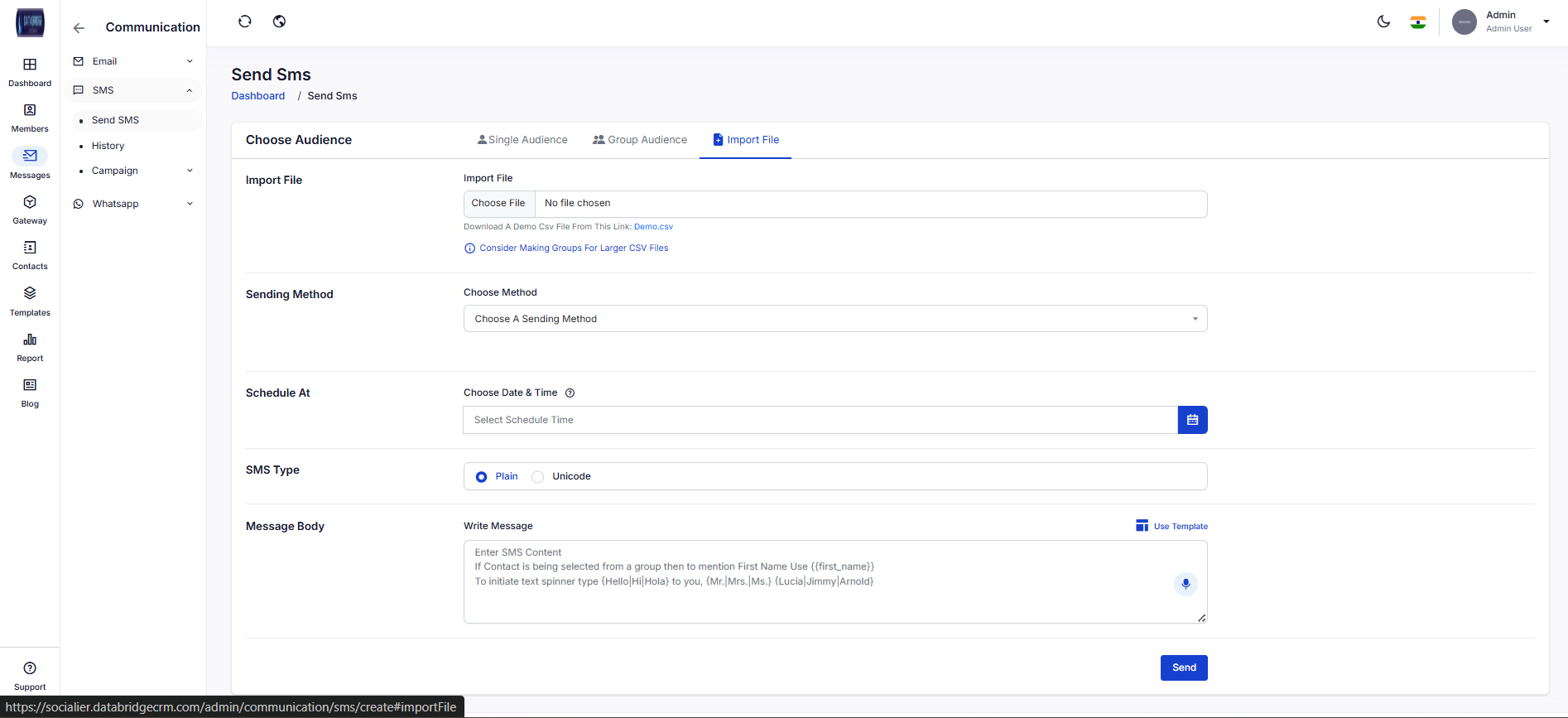
Send SMS – Import File / Bulk Upload:
This screen allows users to send SMS messages by uploading a CSV file containing recipient numbers. It is useful for large-scale messaging where contacts are maintained externally.
Features:
-CSV file upload for bulk SMS
-Demo file download option
-Large dataset handling
-Scheduling and sending method selection
-Template-based messaging
Functionality:
-User uploads CSV file with phone numbers
-System reads and validates contact data
-User selects sending method and schedule
-Message is composed or selected via template
-SMS is sent to all imported contacts
This screen allows users to send SMS messages by uploading a CSV file containing recipient numbers. It is useful for large-scale messaging where contacts are maintained externally.
Features:
-CSV file upload for bulk SMS
-Demo file download option
-Large dataset handling
-Scheduling and sending method selection
-Template-based messaging
Functionality:
-User uploads CSV file with phone numbers
-System reads and validates contact data
-User selects sending method and schedule
-Message is composed or selected via template
-SMS is sent to all imported contacts
1
Messages
2
SMS
3
Send SMS
4
Import File
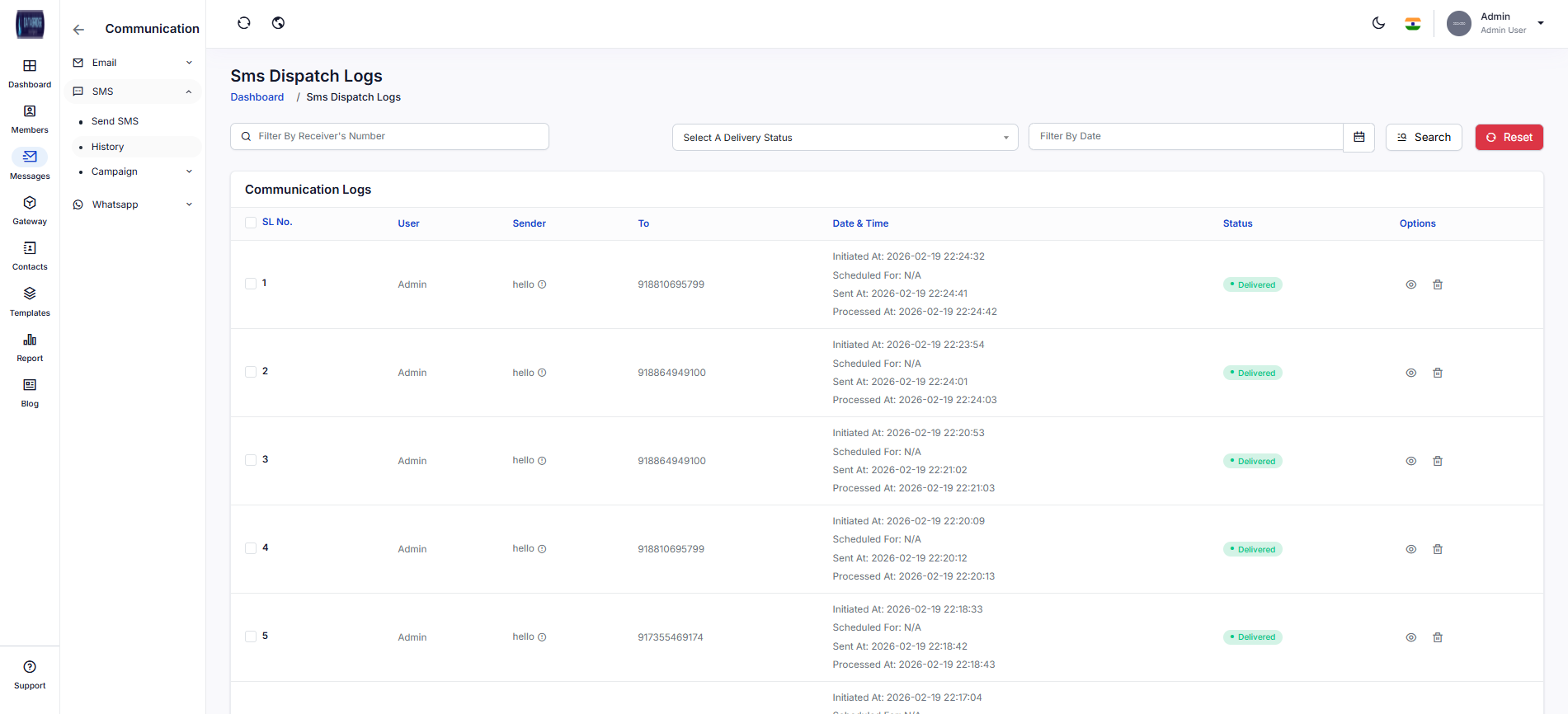
SMS Dispatch Logs:
This screen displays detailed logs of all SMS messages sent through the system. It helps users track delivery status, timestamps, and overall communication performance.
Features:
-Complete SMS history tracking
-Delivery status (Delivered, Pending, Failed)
-Date & time logs (Initiated, Sent, Processed)
-Search and filter options
-View detailed message records
Functionality:
-Displays list of all sent SMS with details
-User can filter by number, status, or date
-Shows full lifecycle of SMS (initiation → delivery)
-Provides options to view or manage logs
This screen displays detailed logs of all SMS messages sent through the system. It helps users track delivery status, timestamps, and overall communication performance.
Features:
-Complete SMS history tracking
-Delivery status (Delivered, Pending, Failed)
-Date & time logs (Initiated, Sent, Processed)
-Search and filter options
-View detailed message records
Functionality:
-Displays list of all sent SMS with details
-User can filter by number, status, or date
-Shows full lifecycle of SMS (initiation → delivery)
-Provides options to view or manage logs
1
Messages
2
SMS
3
History
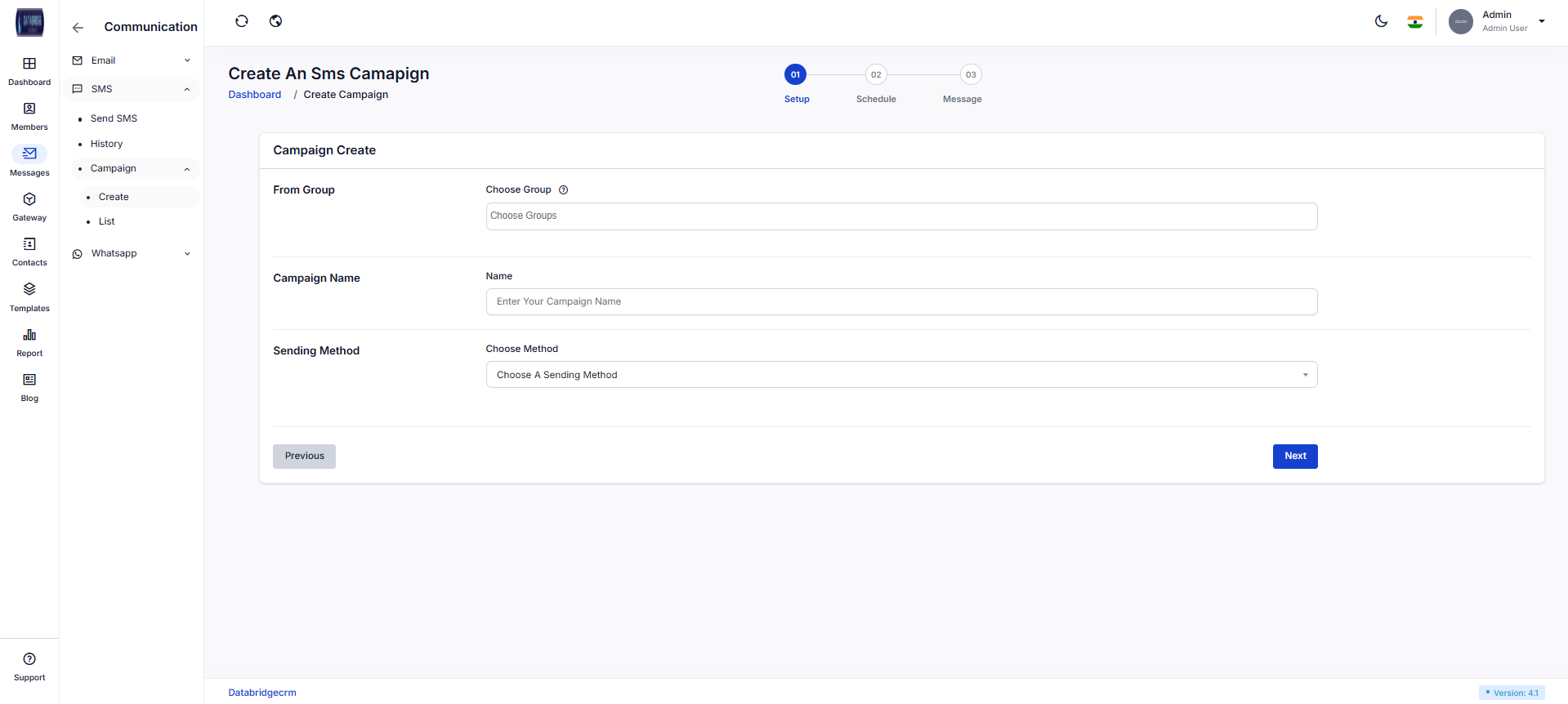
Create SMS Campaign:
This screen allows users to create SMS campaigns for bulk messaging with a structured multi-step process. It helps organize and schedule large communication campaigns effectively.
Features:
-Campaign creation workflow (Setup → Schedule → Message)
-Group selection for audience targeting
-Campaign naming and organization
-Sending method selection
-Multi-step guided interface
Functionality:
-User selects target group
-Enters campaign name
-Chooses sending method
-Proceeds to next steps (schedule & message setup)
-Campaign is created and executed based on configuration
This screen allows users to create SMS campaigns for bulk messaging with a structured multi-step process. It helps organize and schedule large communication campaigns effectively.
Features:
-Campaign creation workflow (Setup → Schedule → Message)
-Group selection for audience targeting
-Campaign naming and organization
-Sending method selection
-Multi-step guided interface
Functionality:
-User selects target group
-Enters campaign name
-Chooses sending method
-Proceeds to next steps (schedule & message setup)
-Campaign is created and executed based on configuration
1
Messages
2
SMS
3
Create SMS
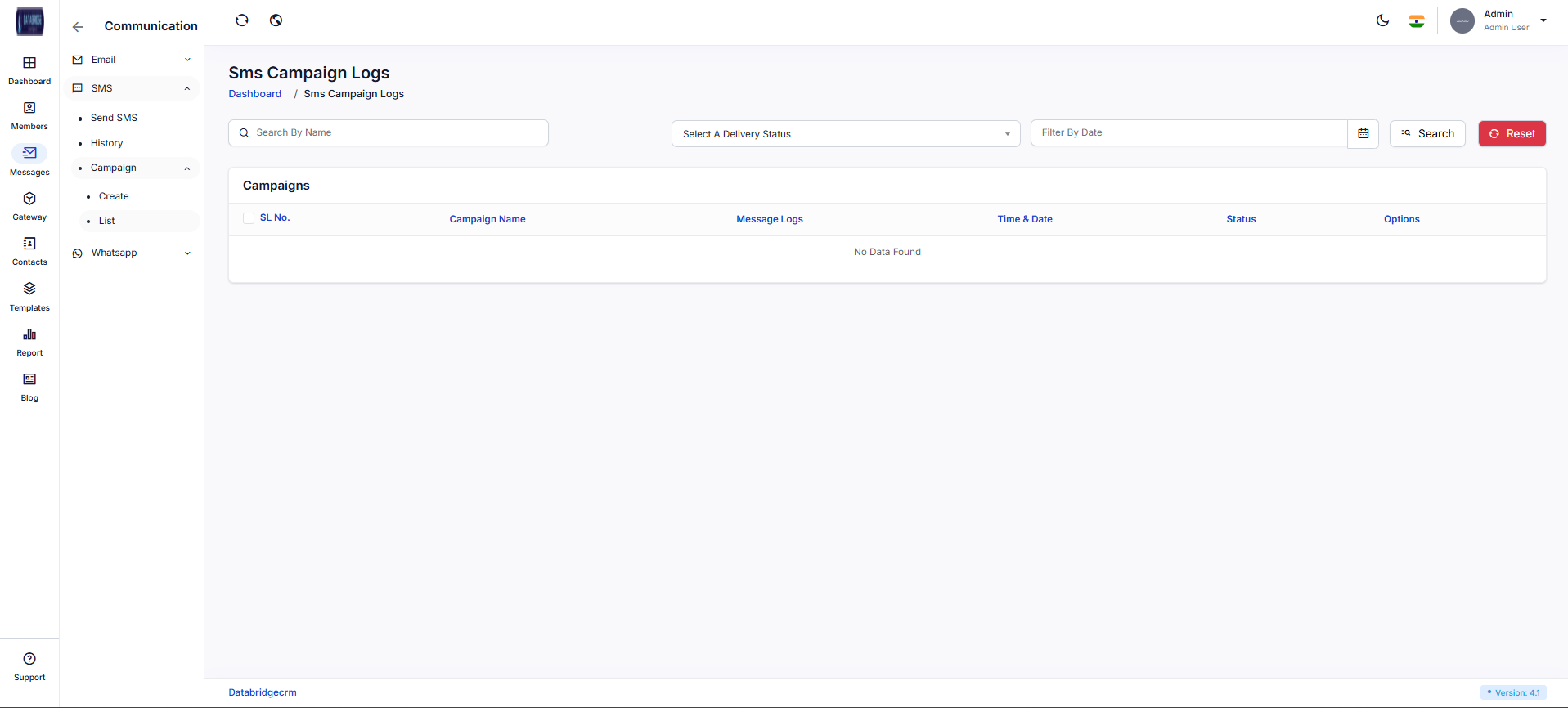
SMS Campaign Logs:
This screen provides an overview of all SMS campaigns created in the system. It allows users to monitor campaign performance, status, and message logs.
Features:
-Campaign tracking dashboard
-View campaign name and execution details
-Message log access
-Status tracking (Active, Completed, etc.)
-Filter and search functionality
Functionality:
-Displays all created campaigns in a list
-User can filter campaigns by status or date
-Provides access to detailed campaign logs
-Helps analyze campaign performance
This screen provides an overview of all SMS campaigns created in the system. It allows users to monitor campaign performance, status, and message logs.
Features:
-Campaign tracking dashboard
-View campaign name and execution details
-Message log access
-Status tracking (Active, Completed, etc.)
-Filter and search functionality
Functionality:
-Displays all created campaigns in a list
-User can filter campaigns by status or date
-Provides access to detailed campaign logs
-Helps analyze campaign performance
1
Messages
2
SMS
3
List
WhatsApp Chats:
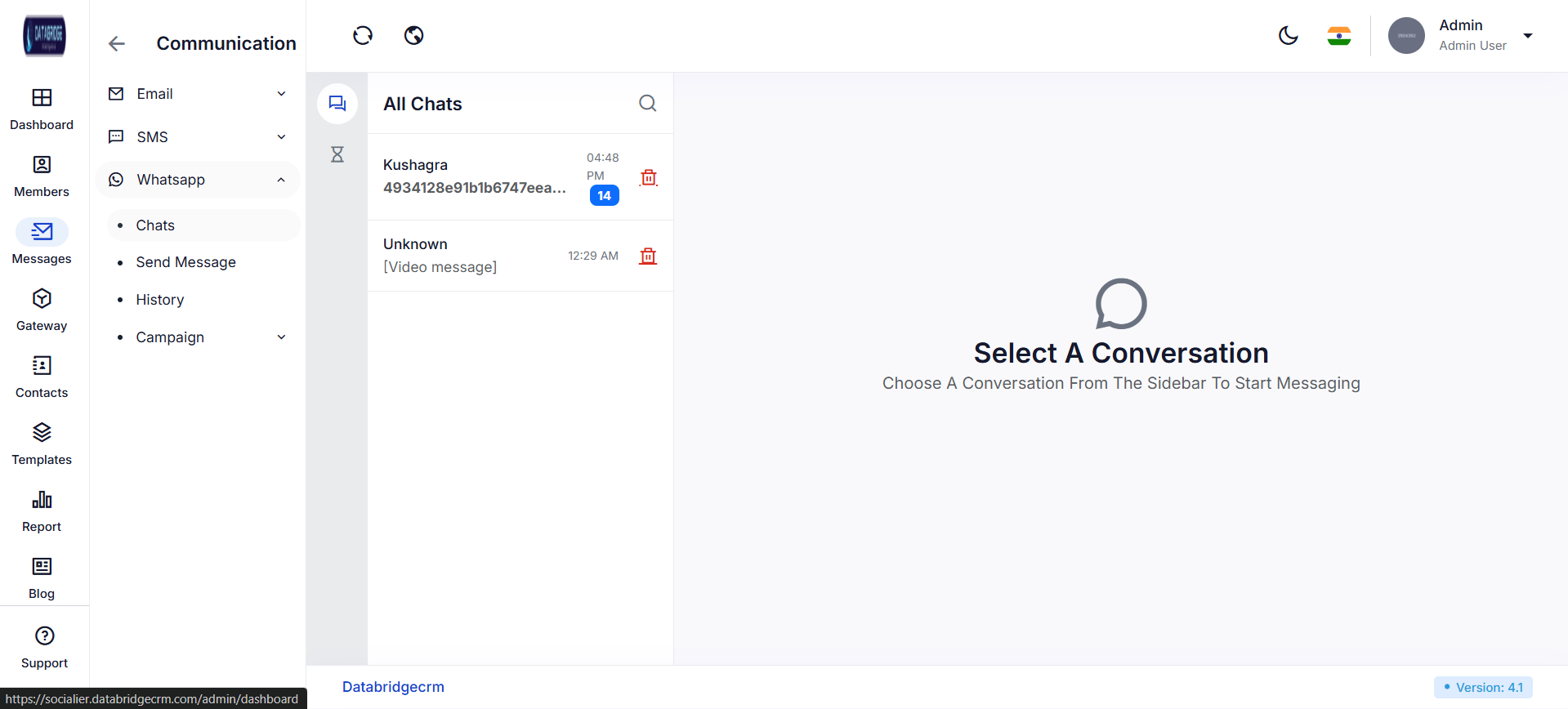
This screen displays all WhatsApp conversations in a chat-based interface. It allows users to view, manage, and respond to real-time messages from contacts in a centralized inbox.
Features:
-Real-time chat interface
-List of all conversations
-Unread message indicators
-Search conversations
-Delete chat option
-Conversation preview
Functionality:
-Displays all active chats in sidebar
-User selects a conversation to view messages
-Shows message history with timestamps
-Allows replying to messages in real-time
-Enables chat deletion and management
This screen displays all WhatsApp conversations in a chat-based interface. It allows users to view, manage, and respond to real-time messages from contacts in a centralized inbox.
Features:
-Real-time chat interface
-List of all conversations
-Unread message indicators
-Search conversations
-Delete chat option
-Conversation preview
Functionality:
-Displays all active chats in sidebar
-User selects a conversation to view messages
-Shows message history with timestamps
-Allows replying to messages in real-time
-Enables chat deletion and management
1
Messages
2
WhatsApp
3
Chats
Send WhatsApp – Single Audience:
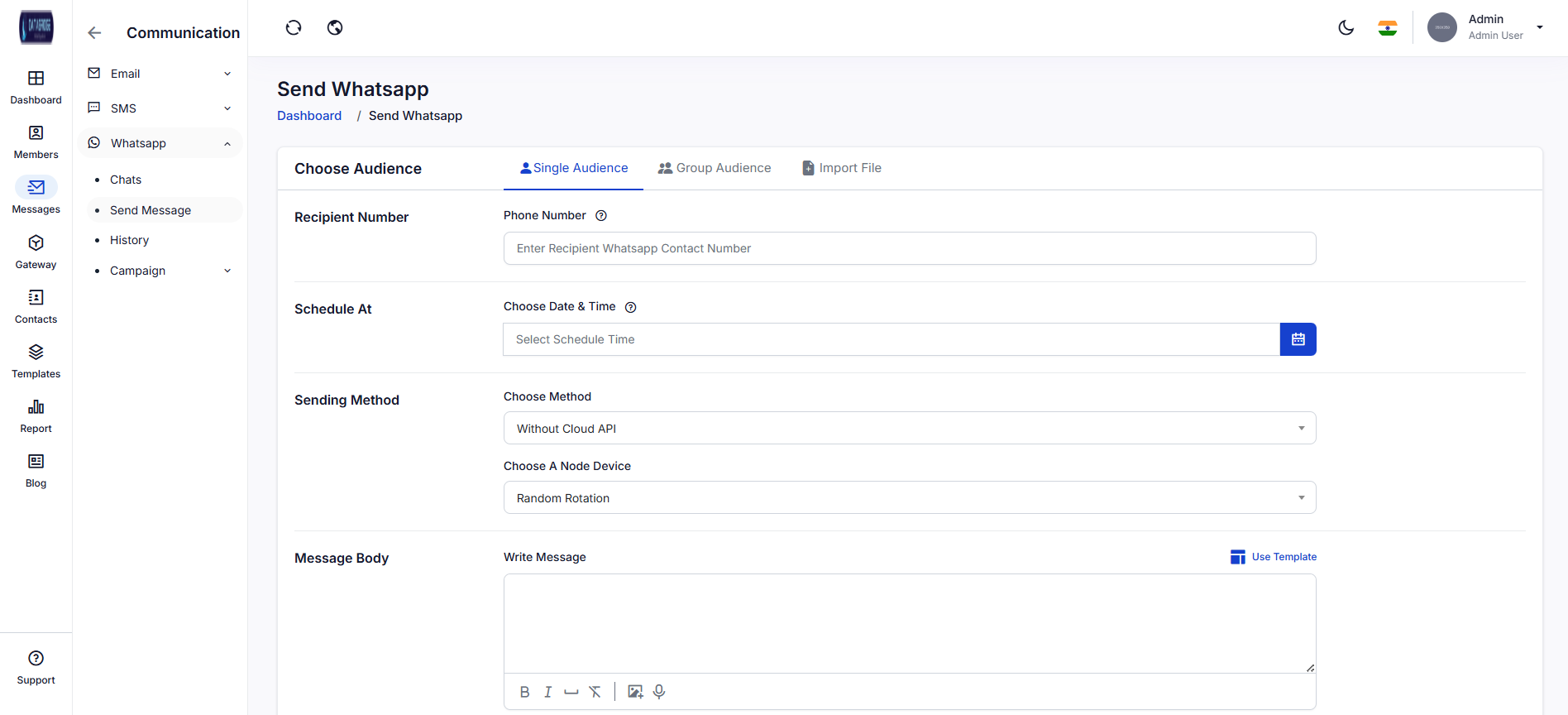
This screen allows sending WhatsApp messages to a single recipient by entering their phone number. It supports scheduling and different sending methods for flexible communication.
Features:
-Single contact messaging
-Schedule message delivery
-Sending method selection (Cloud API / Device)
-Node/device selection
-Message template support
Functionality:
-User enters recipient number
-Selects sending method and device
-Optionally schedules message
-Writes message or uses template
-Clicks Send to dispatch message
This screen allows sending WhatsApp messages to a single recipient by entering their phone number. It supports scheduling and different sending methods for flexible communication.
Features:
-Single contact messaging
-Schedule message delivery
-Sending method selection (Cloud API / Device)
-Node/device selection
-Message template support
Functionality:
-User enters recipient number
-Selects sending method and device
-Optionally schedules message
-Writes message or uses template
-Clicks Send to dispatch message
1
Messages
2
WhatsApp
3
Send WhatsApp
4
Single Audience
Send WhatsApp – Group Audience:
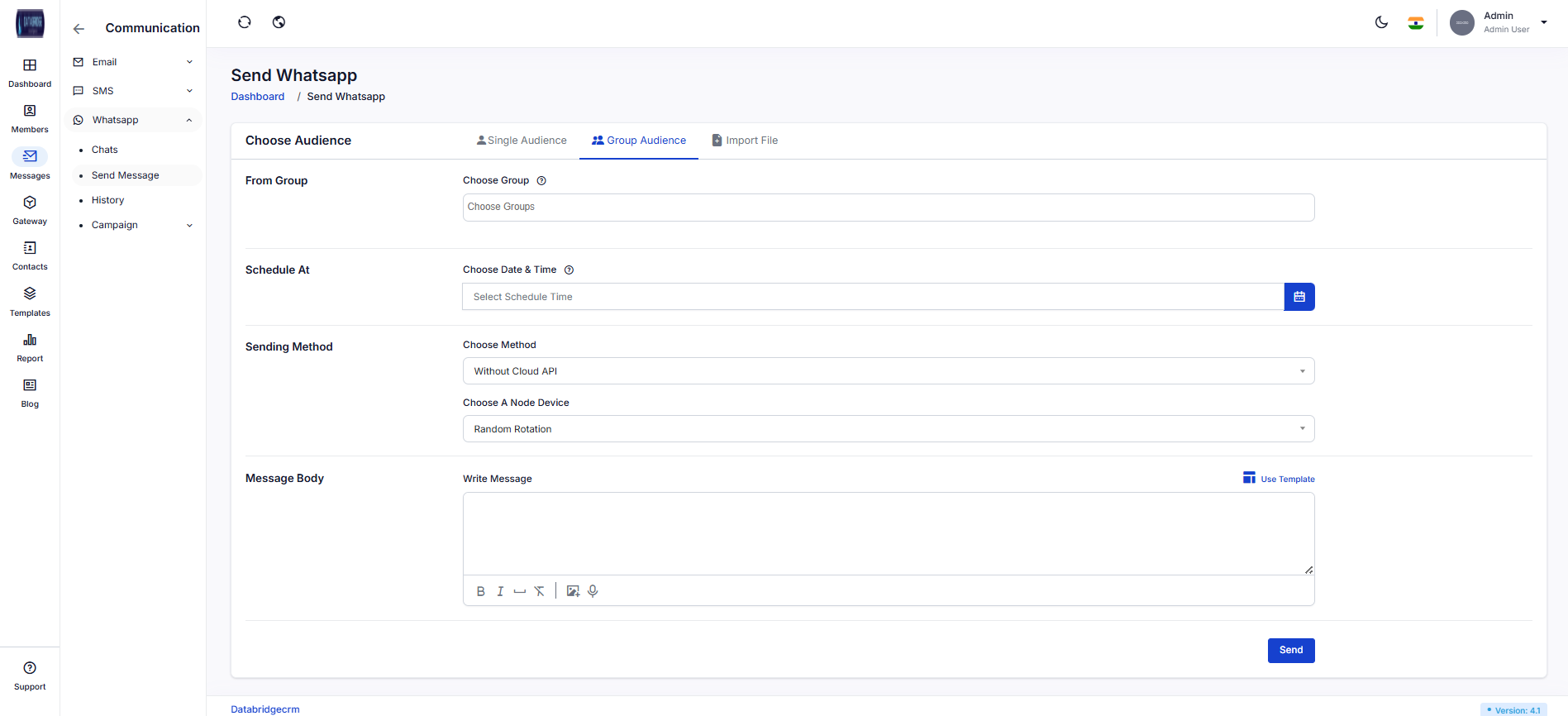
This screen allows users to send WhatsApp messages to multiple recipients by selecting a predefined contact group. It is useful for bulk communication without importing files.
Features:
-Group-based messaging
-Contact group selection
-Schedule message delivery
-Sending method selection (Cloud API / Device)
-Node/device rotation support
-Message editor with template option
Functionality:
-User selects a contact group
-Chooses sending method and device (random/automatic)
-Optionally schedules the message
-Writes message or uses template
-Clicks Send to deliver message to all group members
This screen allows users to send WhatsApp messages to multiple recipients by selecting a predefined contact group. It is useful for bulk communication without importing files.
Features:
-Group-based messaging
-Contact group selection
-Schedule message delivery
-Sending method selection (Cloud API / Device)
-Node/device rotation support
-Message editor with template option
Functionality:
-User selects a contact group
-Chooses sending method and device (random/automatic)
-Optionally schedules the message
-Writes message or uses template
-Clicks Send to deliver message to all group members
1
Messages
2
WhatsApp
3
Send WhatsApp
4
Group Audience
Send WhatsApp – Import File
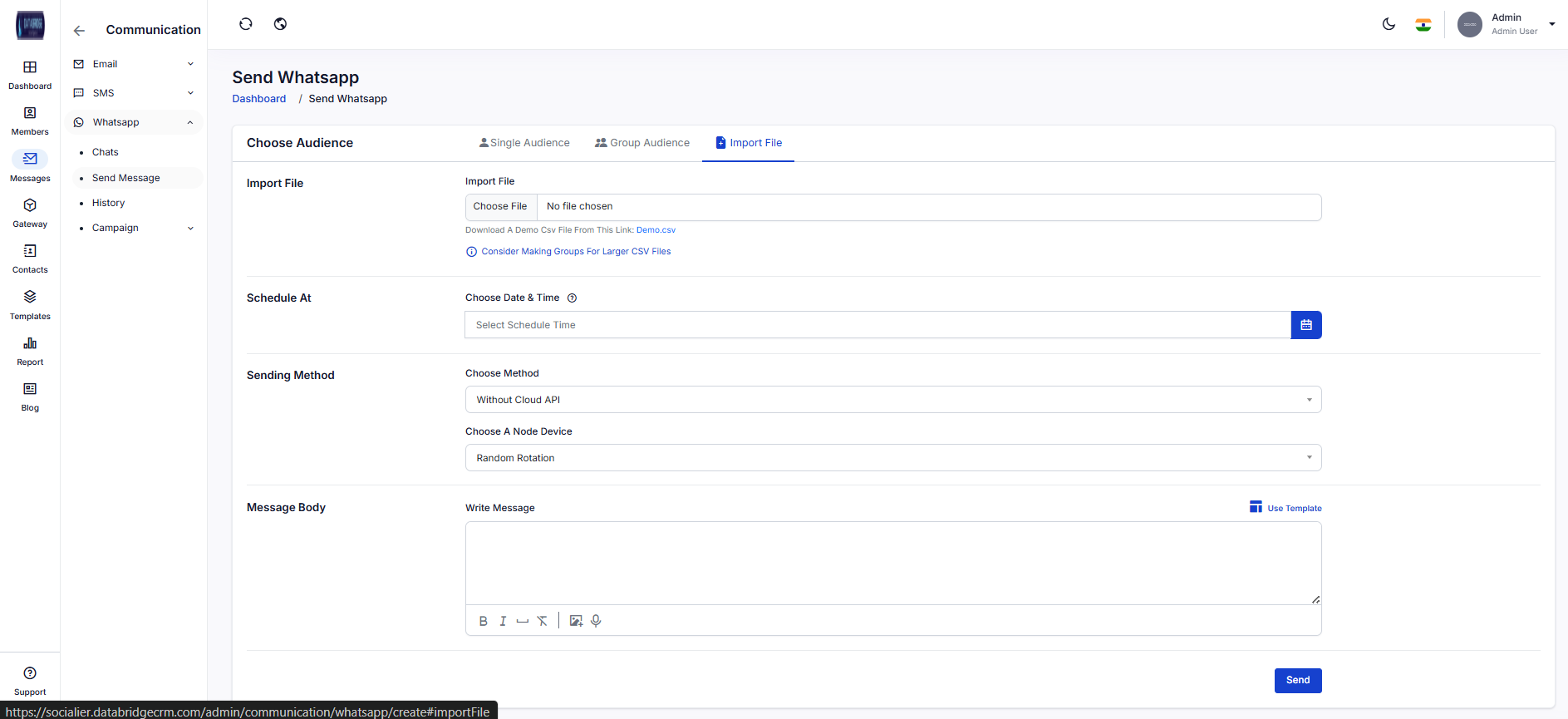
This screen enables users to send WhatsApp messages in bulk by uploading a CSV file containing recipient numbers. It is ideal for large-scale messaging campaigns.
Features:
-CSV file upload support
-Bulk messaging via file import
-Demo CSV download option
-Large data handling capability
-Schedule message delivery
-Sending method and device selection
-Template-based messaging
Functionality:
-User uploads CSV file with contact numbers
-System reads and validates file data
-User selects sending method and node/device
-Optionally schedules message delivery
-Writes message or uses template
Clicks Send to dispatch messages to all imported contacts
This screen enables users to send WhatsApp messages in bulk by uploading a CSV file containing recipient numbers. It is ideal for large-scale messaging campaigns.
Features:
-CSV file upload support
-Bulk messaging via file import
-Demo CSV download option
-Large data handling capability
-Schedule message delivery
-Sending method and device selection
-Template-based messaging
Functionality:
-User uploads CSV file with contact numbers
-System reads and validates file data
-User selects sending method and node/device
-Optionally schedules message delivery
-Writes message or uses template
Clicks Send to dispatch messages to all imported contacts
1
Messages
2
WhatsApp
3
Send WhatsApp
4
Import File
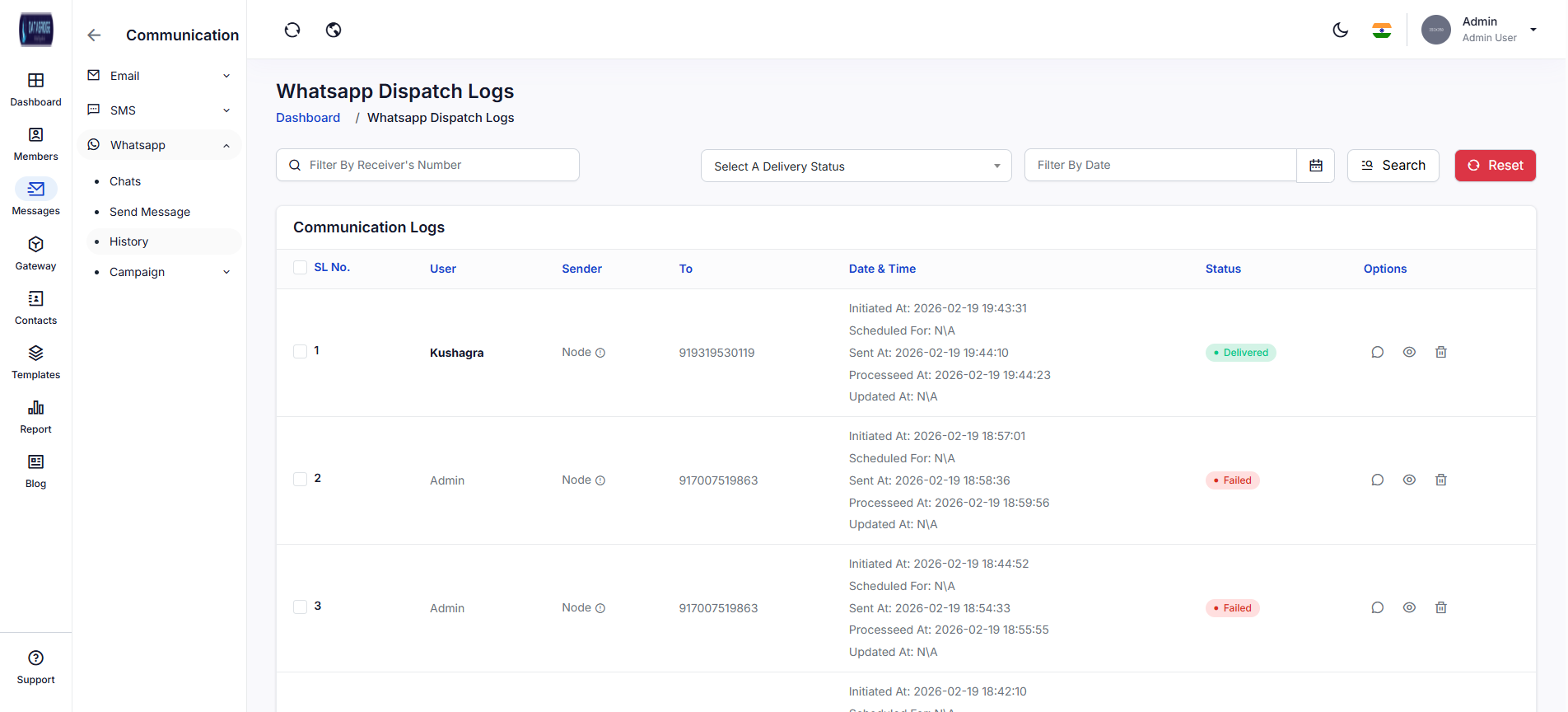
SMS Dispatch Logs - History:
This screen displays detailed logs of all SMS messages sent through the system. It helps users track delivery status, timestamps, and overall communication performance.
Features:
-Complete SMS history tracking
-Delivery status (Delivered, Pending, Failed)
-Date & time logs (Initiated, Sent, Processed)
-Search and filter options
-View detailed message records
Functionality:
-Displays list of all sent SMS with details
-User can filter by number, status, or date
-Shows full lifecycle of SMS (initiation → delivery)
-Provides options to view or manage logs
This screen displays detailed logs of all SMS messages sent through the system. It helps users track delivery status, timestamps, and overall communication performance.
Features:
-Complete SMS history tracking
-Delivery status (Delivered, Pending, Failed)
-Date & time logs (Initiated, Sent, Processed)
-Search and filter options
-View detailed message records
Functionality:
-Displays list of all sent SMS with details
-User can filter by number, status, or date
-Shows full lifecycle of SMS (initiation → delivery)
-Provides options to view or manage logs
1
Messages
2
WhatsApp
3
History
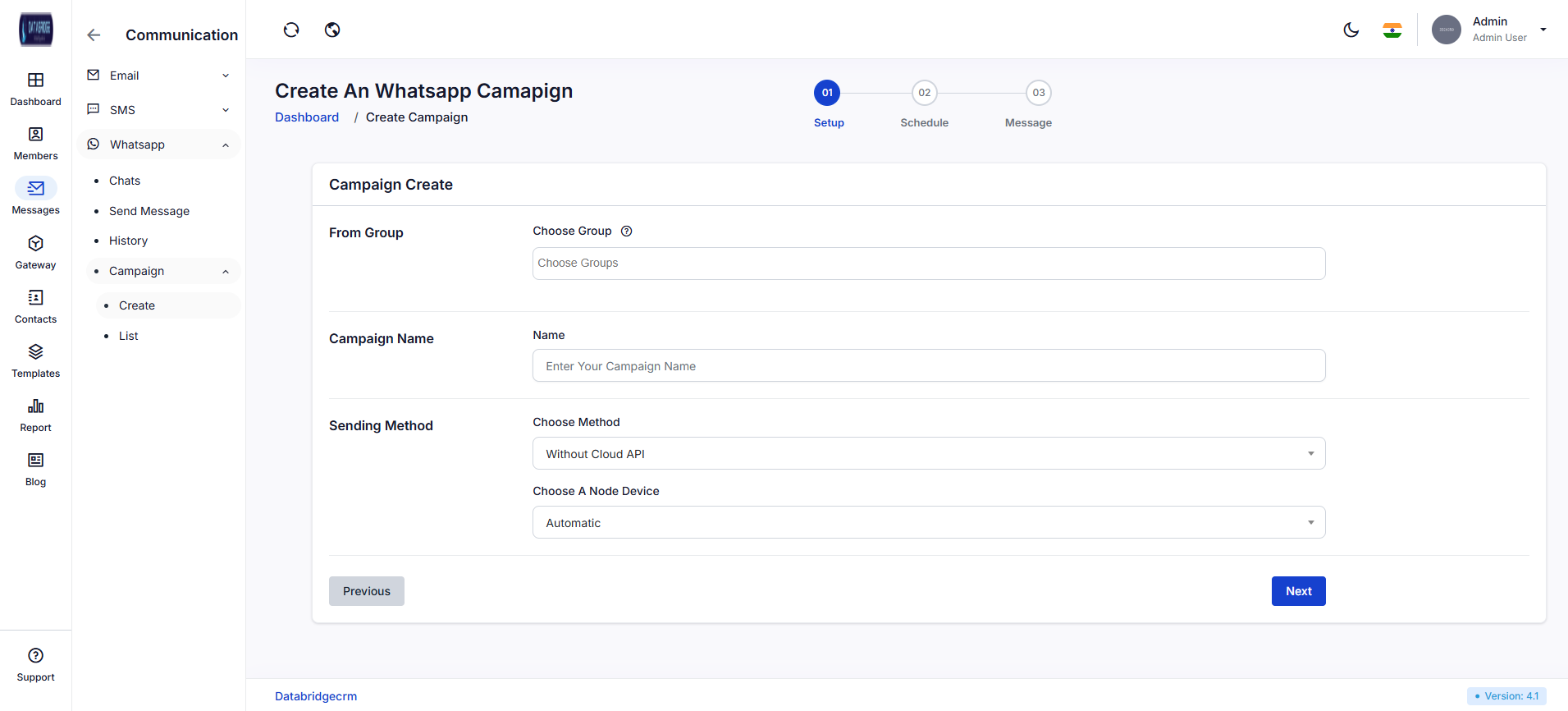
Create SMS Campaign:
This screen allows users to create SMS campaigns for bulk messaging with a structured multi-step process. It helps organize and schedule large communication campaigns effectively.
Features:
-Campaign creation workflow (Setup → Schedule → Message)
-Group selection for audience targeting
-Campaign naming and organization
-Sending method selection
-Multi-step guided interface
Functionality:
-User selects target group
-Enters campaign name
-Chooses sending method
-Proceeds to next steps (schedule & message setup)
-Campaign is created and executed based on configuration
This screen allows users to create SMS campaigns for bulk messaging with a structured multi-step process. It helps organize and schedule large communication campaigns effectively.
Features:
-Campaign creation workflow (Setup → Schedule → Message)
-Group selection for audience targeting
-Campaign naming and organization
-Sending method selection
-Multi-step guided interface
Functionality:
-User selects target group
-Enters campaign name
-Chooses sending method
-Proceeds to next steps (schedule & message setup)
-Campaign is created and executed based on configuration
1
Messages
2
WhatsApp
3
Campaign
4
Create
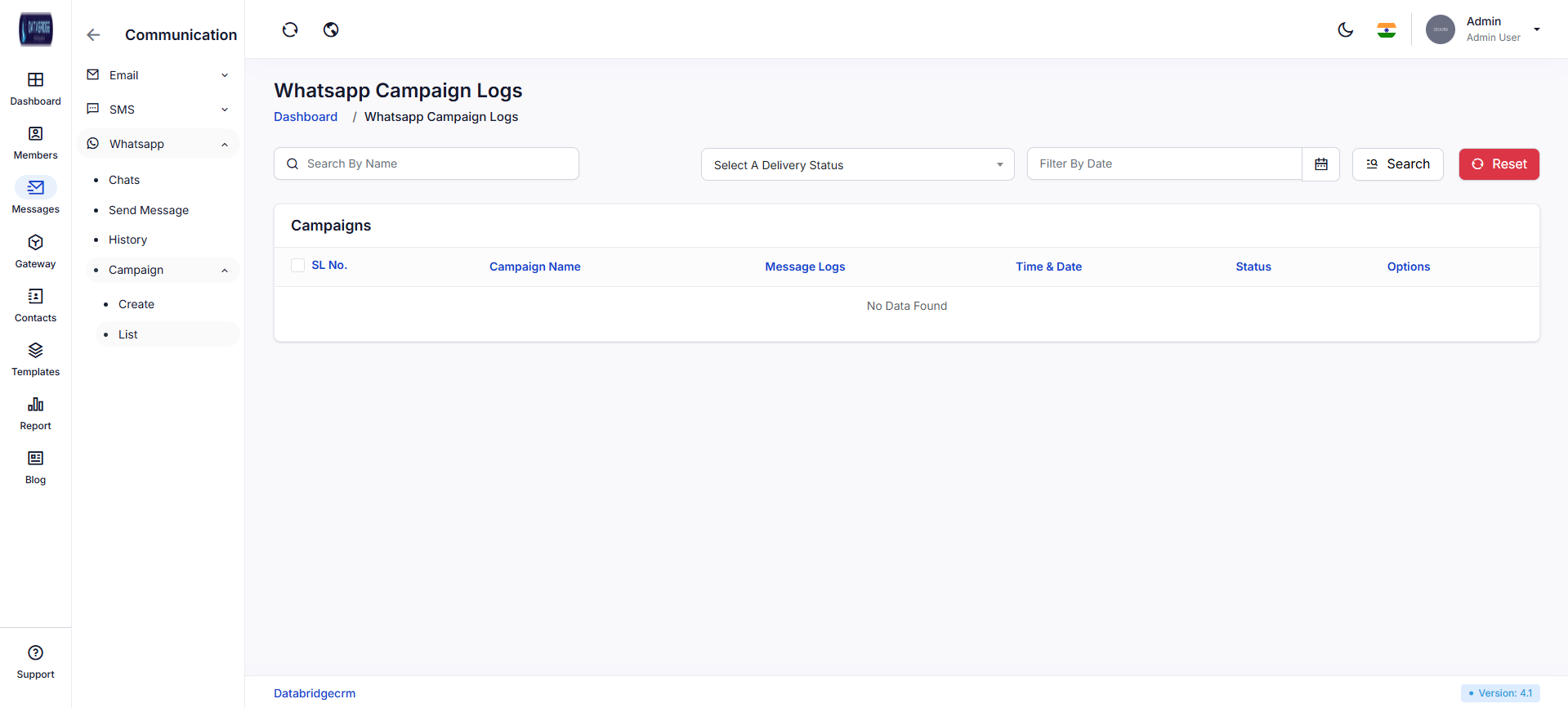
SMS Campaign Logs:
This screen provides an overview of all SMS campaigns created in the system. It allows users to monitor campaign performance, status, and message logs.
Features:
-Campaign tracking dashboard
-View campaign name and execution details
-Message log access
-Status tracking (Active, Completed, etc.)
-Filter and search functionality
Functionality:
-Displays all created campaigns in a list
-User can filter campaigns by status or date
-Provides access to detailed campaign logs
-Helps analyze campaign performance
This screen provides an overview of all SMS campaigns created in the system. It allows users to monitor campaign performance, status, and message logs.
Features:
-Campaign tracking dashboard
-View campaign name and execution details
-Message log access
-Status tracking (Active, Completed, etc.)
-Filter and search functionality
Functionality:
-Displays all created campaigns in a list
-User can filter campaigns by status or date
-Provides access to detailed campaign logs
-Helps analyze campaign performance
1
Messages
2
WhatsApp
3
Campaign
4
List
Gateway
The Gateway module manages and integrates various communication and payment gateways within the system. It enables seamless processing of transactions, message delivery, and system notifications by configuring and controlling different service providers from a centralized interface.
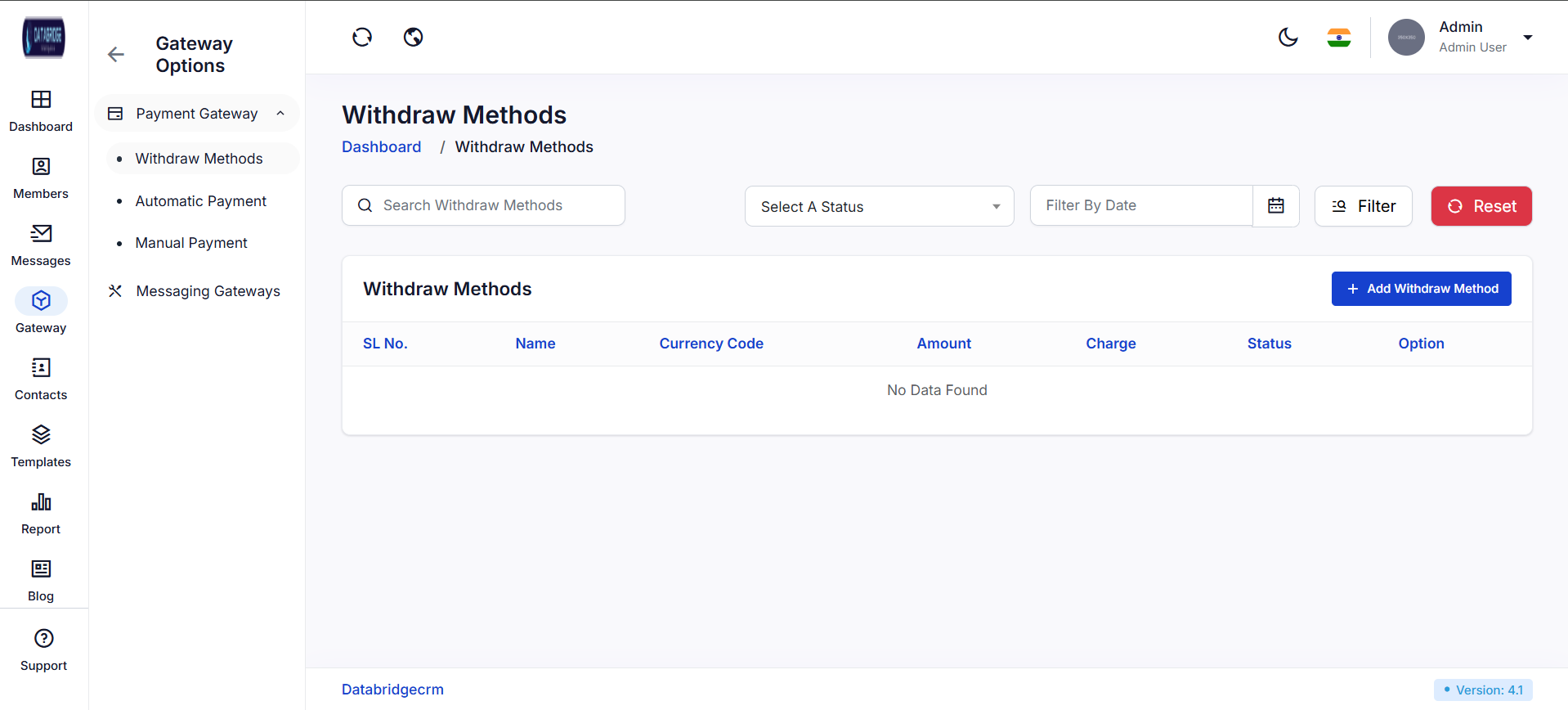
Withdraw Methods:
This screen allows administrators to manage and configure different withdrawal methods available in the system for users to withdraw funds.
Features
-Add new withdrawal methods
-View list of configured methods
-Search and filter options (status/date)
-Display currency, amount, and charges
-Enable/disable withdrawal methods
Functionality:
-Admin can click Add Withdraw Method to create a new method
-System displays all methods with details like amount, charge, and currency
-Filters help in finding specific records
-Admin can update or change the status of methods
This screen allows administrators to manage and configure different withdrawal methods available in the system for users to withdraw funds.
Features
-Add new withdrawal methods
-View list of configured methods
-Search and filter options (status/date)
-Display currency, amount, and charges
-Enable/disable withdrawal methods
Functionality:
-Admin can click Add Withdraw Method to create a new method
-System displays all methods with details like amount, charge, and currency
-Filters help in finding specific records
-Admin can update or change the status of methods
1
Gateway
2
Payment Gateway
3
Withdraw Methods
Automatic Payment Methods:
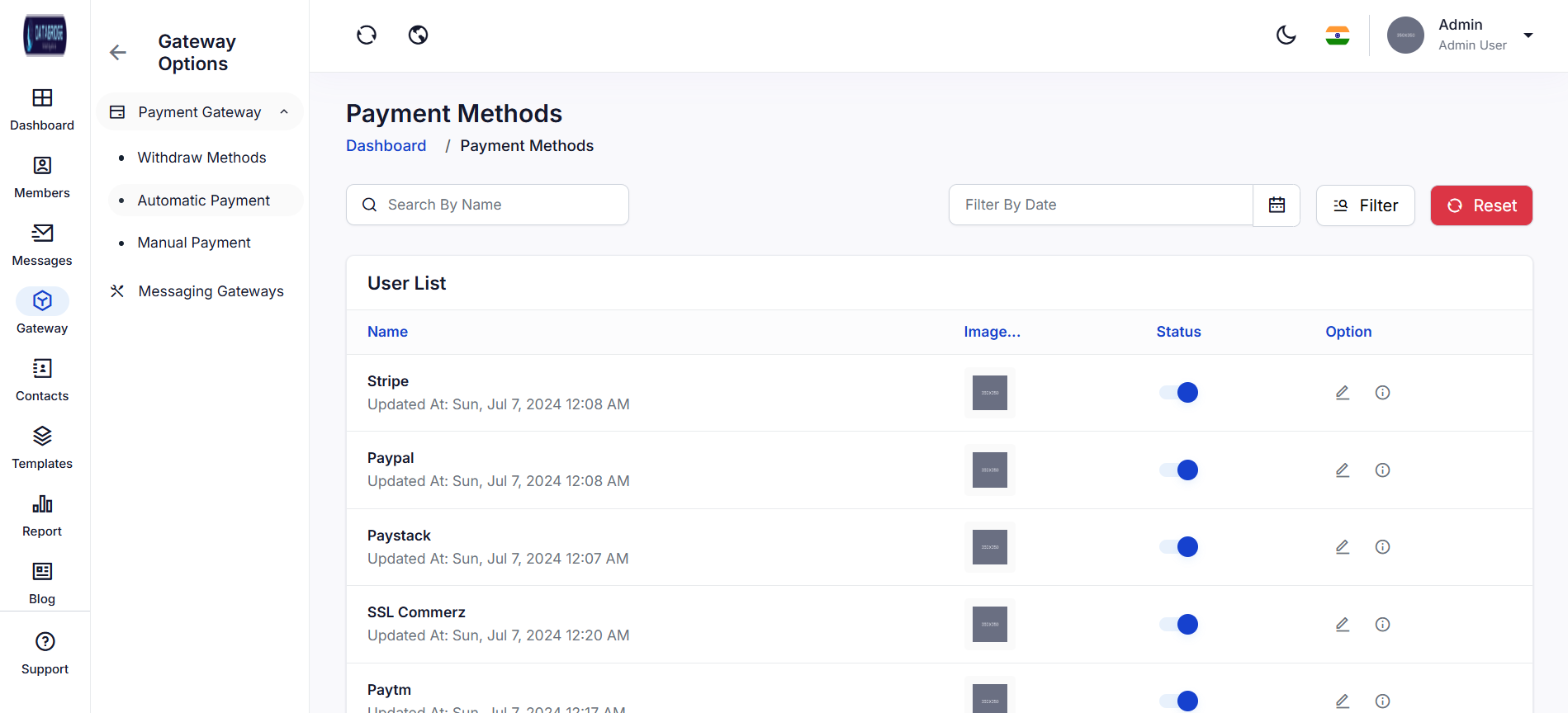
This screen displays all integrated automatic payment gateways used for processing online transactions automatically.
Features:
-List of payment gateways (Stripe, PayPal, etc.)
-Gateway status toggle (Enable/Disable)
-Gateway configuration access
-Search and filter functionality
Functionality:
-Admin can enable/disable any payment gateway
-Click on edit option to configure gateway credentials
-System processes payments automatically via enabled gateways
-Supports multiple gateway integrations simultaneously
This screen displays all integrated automatic payment gateways used for processing online transactions automatically.
Features:
-List of payment gateways (Stripe, PayPal, etc.)
-Gateway status toggle (Enable/Disable)
-Gateway configuration access
-Search and filter functionality
Functionality:
-Admin can enable/disable any payment gateway
-Click on edit option to configure gateway credentials
-System processes payments automatically via enabled gateways
-Supports multiple gateway integrations simultaneously
1
Gateway
2
Payment Gateway
3
Automatic Payment Methods
Manual Payment Methods:
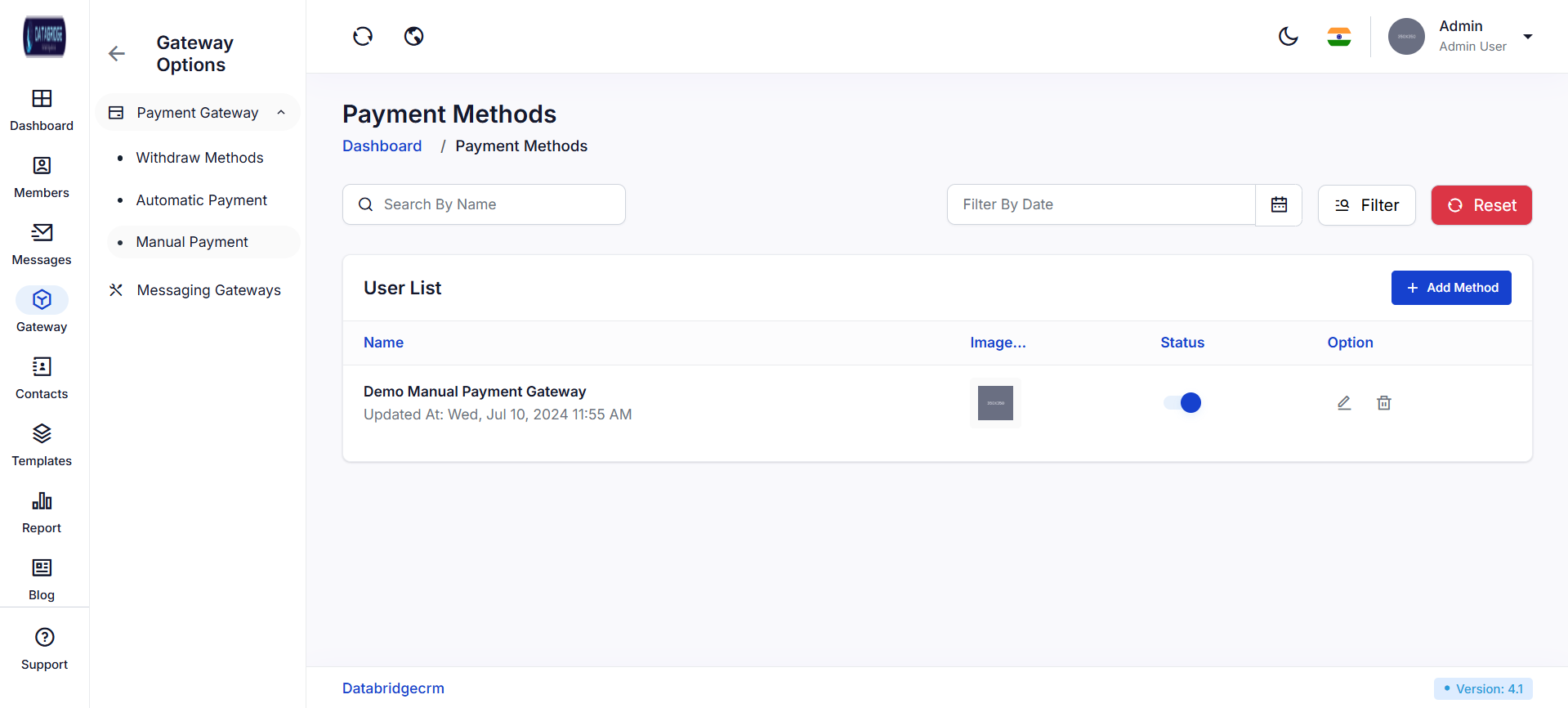
This screen allows administrators to manage manual payment methods where transactions are handled outside the system (e.g., bank transfer, cash).
Features:
-Add manual payment method
-Display configured manual methods
-Enable/disable payment methods
-Edit and delete options
Functionality:
-Admin can add new manual payment options
-Users can select these methods during transactions
-Admin verifies payments manually
-Status can be updated after verification
This screen allows administrators to manage manual payment methods where transactions are handled outside the system (e.g., bank transfer, cash).
Features:
-Add manual payment method
-Display configured manual methods
-Enable/disable payment methods
-Edit and delete options
Functionality:
-Admin can add new manual payment options
-Users can select these methods during transactions
-Admin verifies payments manually
-Status can be updated after verification
1
Gateway
2
Payment Gateway
3
Manual Payment Methods
Email Gateways:
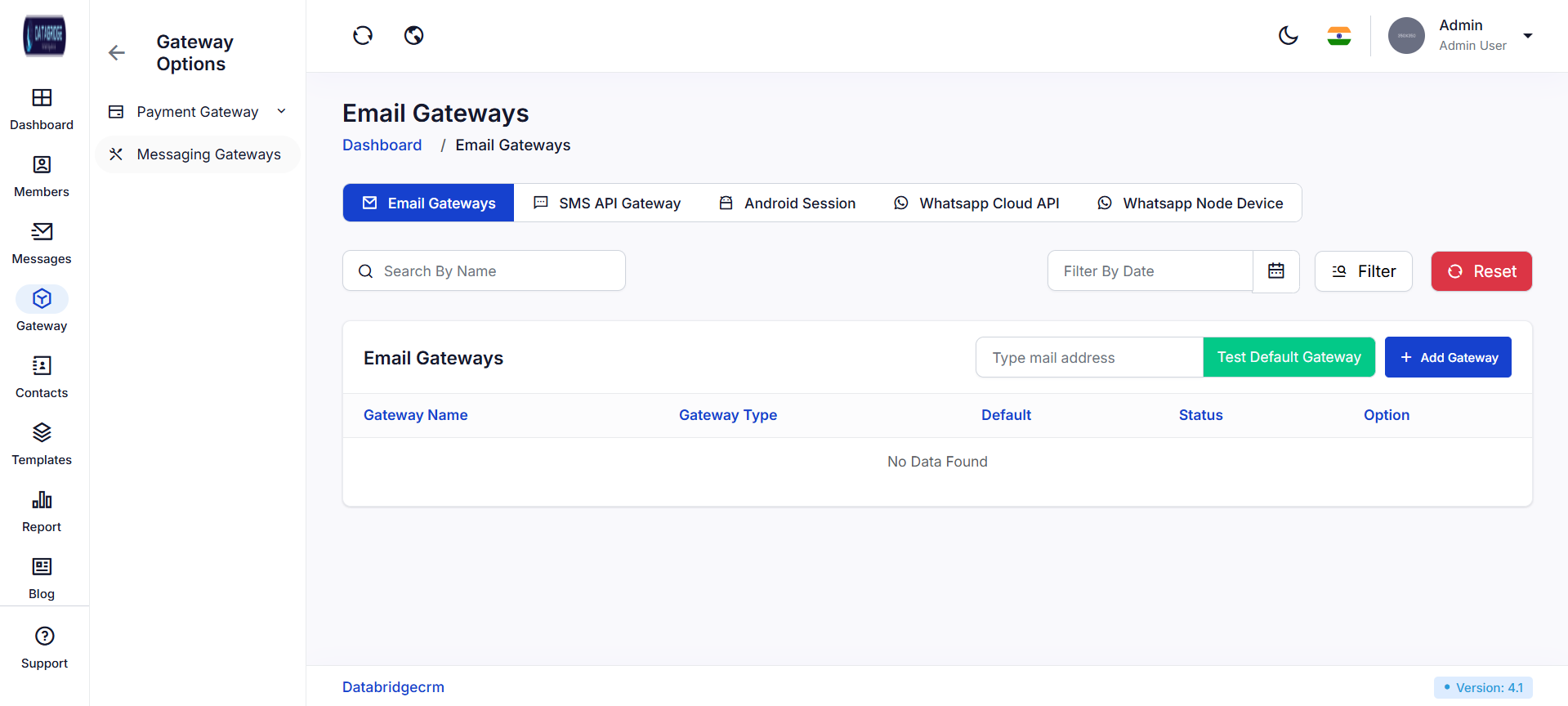
This screen is used to configure and manage email gateway services for sending system-generated emails.
Features:
-Add new email gateway
-Test default gateway functionality
-Set default gateway
-Gateway status management
-Multiple gateway support
Functionality:
-Admin configures SMTP/API-based email gateways
-Can test gateway by sending a sample email
-One gateway can be set as default
-System uses the default gateway for all outgoing emails
-Admin can enable/disable gateways as needed
This screen is used to configure and manage email gateway services for sending system-generated emails.
Features:
-Add new email gateway
-Test default gateway functionality
-Set default gateway
-Gateway status management
-Multiple gateway support
Functionality:
-Admin configures SMTP/API-based email gateways
-Can test gateway by sending a sample email
-One gateway can be set as default
-System uses the default gateway for all outgoing emails
-Admin can enable/disable gateways as needed
1
Gateway
2
Massaging Gateway
3
Email Gateway
Add Email Gateway:
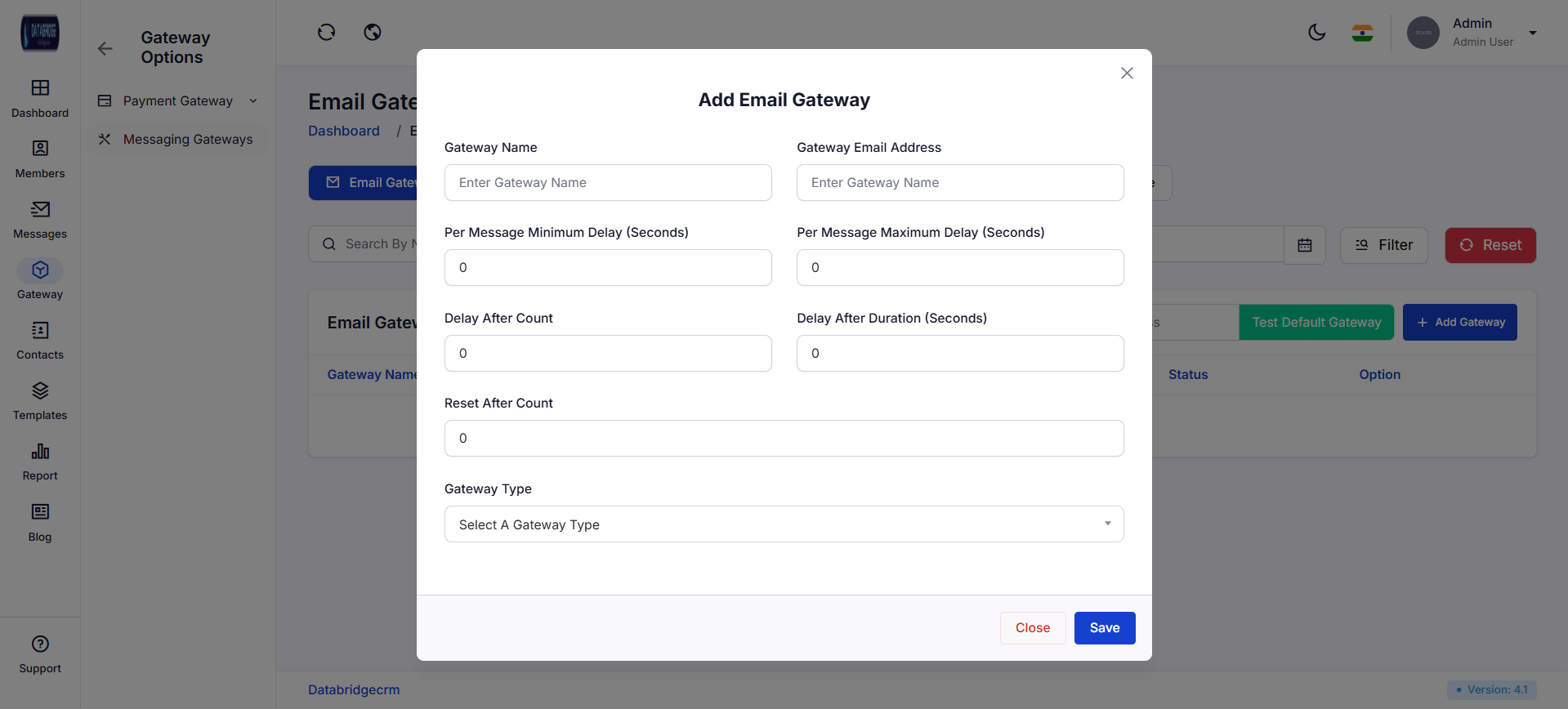
This screen allows administrators to configure and add a new email gateway for sending system emails. It includes settings for gateway identity and message throttling controls.
Features:
-Input fields for gateway name and email address
-Delay configuration (min/max delay per message)
-Bulk sending control (delay after count, reset count)
-Gateway type selection dropdown
-Save and Close actions
Functionality:
-Users can define email gateway credentials and behavior
-Delay settings control email sending frequency to avoid spam/blocking
-Gateway type determines integration method (SMTP/API etc.)
-On save, gateway is added and becomes available for communication
This screen allows administrators to configure and add a new email gateway for sending system emails. It includes settings for gateway identity and message throttling controls.
Features:
-Input fields for gateway name and email address
-Delay configuration (min/max delay per message)
-Bulk sending control (delay after count, reset count)
-Gateway type selection dropdown
-Save and Close actions
Functionality:
-Users can define email gateway credentials and behavior
-Delay settings control email sending frequency to avoid spam/blocking
-Gateway type determines integration method (SMTP/API etc.)
-On save, gateway is added and becomes available for communication
1
Gateway
2
Massaging Gateway
3
Email Gateway
4
Add Email Gateway
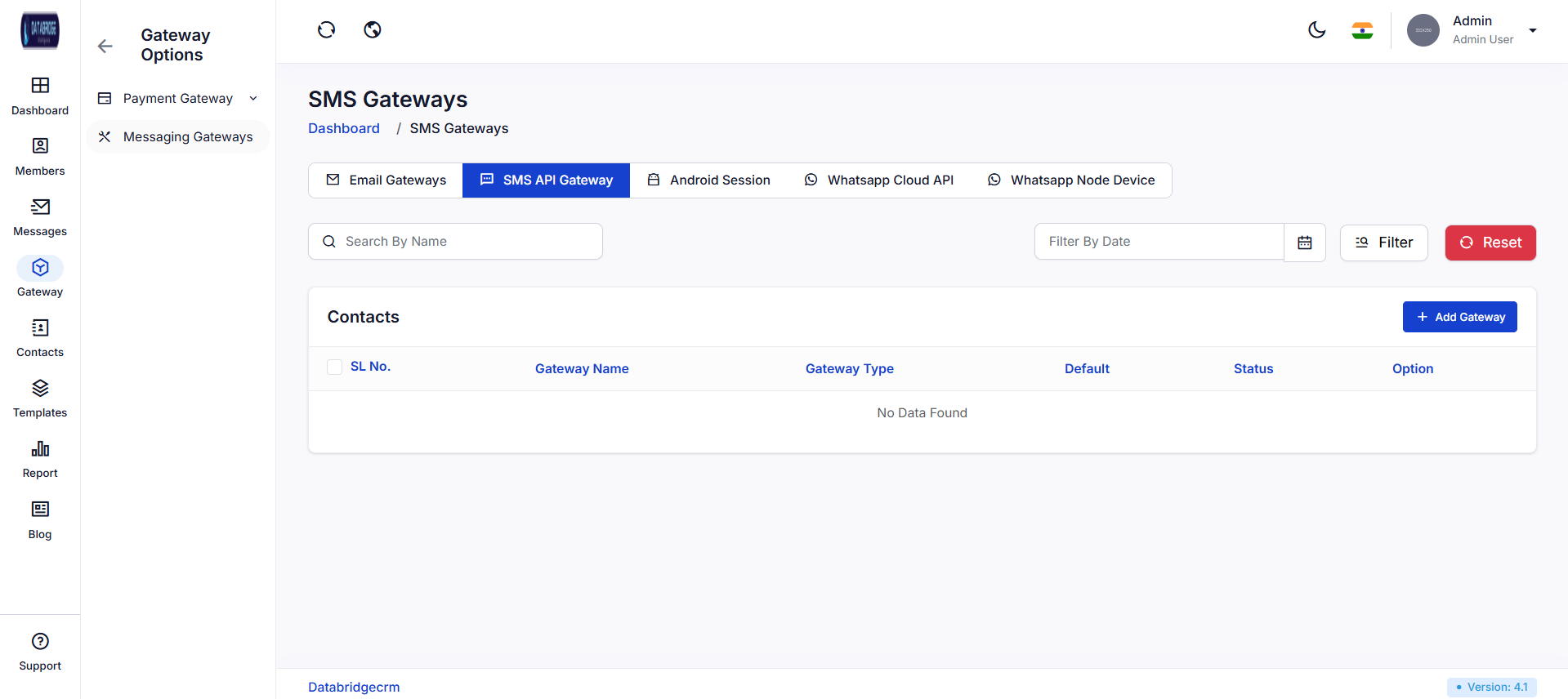
SMS Gateways:
This screen displays all configured SMS gateways and allows administrators to manage SMS communication integrations.
Features:
-Gateway listing table (name, type, status)
-Search and filter options
-Add Gateway button
-Status toggle and action icons
Functionality:
-Users can view all SMS gateways in one place
-Add new gateway configurations
-Enable/disable gateways dynamically
-Edit or delete existing gateways
This screen displays all configured SMS gateways and allows administrators to manage SMS communication integrations.
Features:
-Gateway listing table (name, type, status)
-Search and filter options
-Add Gateway button
-Status toggle and action icons
Functionality:
-Users can view all SMS gateways in one place
-Add new gateway configurations
-Enable/disable gateways dynamically
-Edit or delete existing gateways
1
Gateway
2
Massaging Gateway
3
SMS Gateway
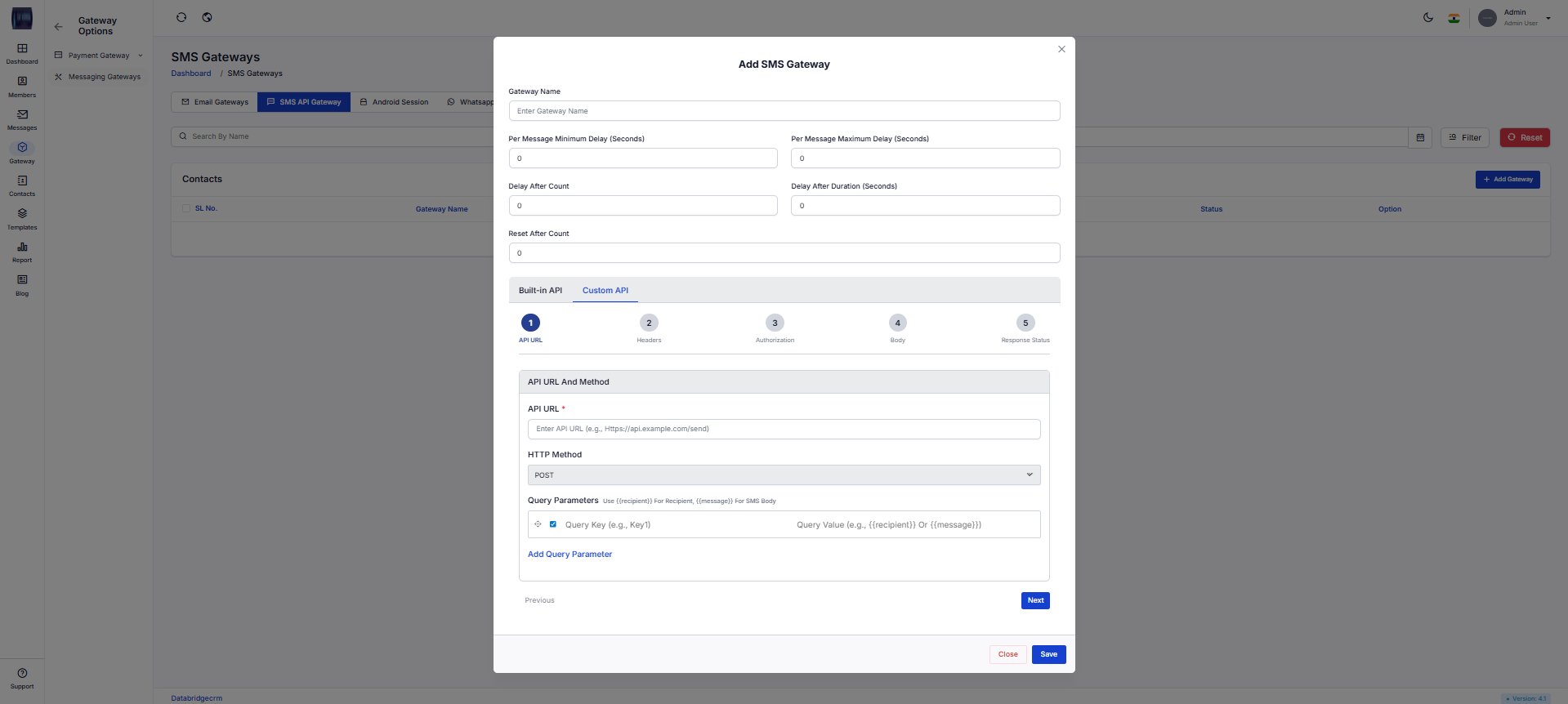
Add SMS Gateway:
This screen enables administrators to configure SMS gateway integration using built-in APIs or custom APIs.
Features:
-Gateway basic details (name, delay settings)
-Built-in API / Custom API selection
-API configuration steps (URL, headers, auth, body, response)
-Query parameter mapping
Functionality:
-Users can integrate third-party SMS providers
-Supports API-based communication setup
-Allows mapping of dynamic values like recipient and message
-Multi-step configuration ensures proper API setup
This screen enables administrators to configure SMS gateway integration using built-in APIs or custom APIs.
Features:
-Gateway basic details (name, delay settings)
-Built-in API / Custom API selection
-API configuration steps (URL, headers, auth, body, response)
-Query parameter mapping
Functionality:
-Users can integrate third-party SMS providers
-Supports API-based communication setup
-Allows mapping of dynamic values like recipient and message
-Multi-step configuration ensures proper API setup
1
Gateway
2
Massaging Gateway
3
SMS Gateway
4
Add SMS Gateway
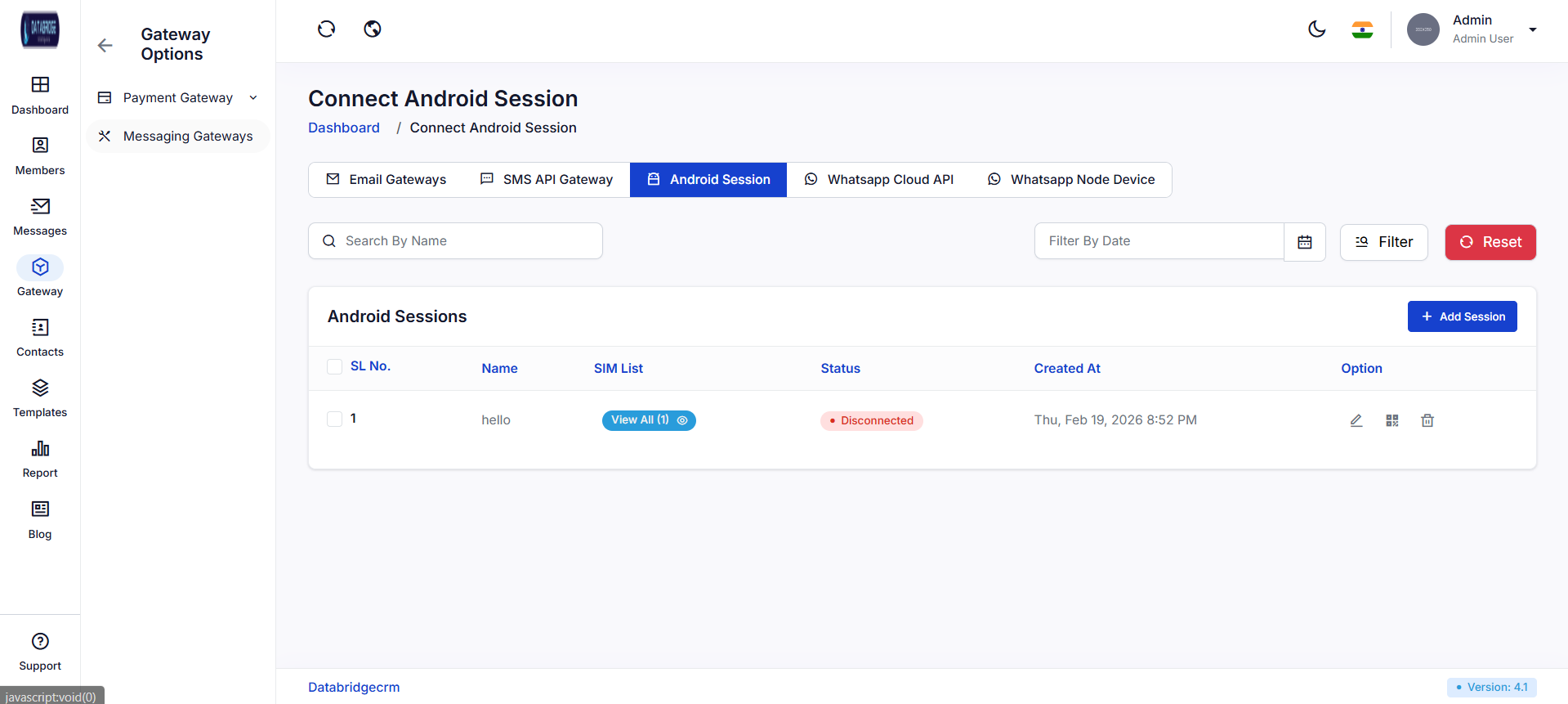
Android Session :
This screen manages Android-based messaging sessions used for sending SMS/WhatsApp via connected devices.
Features:
-List of Android sessions
-SIM list visibility
-Status indicator (Connected/Disconnected)
-Add Session button
-Action controls (edit/delete/view)
Functionality:
-Users can monitor connected Android devices
-View SIM cards linked to sessions
-Manage session lifecycle (create/update/delete)
-Track connection status in real-time
This screen manages Android-based messaging sessions used for sending SMS/WhatsApp via connected devices.
Features:
-List of Android sessions
-SIM list visibility
-Status indicator (Connected/Disconnected)
-Add Session button
-Action controls (edit/delete/view)
Functionality:
-Users can monitor connected Android devices
-View SIM cards linked to sessions
-Manage session lifecycle (create/update/delete)
-Track connection status in real-time
1
Gateway
2
Massaging Gateway
3
Android Session
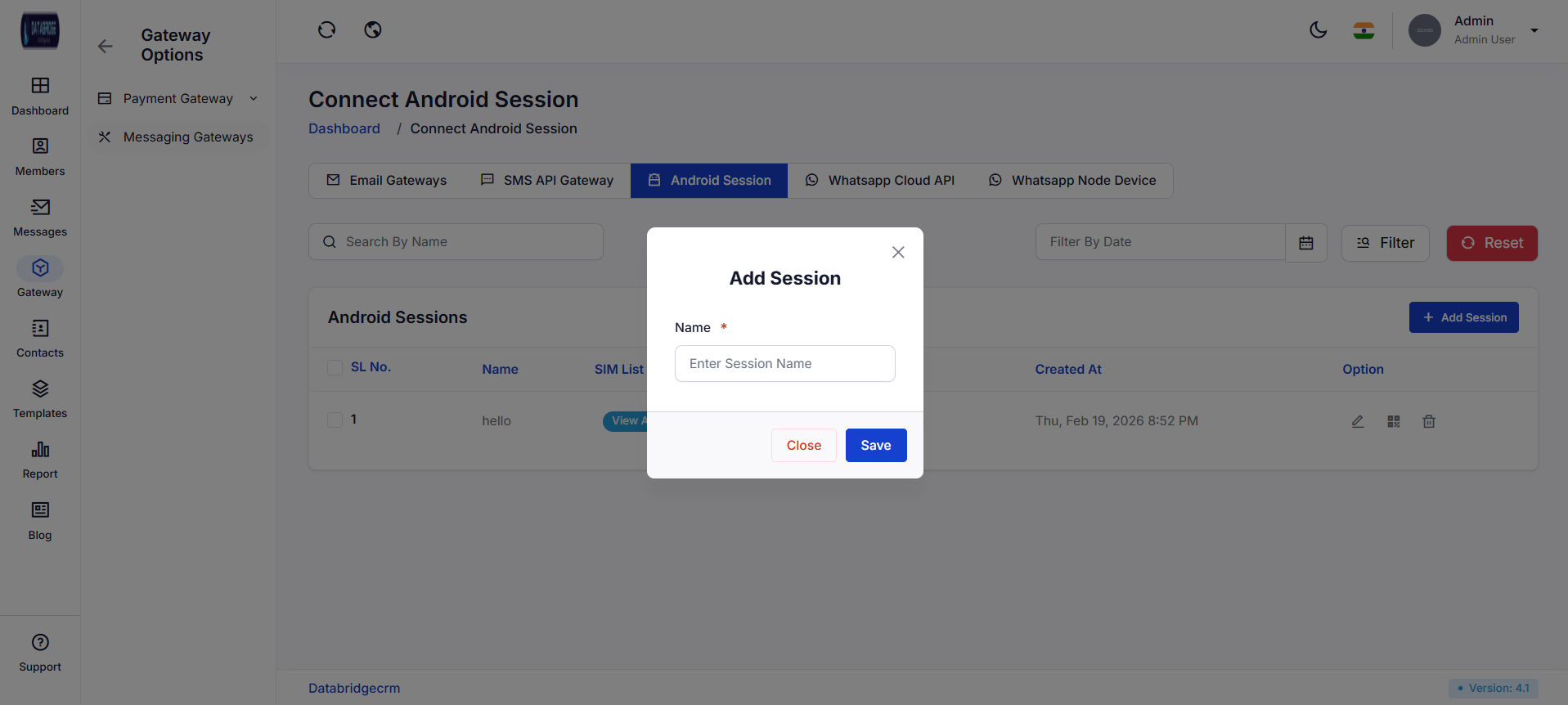
Add Android Session:
This popup allows users to create a new Android session by defining a session name.
Features:
-Session name input field
-Required field validation
-Save and Close buttons
Functionality:
-Users create a new session identifier
-Session is used for connecting Android device
-After creation, session appears in session list
This popup allows users to create a new Android session by defining a session name.
Features:
-Session name input field
-Required field validation
-Save and Close buttons
Functionality:
-Users create a new session identifier
-Session is used for connecting Android device
-After creation, session appears in session list
1
Gateway
2
Massaging Gateway
3
Add Android Session
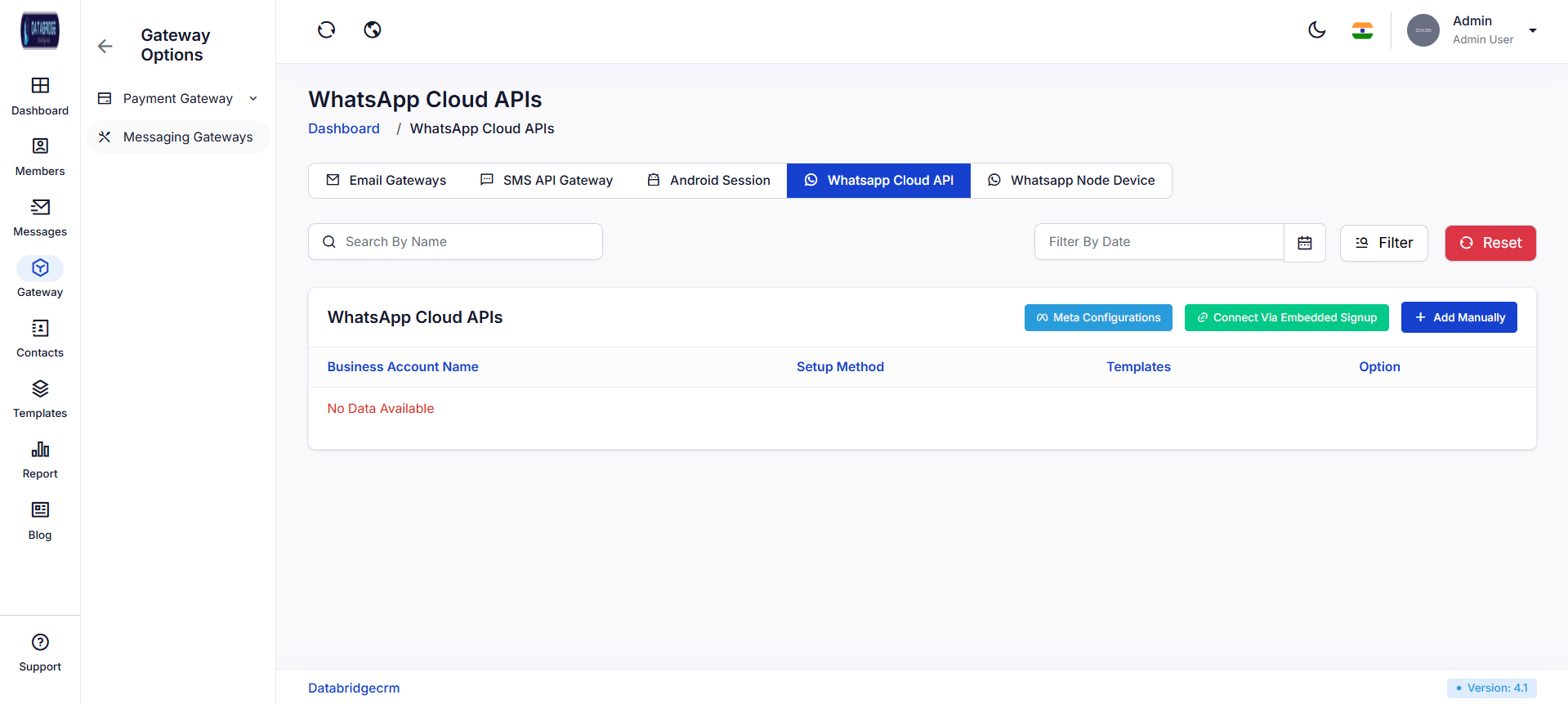
WhatsApp Cloud APIs :
This screen is used to manage WhatsApp Cloud API integrations for sending messages via Meta (Facebook) services.
Features:
-List of configured business accounts
-Setup method display
-Action buttons (Meta config, Embedded signup, Add manually)
-Search and filter options
Functionality:
-Users can connect WhatsApp Business accounts
-Supports both automated and manual setup
-Displays API configuration status
-Allows managing templates and integrations
This screen is used to manage WhatsApp Cloud API integrations for sending messages via Meta (Facebook) services.
Features:
-List of configured business accounts
-Setup method display
-Action buttons (Meta config, Embedded signup, Add manually)
-Search and filter options
Functionality:
-Users can connect WhatsApp Business accounts
-Supports both automated and manual setup
-Displays API configuration status
-Allows managing templates and integrations
1
Gateway
2
Massaging Gateway
3
WhatsApp Cloud APIs
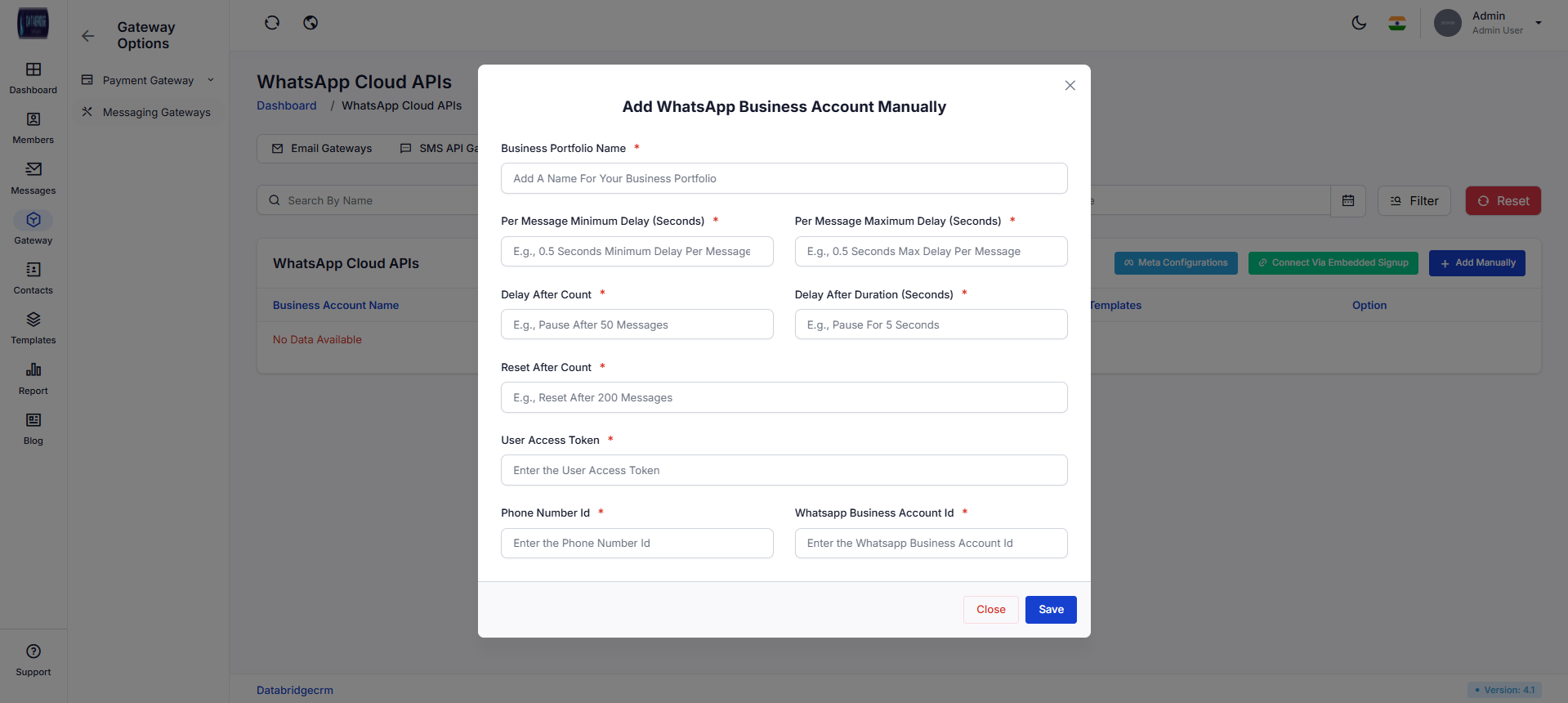
Add WhatsApp Business Account:
This screen allows manual configuration of WhatsApp Cloud API credentials and messaging limits.
Features:
-Business portfolio name input
-Delay configuration settings
-Access token input
-Phone number ID and Business Account ID fields
-Save and Close options
Functionality:
-Users manually configure WhatsApp API credentials
-Controls message sending rate and limits
-Ensures secure authentication using access tokens
-Enables WhatsApp messaging once configured
This screen allows manual configuration of WhatsApp Cloud API credentials and messaging limits.
Features:
-Business portfolio name input
-Delay configuration settings
-Access token input
-Phone number ID and Business Account ID fields
-Save and Close options
Functionality:
-Users manually configure WhatsApp API credentials
-Controls message sending rate and limits
-Ensures secure authentication using access tokens
-Enables WhatsApp messaging once configured
1
Gateway
2
Massaging Gateway
3
WhatsApp Cloud APIs
4
Add WhatsApp Business Account
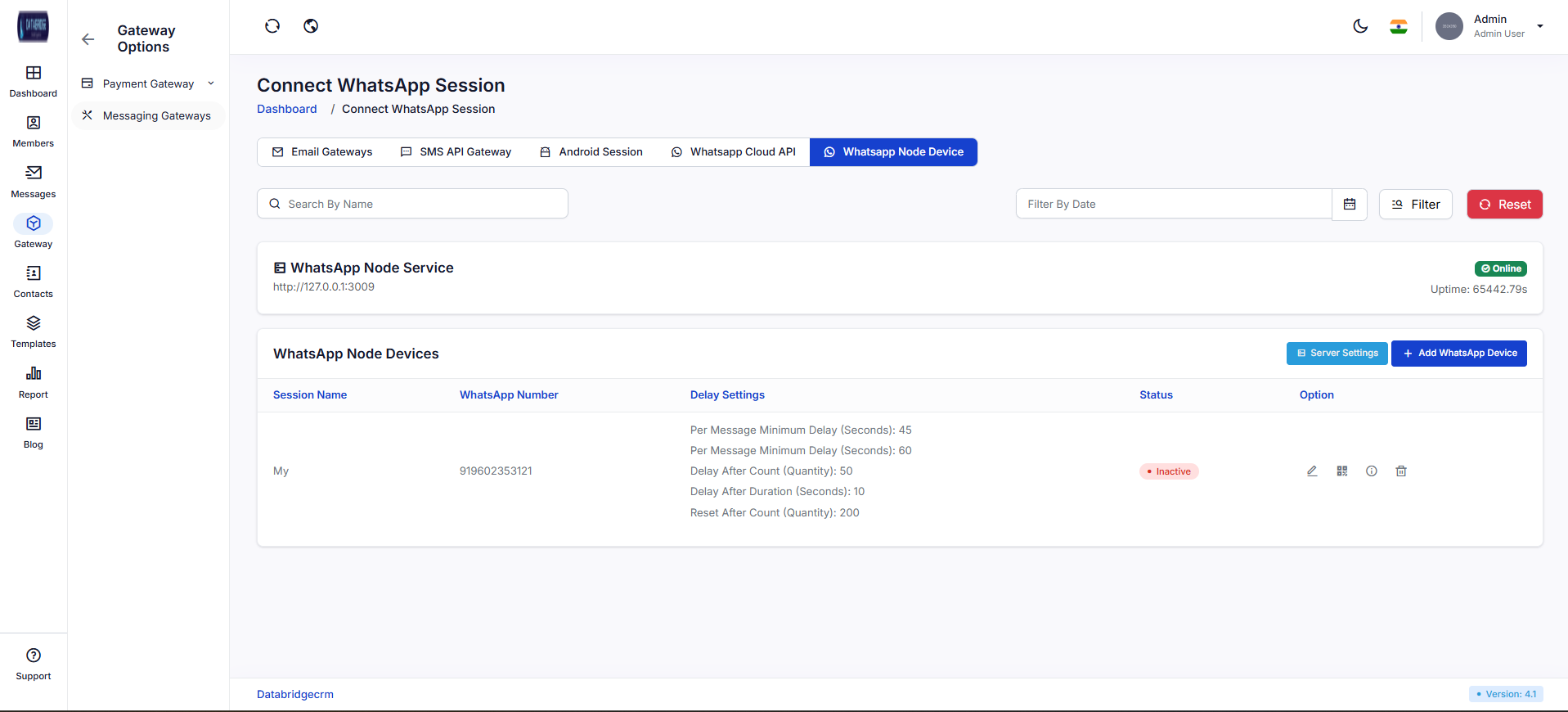
Connect WhatsApp Session:
This screen manages WhatsApp Node-based messaging sessions using a local or hosted server.
Features:
-Node service status (Online/Offline)
-Server URL display
-Device/session listing
-Delay configuration details
-Add WhatsApp Device button
Functionality:
-Users connect WhatsApp via Node service
-Monitor server uptime and status
-Manage multiple WhatsApp devices
-Configure sending delays and limits
This screen manages WhatsApp Node-based messaging sessions using a local or hosted server.
Features:
-Node service status (Online/Offline)
-Server URL display
-Device/session listing
-Delay configuration details
-Add WhatsApp Device button
Functionality:
-Users connect WhatsApp via Node service
-Monitor server uptime and status
-Manage multiple WhatsApp devices
-Configure sending delays and limits
1
Gateway
2
Massaging Gateway
3
Connect WhatsApp Session
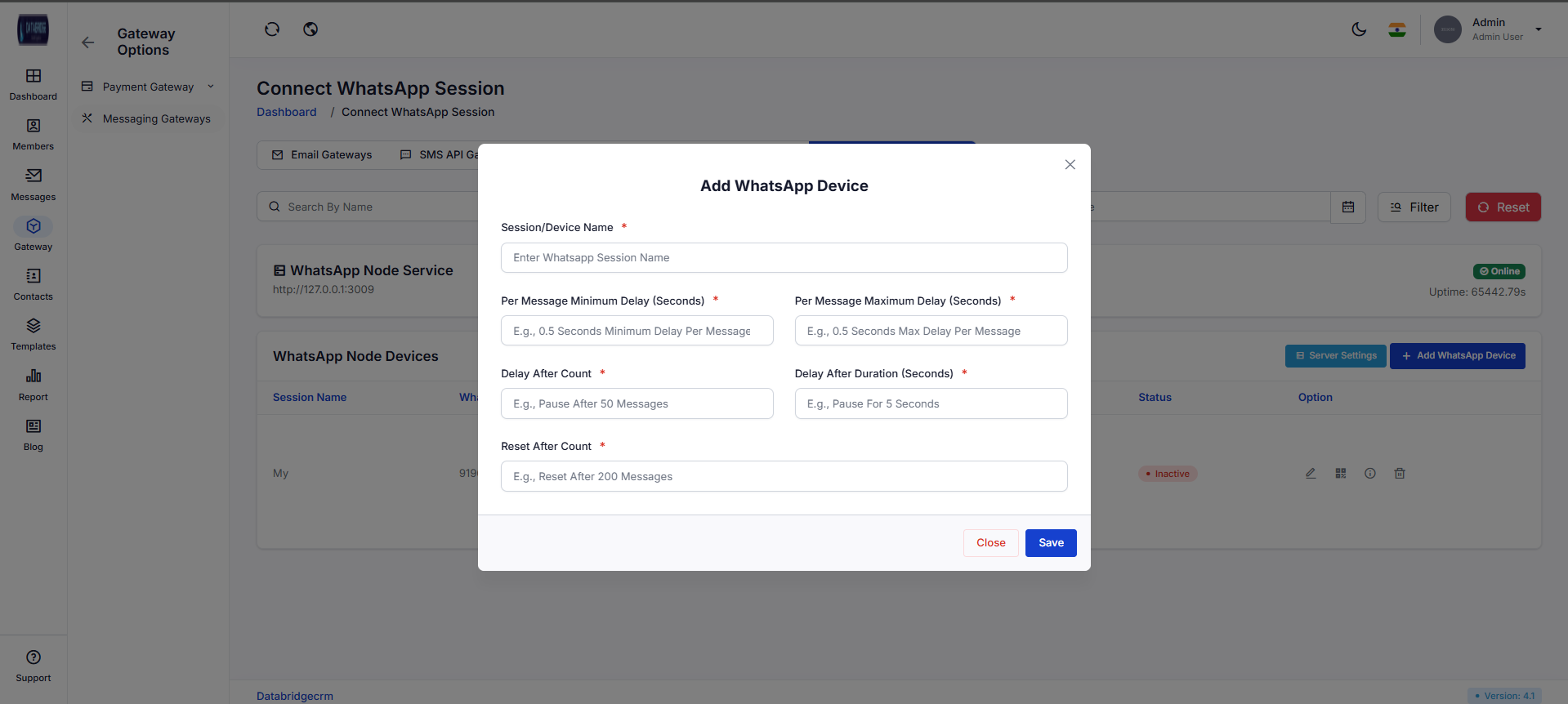
Add WhatsApp Device:
This screen allows adding a new WhatsApp device/session with delay configuration for controlled message sending.
Features:
-Session/device name input
-Delay configuration (min/max delay)
-Bulk control (delay after count, reset count)
-Save and Close buttons
Functionality:
-Users configure a WhatsApp device session
-Controls message sending speed and batching
-Prevents spam and rate limits
-Device becomes available for sending messages
This screen allows adding a new WhatsApp device/session with delay configuration for controlled message sending.
Features:
-Session/device name input
-Delay configuration (min/max delay)
-Bulk control (delay after count, reset count)
-Save and Close buttons
Functionality:
-Users configure a WhatsApp device session
-Controls message sending speed and batching
-Prevents spam and rate limits
-Device becomes available for sending messages
1
Gateway
2
Massaging Gateway
3
Connect WhatsApp Session
4
Add WhatsApp Device
Contacts
Manages and stores all user contact information in a centralized system for easy access and organization.Allows adding, editing, and grouping contacts based on specific categories or business needs.Supports multiple communication details such as SMS, WhatsApp, and email for seamless outreach.Provides flexibility with custom attributes and bulk import options to efficiently handle large contact data.
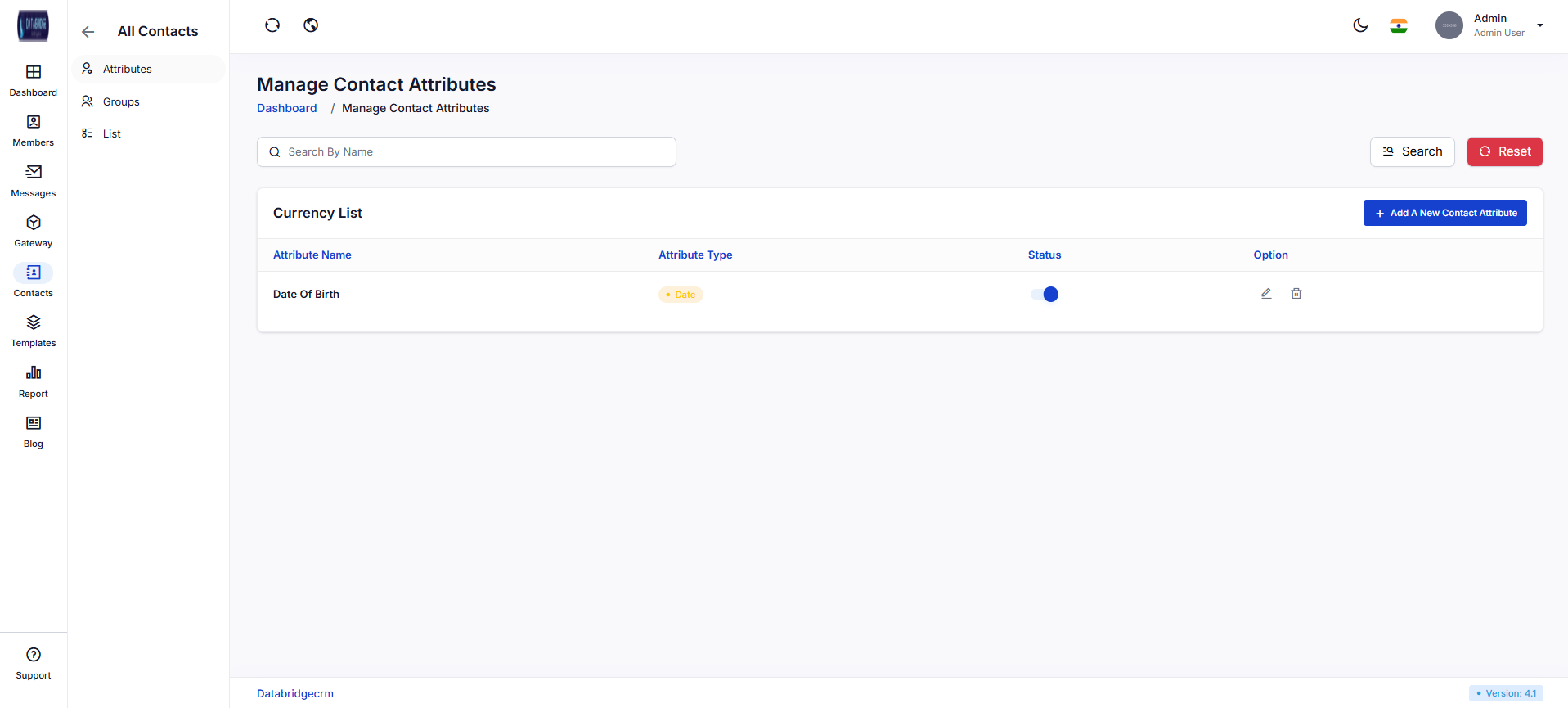
Manage Contact Attributes:
This screen allows administrators to create and manage custom attributes for contacts, enabling flexible data collection such as date of birth, location, or any custom field.
Features:
-List of all attributes with type and status
-Search functionality
-Add New Contact Attribute button
-Status toggle (active/inactive)
-Edit and delete options
Functionality:
-Users can define custom fields for contacts
-Attribute types (e.g., text, date) determine input format
-Active attributes are used while creating contacts
-Admins can update or remove attributes as needed
This screen allows administrators to create and manage custom attributes for contacts, enabling flexible data collection such as date of birth, location, or any custom field.
Features:
-List of all attributes with type and status
-Search functionality
-Add New Contact Attribute button
-Status toggle (active/inactive)
-Edit and delete options
Functionality:
-Users can define custom fields for contacts
-Attribute types (e.g., text, date) determine input format
-Active attributes are used while creating contacts
-Admins can update or remove attributes as needed
1
Contact
2
Attributes
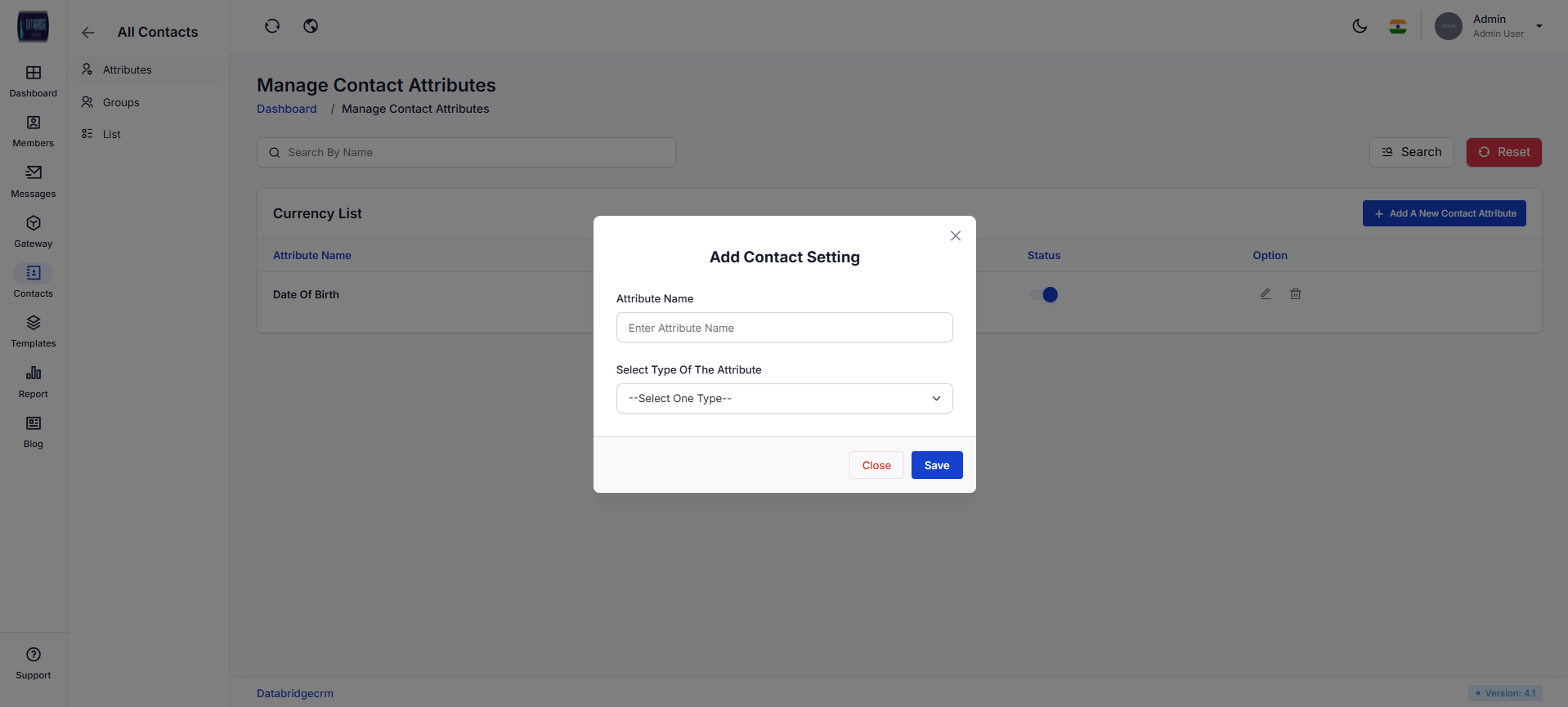
Add Contact Attribute:
This popup allows users to create a new contact attribute by specifying its name and type.
Features:
-Attribute name input field
-Attribute type dropdown
-Save and Close buttons
Functionality:
-Users define new custom fields for contacts
-Selected type controls how data is stored and displayed
-On save, attribute becomes available in contact forms
This popup allows users to create a new contact attribute by specifying its name and type.
Features:
-Attribute name input field
-Attribute type dropdown
-Save and Close buttons
Functionality:
-Users define new custom fields for contacts
-Selected type controls how data is stored and displayed
-On save, attribute becomes available in contact forms
1
Contact
2
Attributes
3
Add New Contact Attribute
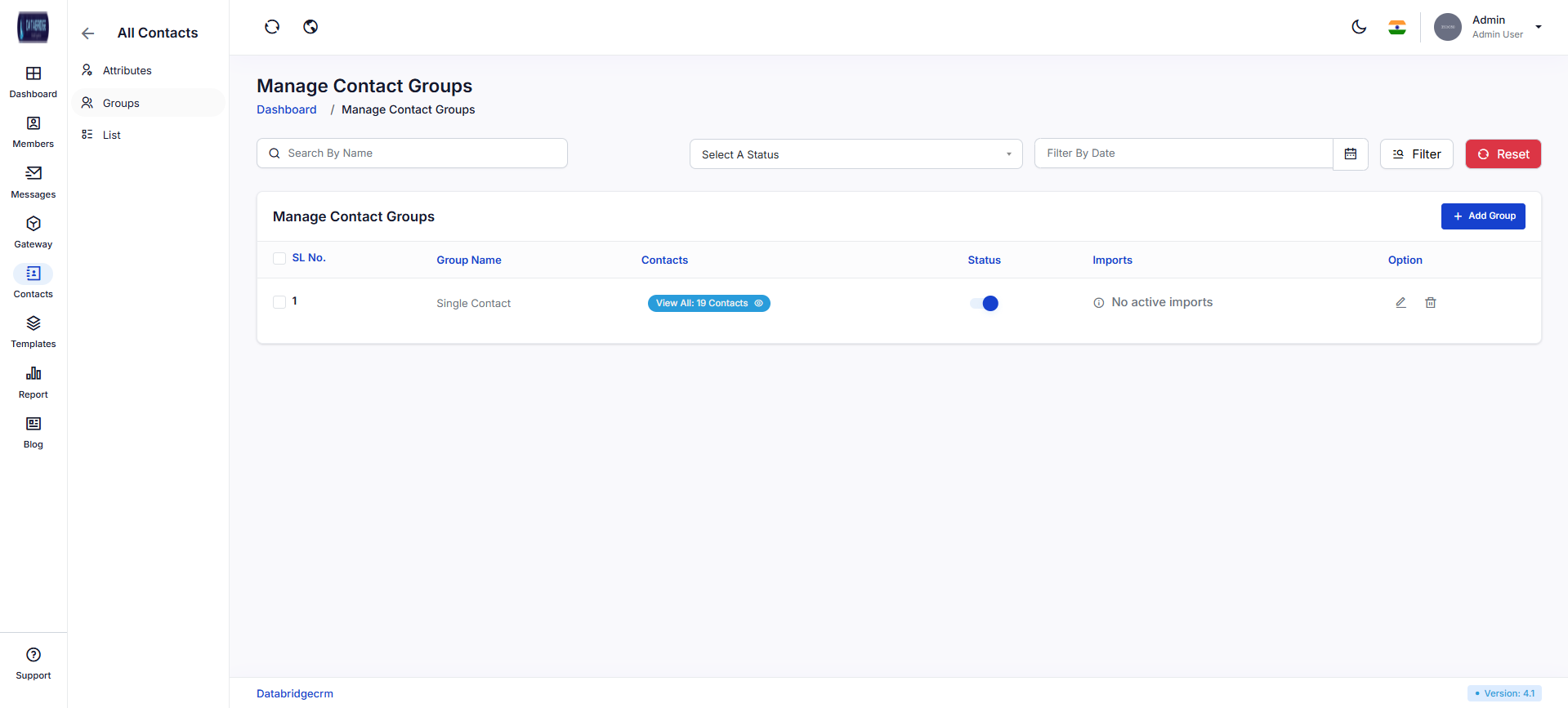
Manage Contact Groups:
This screen enables users to organize contacts into groups for better segmentation and targeted communication.
Features:
-Group listing with contact count
-Search, filter, and date filter options
-Add Group button
-Status toggle
-Import status visibility
-Edit and delete actions
Functionality:
-Users can create and manage contact groups
-Groups help in bulk messaging and segmentation
-View contacts within each group
-Enable/disable groups as required
This screen enables users to organize contacts into groups for better segmentation and targeted communication.
Features:
-Group listing with contact count
-Search, filter, and date filter options
-Add Group button
-Status toggle
-Import status visibility
-Edit and delete actions
Functionality:
-Users can create and manage contact groups
-Groups help in bulk messaging and segmentation
-View contacts within each group
-Enable/disable groups as required
1
Contact
2
Groups
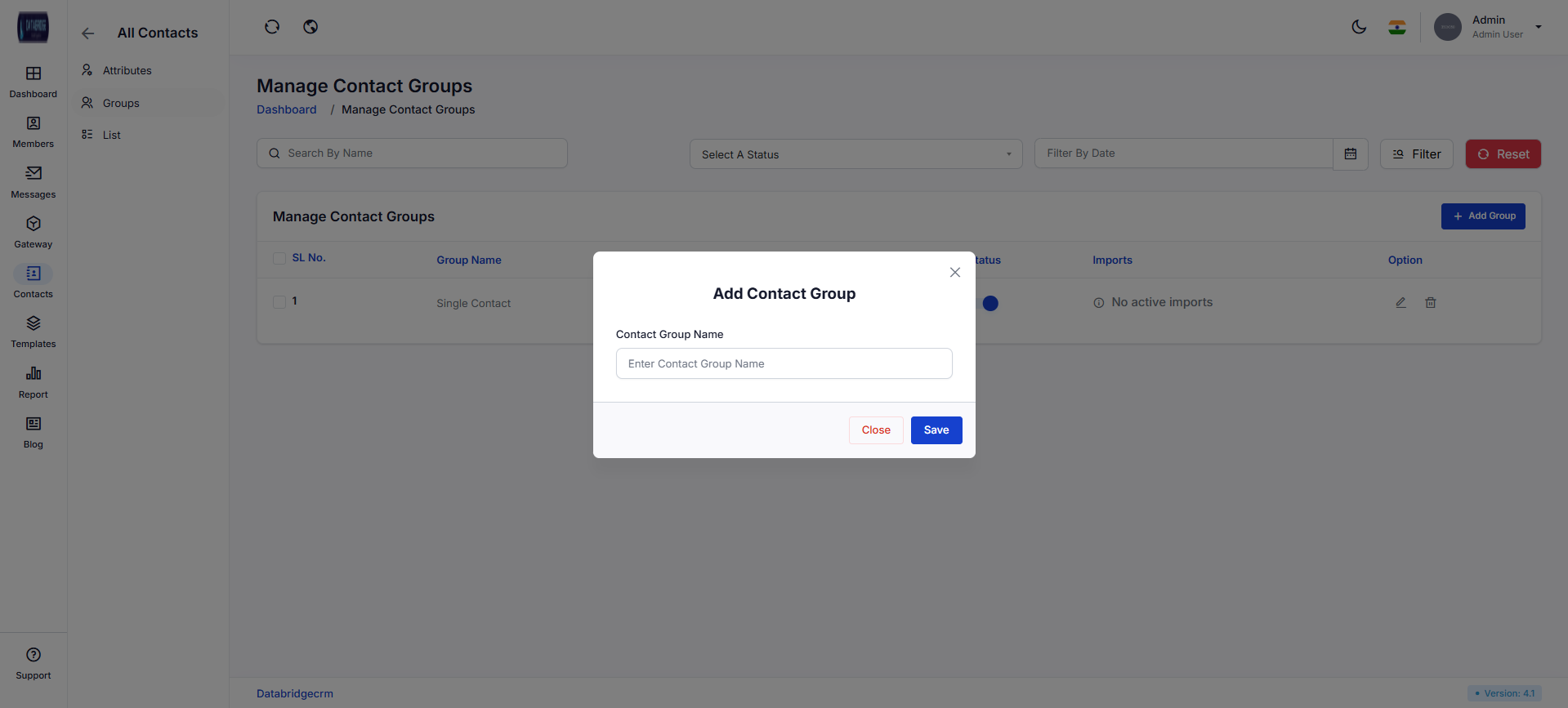
Add Contact Group:
This popup allows users to create a new contact group by entering a group name.
Features:
-Contact group name input
-Save and Close buttons
Functionality:
-Users create new groups for organizing contacts
-Group becomes available for contact assignment
-Used in campaigns and messaging
This popup allows users to create a new contact group by entering a group name.
Features:
-Contact group name input
-Save and Close buttons
Functionality:
-Users create new groups for organizing contacts
-Group becomes available for contact assignment
-Used in campaigns and messaging
1
Contact
2
Groups
3
Add Groups
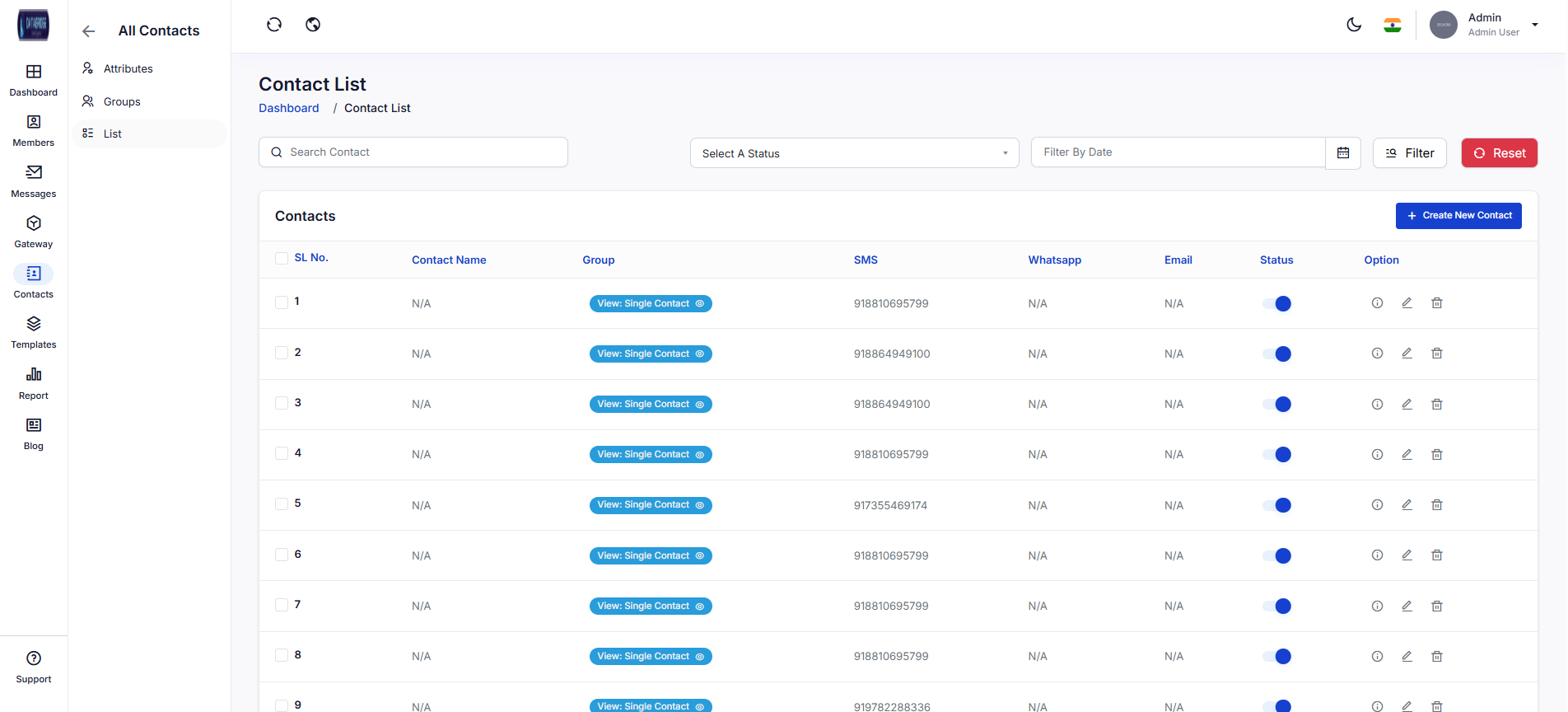
Contact List:
This screen displays all contacts in the system along with their communication details and status.
Features:
-Contact listing (name, group, SMS, WhatsApp, email)
-Search and filter options
-Status toggle
-View, edit, and delete actions
-Create New Contact button
Functionality:
-Users can view and manage all contacts
-Contact communication channels are visible
-Status determines whether a contact is active
-Supports quick access to contact details
This screen displays all contacts in the system along with their communication details and status.
Features:
-Contact listing (name, group, SMS, WhatsApp, email)
-Search and filter options
-Status toggle
-View, edit, and delete actions
-Create New Contact button
Functionality:
-Users can view and manage all contacts
-Contact communication channels are visible
-Status determines whether a contact is active
-Supports quick access to contact details
1
Contact
2
List
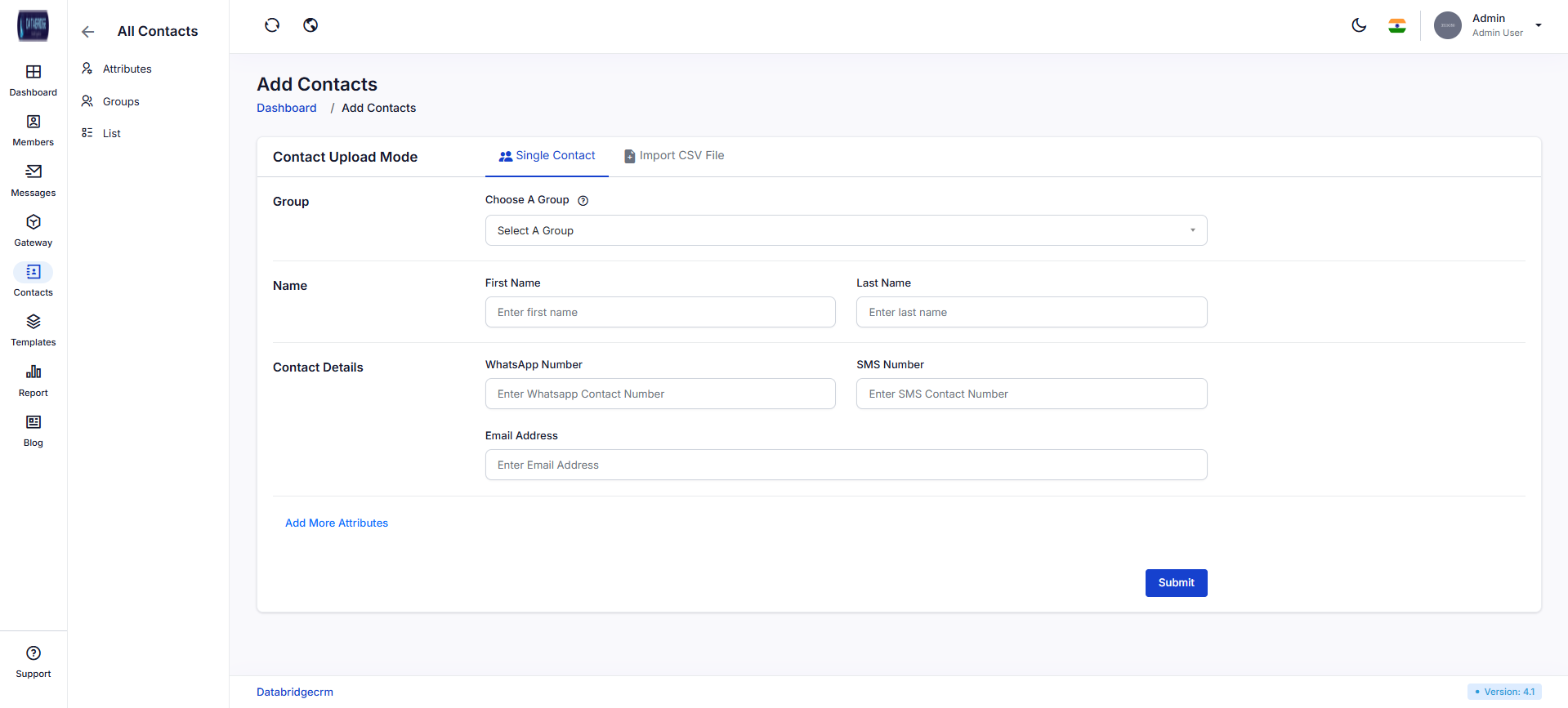
Single Entry:
This screen allows users to manually add a single contact with personal and communication details.
Features:
-Group selection dropdown
-Name fields (first and last name)
-Contact details (WhatsApp, SMS, email)
-Add more attributes option
-Submit button
Functionality:
-Users can add individual contacts manually
-Assign contacts to groups
-Additional attributes allow extended data capture
-Saved contacts appear in contact list
This screen allows users to manually add a single contact with personal and communication details.
Features:
-Group selection dropdown
-Name fields (first and last name)
-Contact details (WhatsApp, SMS, email)
-Add more attributes option
-Submit button
Functionality:
-Users can add individual contacts manually
-Assign contacts to groups
-Additional attributes allow extended data capture
-Saved contacts appear in contact list
1
Contact
2
List
3
Add Contact
4
Single Entry
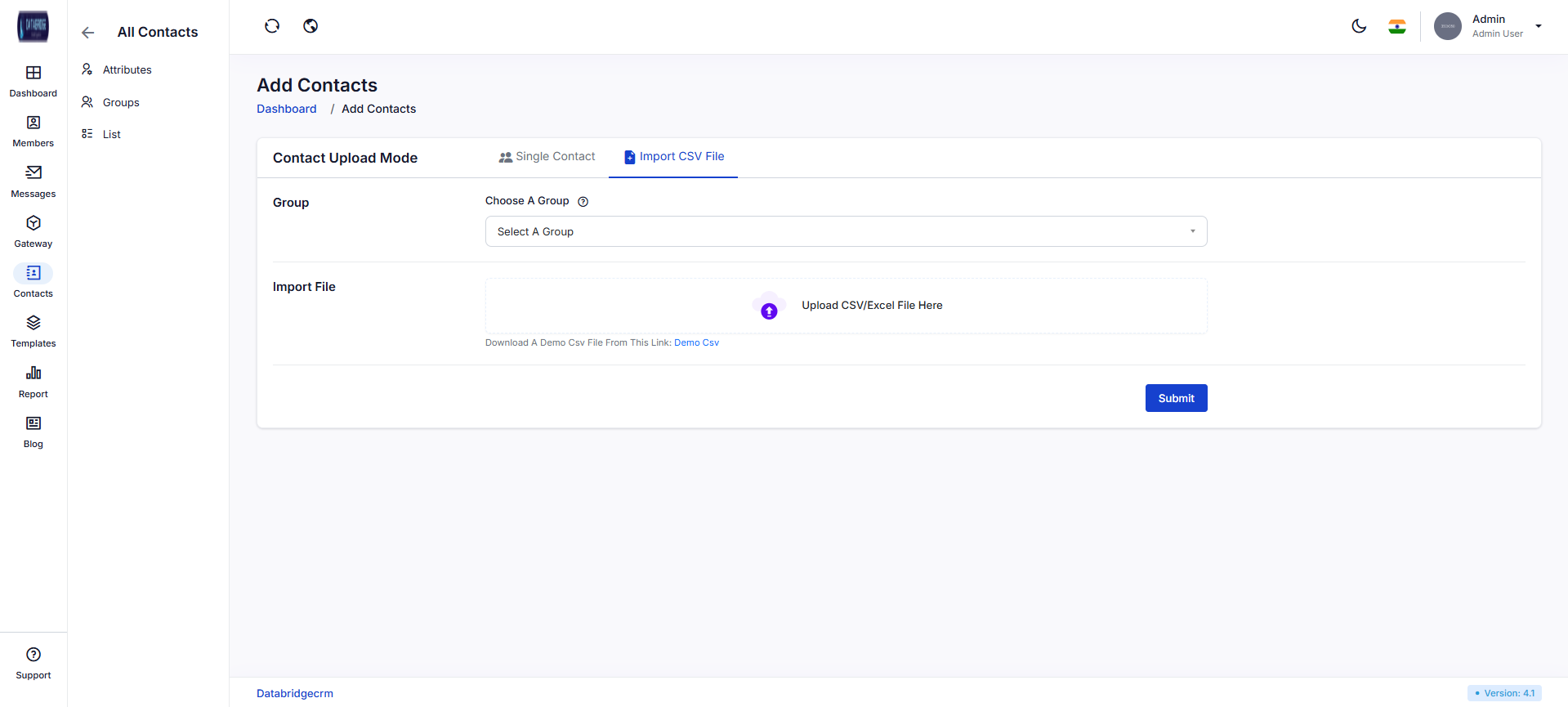
Import CSV File:
This screen allows bulk upload of contacts using a CSV or Excel file.
Features:
-Import CSV/Excel upload area
-Download demo CSV option
-Group selection
-Submit button
Functionality:
-Users can upload multiple contacts at once
-System reads file and creates contacts in bulk
-Contacts are assigned to selected group
-Ensures faster data onboarding
This screen allows bulk upload of contacts using a CSV or Excel file.
Features:
-Import CSV/Excel upload area
-Download demo CSV option
-Group selection
-Submit button
Functionality:
-Users can upload multiple contacts at once
-System reads file and creates contacts in bulk
-Contacts are assigned to selected group
-Ensures faster data onboarding
1
Contact
2
List
3
Add Contact
4
Import CSV File
Templates
Manages all communication templates used across email, SMS, and WhatsApp channels in a centralized system.Allows creating, editing, and organizing templates for admin, users, and system-generated messages.Ensures consistency in communication by using predefined and reusable template formats.Supports dynamic variables and global templates for personalized and scalable messaging.
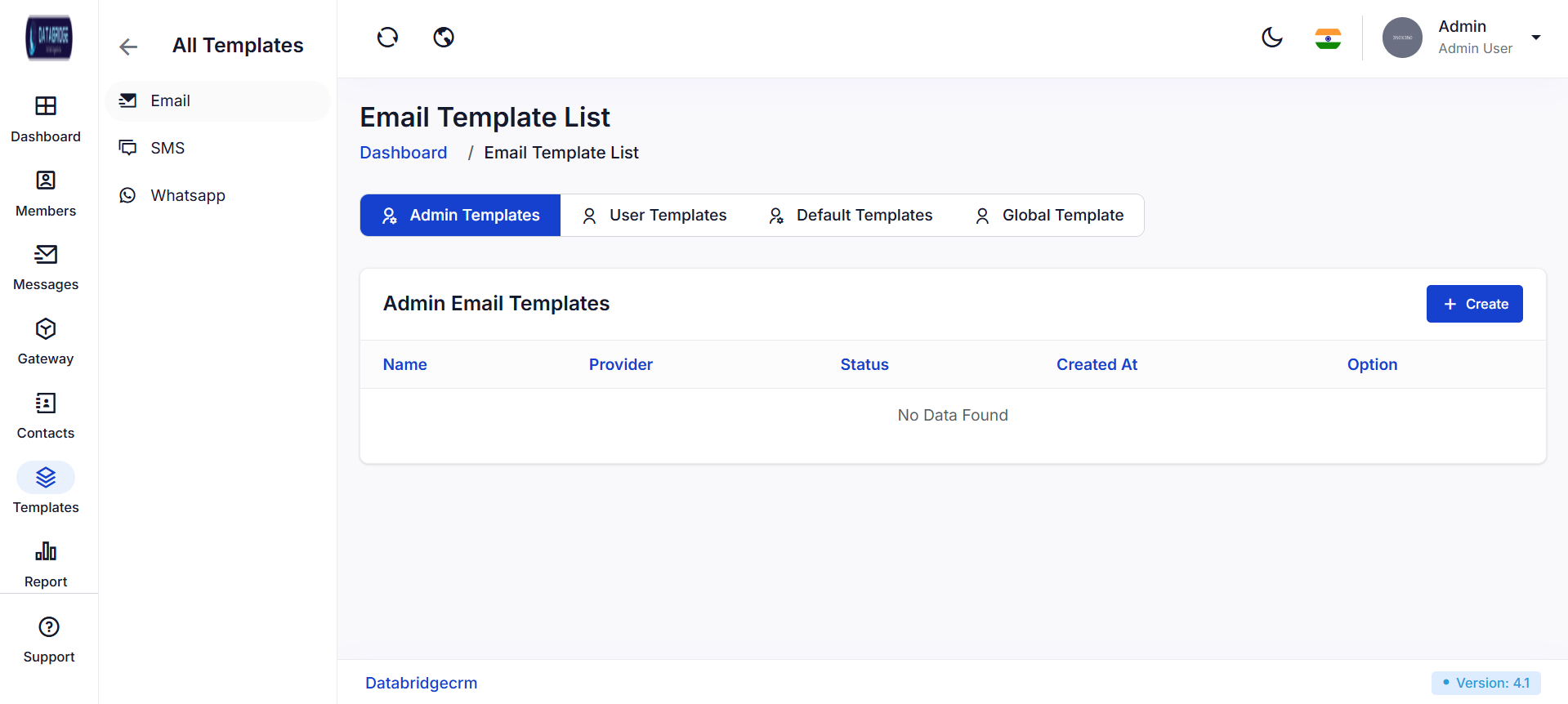
Email Template List:
Displays all admin-created email templates used for system-level communications.
Allows administrators to manage, enable/disable, and organize templates efficiently.
Features:
-View list of admin templates with provider and status
-Enable/disable templates using toggle
-Create new email templates
-Organized tab-based navigation
Functionality:
-Displays template details like name, provider, and creation date
-Allows admins to add or edit templates
-Provides status control for activation/deactivation
-Supports quick navigation between template categories
Displays all admin-created email templates used for system-level communications.
Allows administrators to manage, enable/disable, and organize templates efficiently.
Features:
-View list of admin templates with provider and status
-Enable/disable templates using toggle
-Create new email templates
-Organized tab-based navigation
Functionality:
-Displays template details like name, provider, and creation date
-Allows admins to add or edit templates
-Provides status control for activation/deactivation
-Supports quick navigation between template categories
1
Template
2
Email
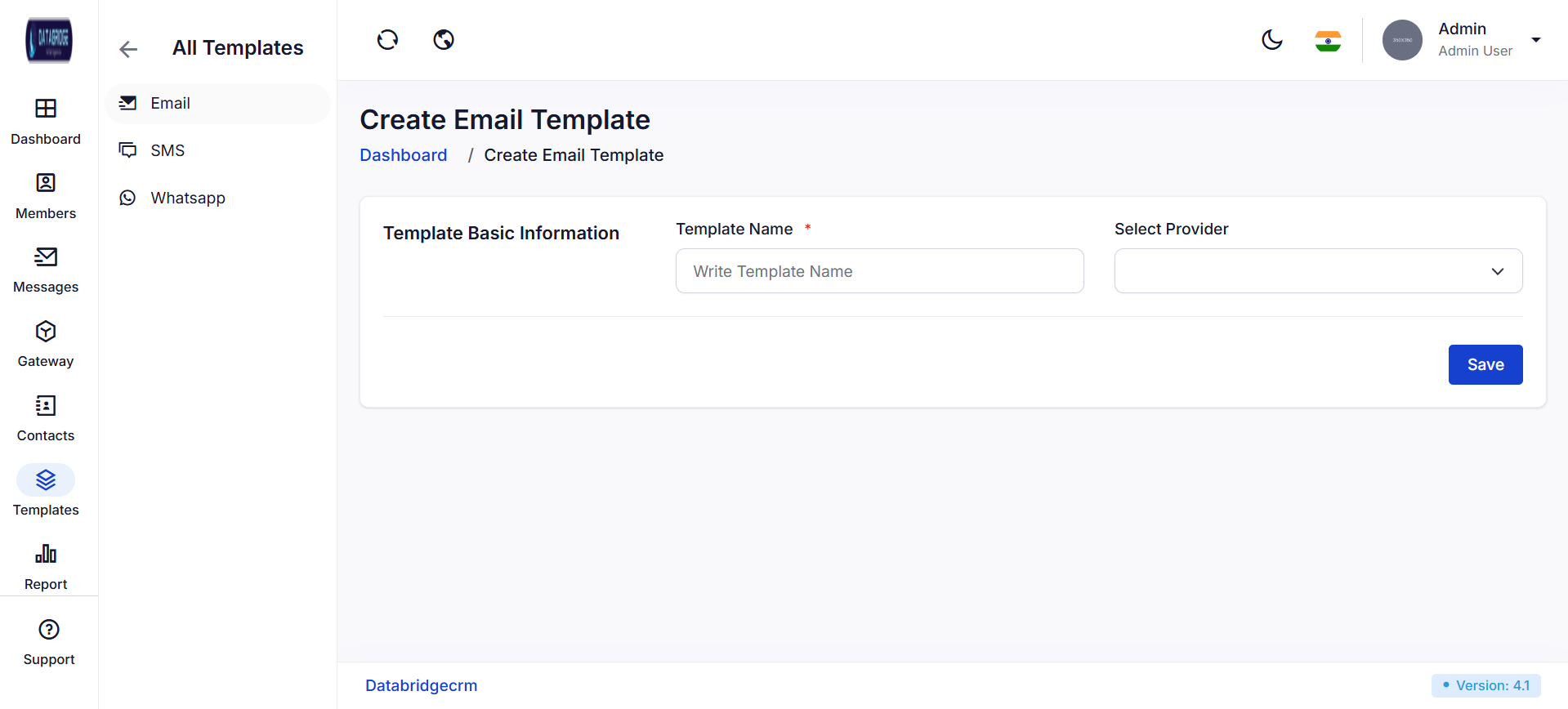
Create Email Template:
Allows users to create a new email template with basic configuration details.
Ensures templates are linked with a specific provider for sending emails.
Features:
-Input template name
-Select email provider
-Simple and clean form interface
-Save template configuration
Functionality:
-Captures template basic information
-Validates required fields before saving
-Stores template for future communication use
-Associates template with selected provider
Allows users to create a new email template with basic configuration details.
Ensures templates are linked with a specific provider for sending emails.
Features:
-Input template name
-Select email provider
-Simple and clean form interface
-Save template configuration
Functionality:
-Captures template basic information
-Validates required fields before saving
-Stores template for future communication use
-Associates template with selected provider
1
Template
2
Email
3
Create
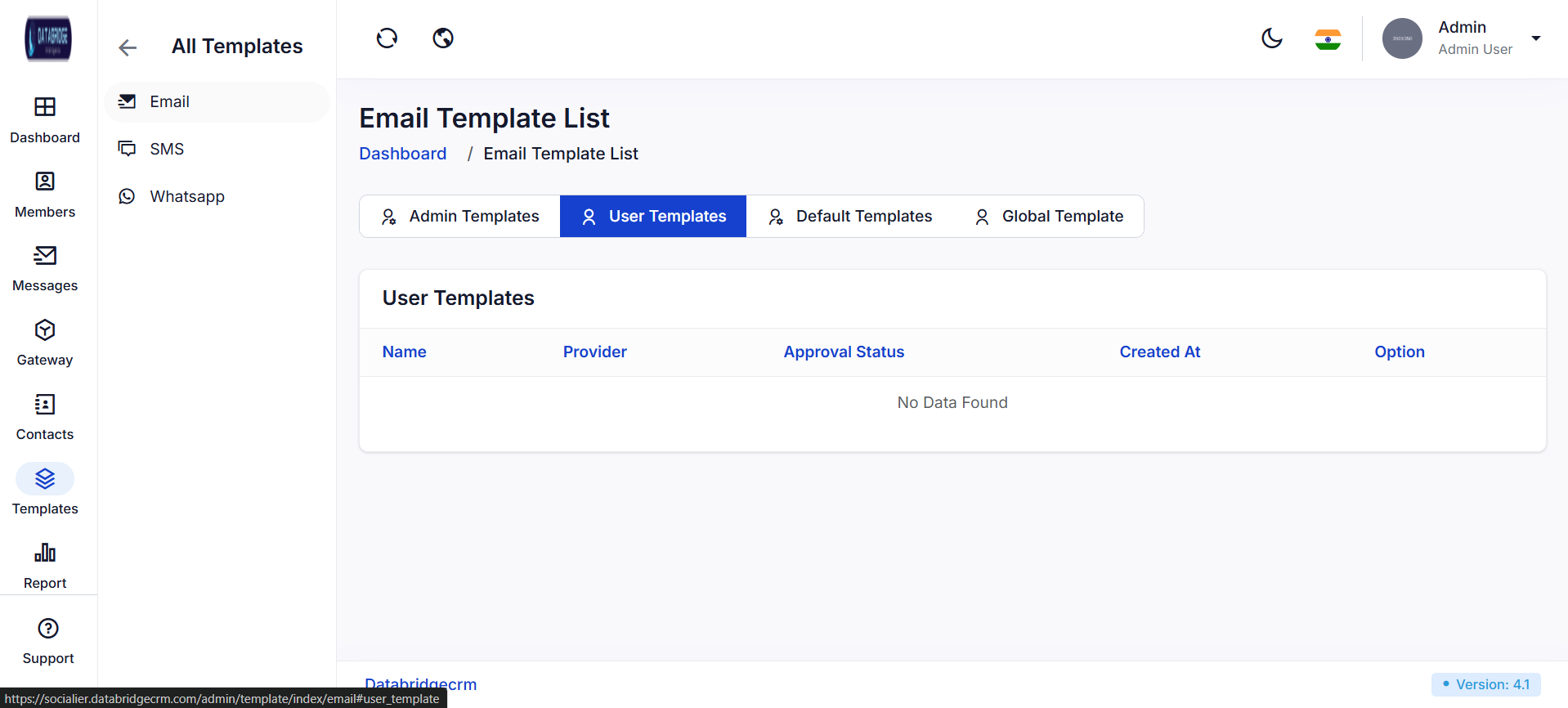
User Templates:
Displays templates created by users for personalized communication.
Helps manage and review user-generated templates with approval status.
Features:
-View user templates list
-Check approval status
-Organized tab interface
-Template tracking system
Functionality:
-Displays template name, provider, and approval status
-Helps admins monitor user-created templates
-Supports template approval workflow
-Allows management of user-level templates
Displays templates created by users for personalized communication.
Helps manage and review user-generated templates with approval status.
Features:
-View user templates list
-Check approval status
-Organized tab interface
-Template tracking system
Functionality:
-Displays template name, provider, and approval status
-Helps admins monitor user-created templates
-Supports template approval workflow
-Allows management of user-level templates
1
Template
2
Email
3
User Templates
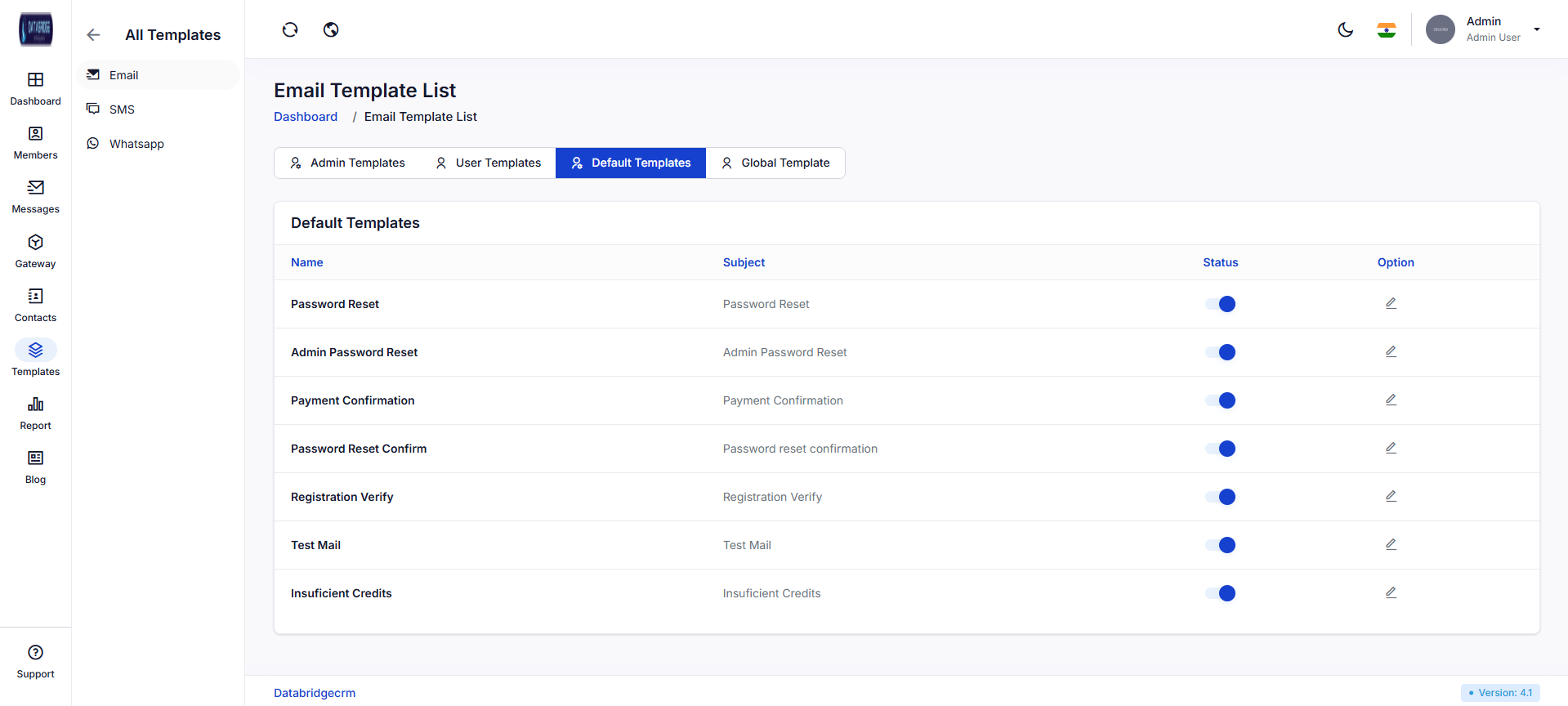
Default Templates:
Contains pre-defined system templates used for common actions like password reset and verification.
Ensures consistent communication across the platform.
Features:
-Pre-built templates for system use
-Toggle to enable/disable templates
-Editable template options
-Standardized communication format
Functionality:
-Displays default template list with subjects
-Allows enabling/disabling templates
-Supports editing of template content
-Ensures templates are used in system-triggered events
Contains pre-defined system templates used for common actions like password reset and verification.
Ensures consistent communication across the platform.
Features:
-Pre-built templates for system use
-Toggle to enable/disable templates
-Editable template options
-Standardized communication format
Functionality:
-Displays default template list with subjects
-Allows enabling/disabling templates
-Supports editing of template content
-Ensures templates are used in system-triggered events
1
Template
2
Email
3
Default Templates
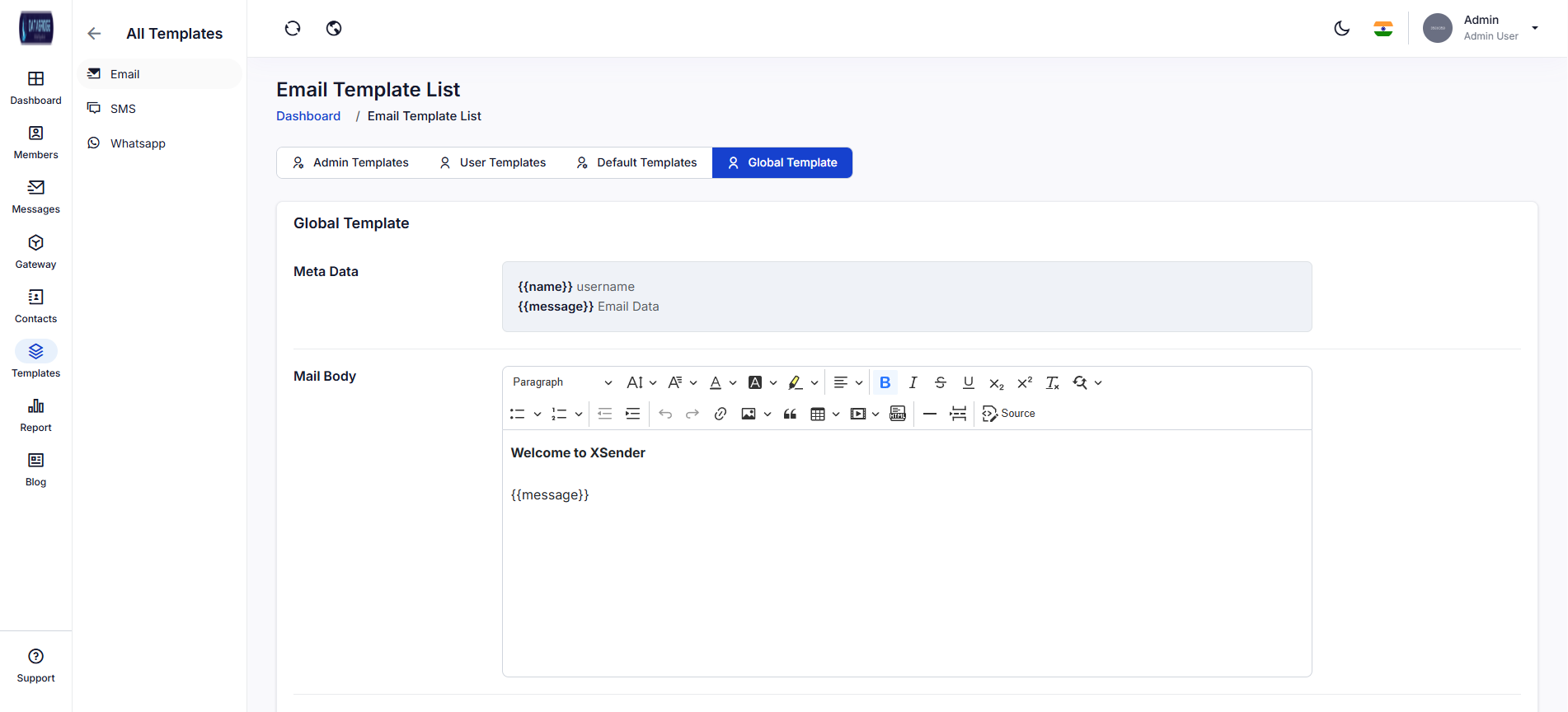
Global Templates:
Provides a centralized template editor for defining global email structure and variables.
Used to maintain consistent formatting across all outgoing emails.
Features:
-Rich text editor for email body
-Dynamic variables (e.g., {{name}}, {{message}})
-Metadata configuration
-Global template customization
Functionality:
-Allows editing of global email layout
-Supports dynamic placeholders for personalization
-Applies consistent design across all templates
-Enables centralized control over email formatting
Provides a centralized template editor for defining global email structure and variables.
Used to maintain consistent formatting across all outgoing emails.
Features:
-Rich text editor for email body
-Dynamic variables (e.g., {{name}}, {{message}})
-Metadata configuration
-Global template customization
Functionality:
-Allows editing of global email layout
-Supports dynamic placeholders for personalization
-Applies consistent design across all templates
-Enables centralized control over email formatting
1
Template
2
Email
3
Global Templates
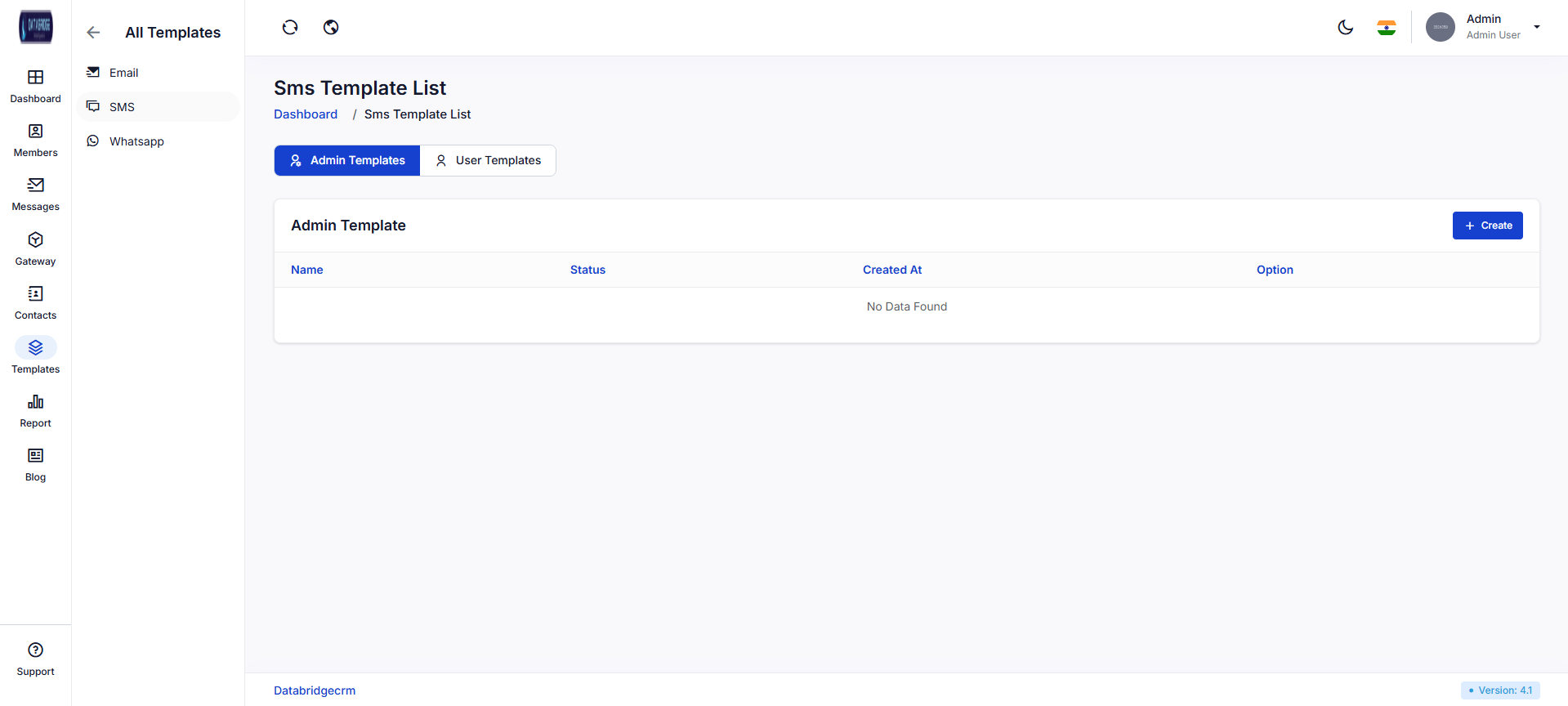
SMS Template List(Admin Template):
This screen displays all SMS templates created and managed by the admin.
It provides a centralized view to monitor template availability, status, and creation details.
Users can quickly access, edit, or manage templates used for SMS communication.
Features:
-View list of admin SMS templates
-Template status toggle (active/inactive)
-Create new SMS template option
-Template metadata display (name, date)
Functionality:
-Admin can create, edit, and delete SMS templates
-Enables activation or deactivation of templates
-Stores templates for reuse in messaging campaigns
-Provides quick navigation between admin and user templates
This screen displays all SMS templates created and managed by the admin.
It provides a centralized view to monitor template availability, status, and creation details.
Users can quickly access, edit, or manage templates used for SMS communication.
Features:
-View list of admin SMS templates
-Template status toggle (active/inactive)
-Create new SMS template option
-Template metadata display (name, date)
Functionality:
-Admin can create, edit, and delete SMS templates
-Enables activation or deactivation of templates
-Stores templates for reuse in messaging campaigns
-Provides quick navigation between admin and user templates
1
Template
2
SMS
3
Admin Template
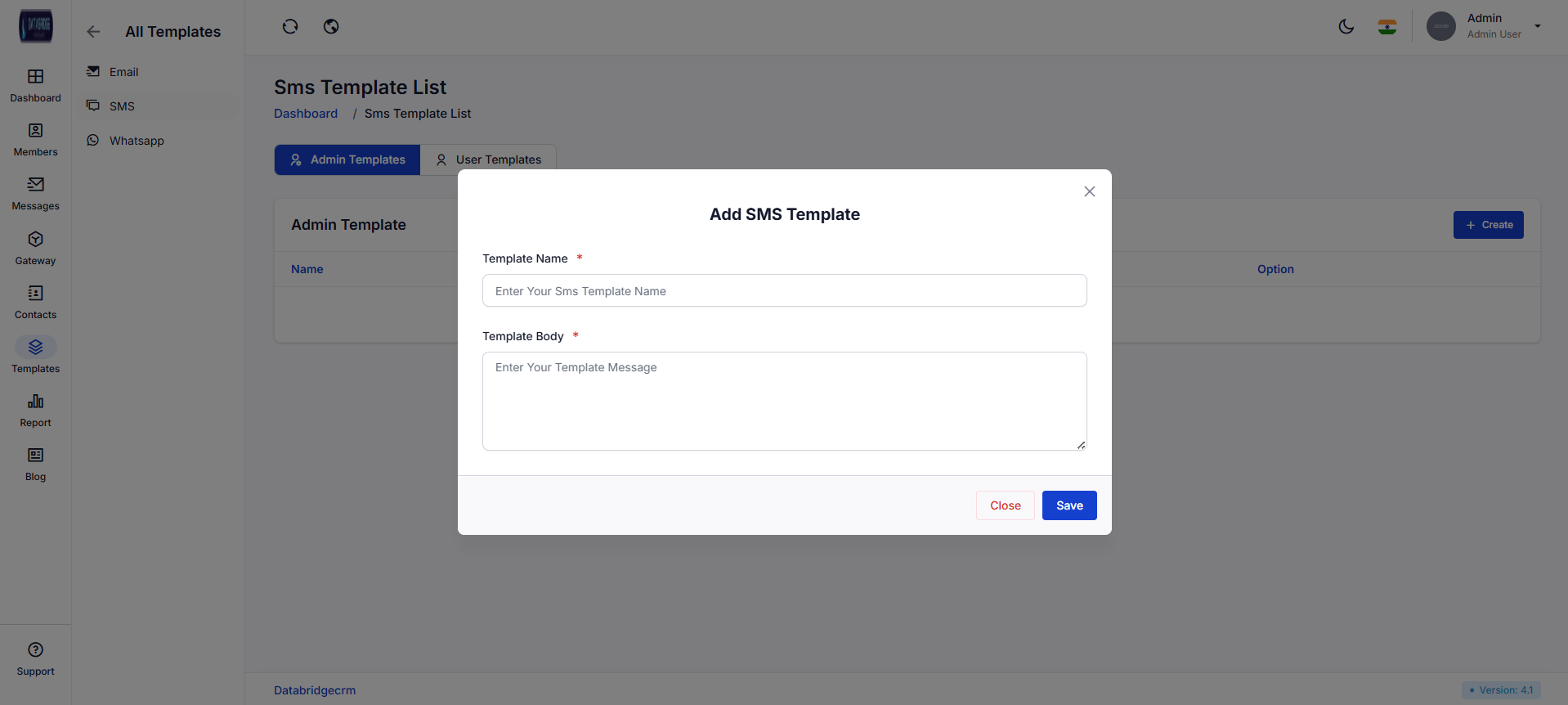
Add SMS Template:
This modal allows users to create a new SMS template by entering template details.
It ensures structured message creation for consistent SMS communication.
The popup simplifies template creation without leaving the main screen.
Features:
-Input field for template name
-Text area for message body
-Validation for required fields
-Save and close actions
Functionality:
-Captures SMS content for future use
-Validates required inputs before submission
-Saves template into the system database
-Allows quick creation without page reload
This modal allows users to create a new SMS template by entering template details.
It ensures structured message creation for consistent SMS communication.
The popup simplifies template creation without leaving the main screen.
Features:
-Input field for template name
-Text area for message body
-Validation for required fields
-Save and close actions
Functionality:
-Captures SMS content for future use
-Validates required inputs before submission
-Saves template into the system database
-Allows quick creation without page reload
1
Template
2
SMS
3
Admin Template
4
Create
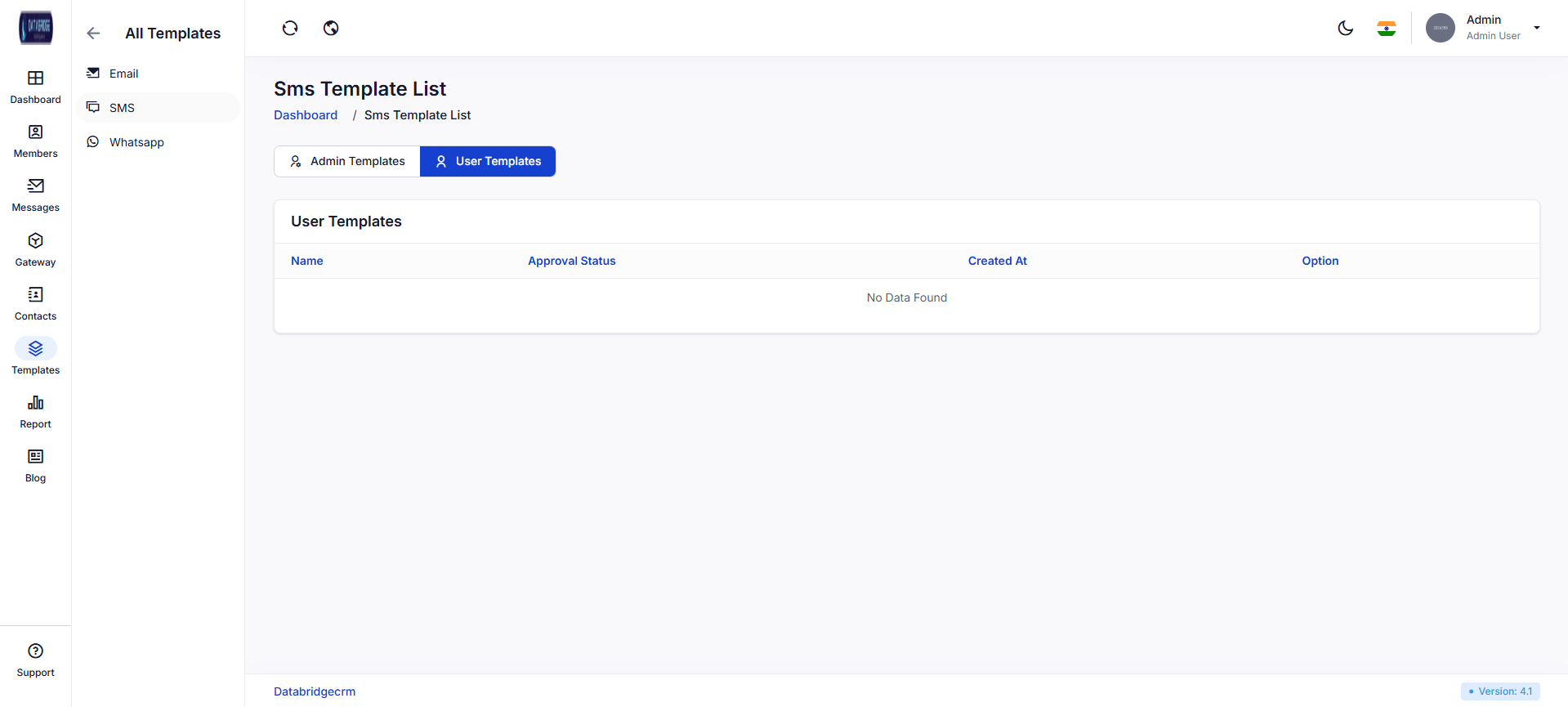
SMS Template List(User Template):
This screen shows SMS templates created by users that may require approval.
It helps in managing user-generated content before it is used in communication.
Ensures quality control and moderation of templates.
Features:
-View user-created templates
-Approval status tracking
-Template metadata display
-Admin moderation capability
Functionality:
-Allows admin to approve or reject templates
-Displays pending or approved template status
-Maintains a controlled template ecosystem
-Supports user-level customization
This screen shows SMS templates created by users that may require approval.
It helps in managing user-generated content before it is used in communication.
Ensures quality control and moderation of templates.
Features:
-View user-created templates
-Approval status tracking
-Template metadata display
-Admin moderation capability
Functionality:
-Allows admin to approve or reject templates
-Displays pending or approved template status
-Maintains a controlled template ecosystem
-Supports user-level customization
1
Template
2
SMS
3
User Template
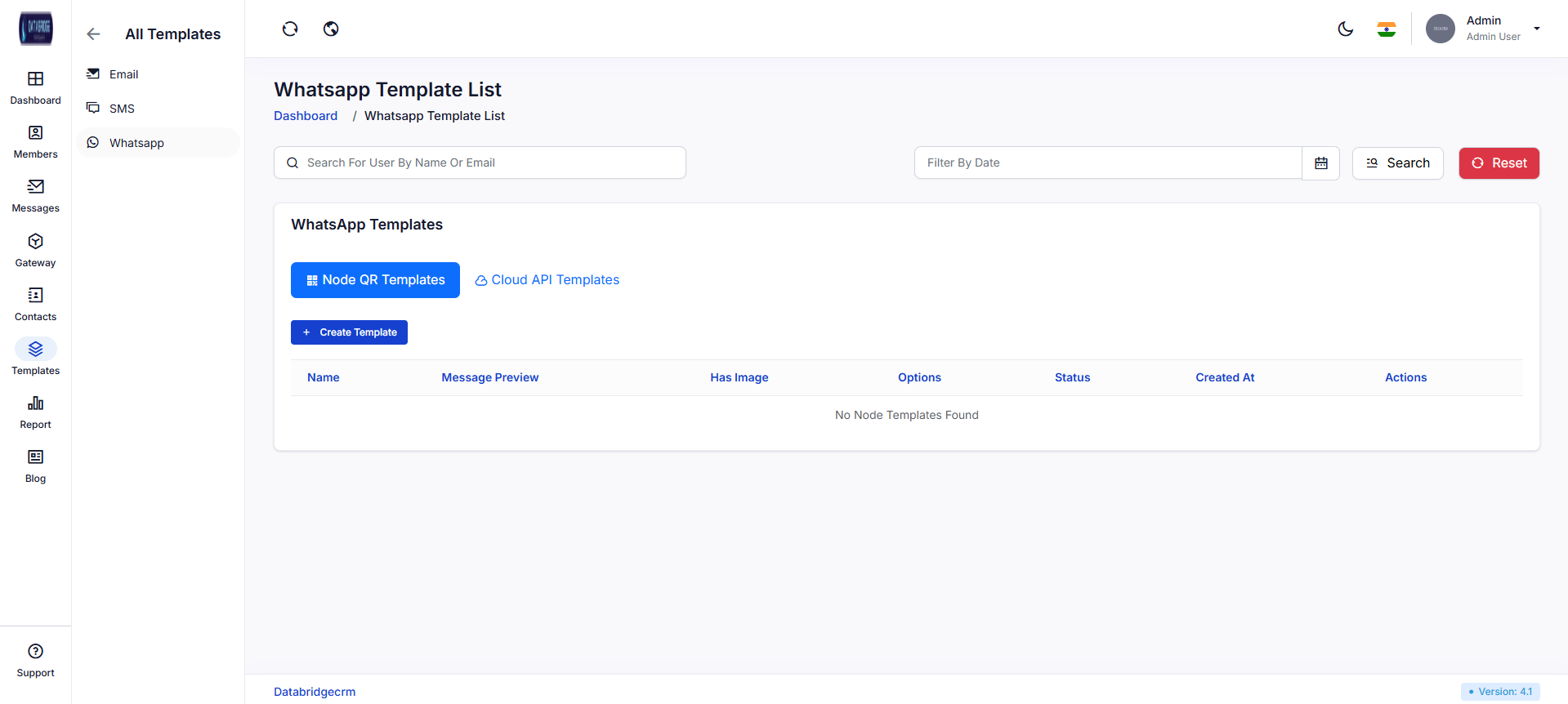
WhatsApp Template List:
This screen manages WhatsApp templates created using Node QR integration.
It allows users to create and manage templates for QR-based communication workflows.
Provides a structured view of template previews and configurations.
Features:
-Create WhatsApp template
-View message preview
-Image support indicator
-Template status and actions
Functionality:
-Enables creation of QR-based WhatsApp templates
-Stores templates with dynamic content support
-Allows editing and deletion of templates
-Displays template usage readiness
This screen manages WhatsApp templates created using Node QR integration.
It allows users to create and manage templates for QR-based communication workflows.
Provides a structured view of template previews and configurations.
Features:
-Create WhatsApp template
-View message preview
-Image support indicator
-Template status and actions
Functionality:
-Enables creation of QR-based WhatsApp templates
-Stores templates with dynamic content support
-Allows editing and deletion of templates
-Displays template usage readiness
1
Template
2
WhatsApp
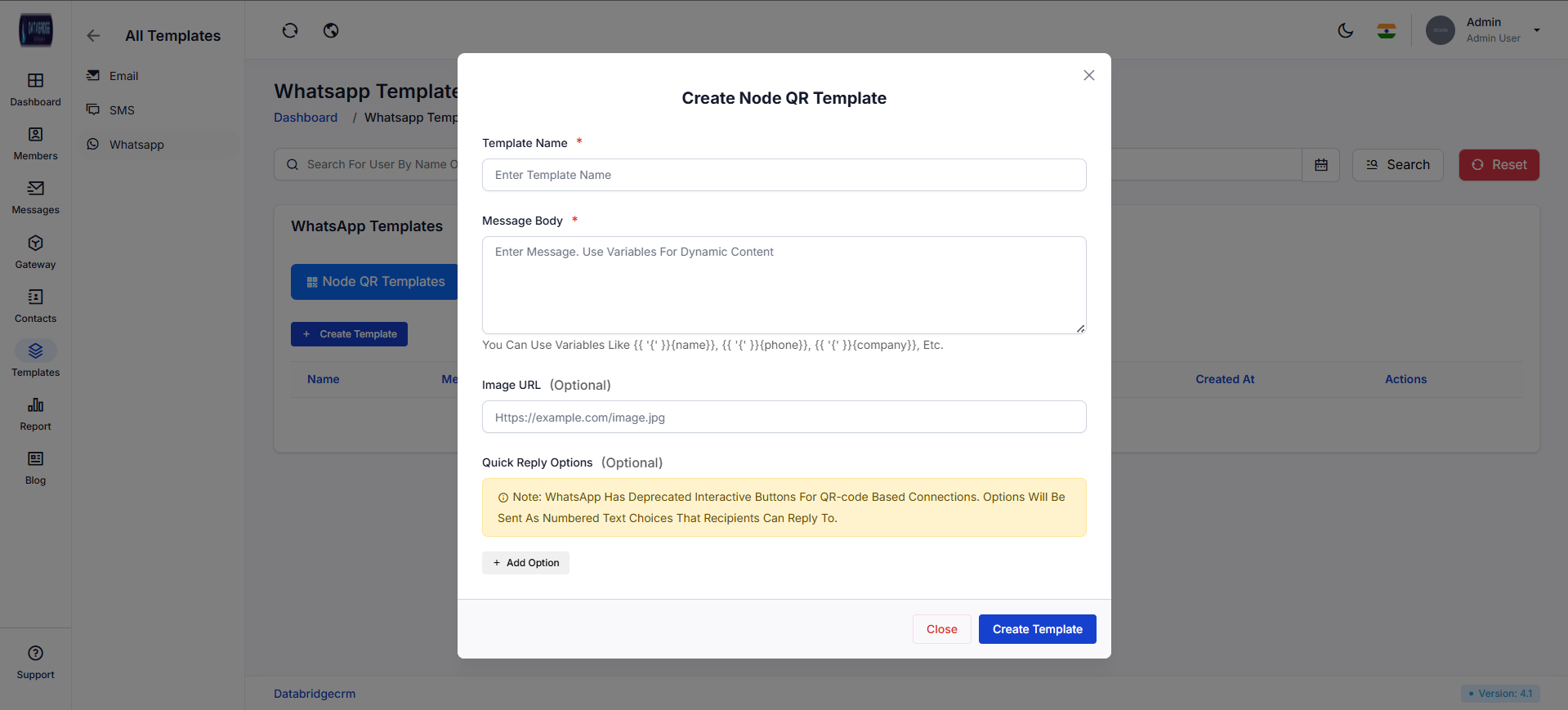
Create Node QR Template(Node QR Templates):
This modal allows users to create WhatsApp templates with dynamic content and optional media.
It supports personalized messaging using variables and structured inputs.
Designed for quick and flexible template creation.
Features:
-Template name input
-Message body with variable support
-Optional image URL field
-Quick reply options (optional)
Functionality
-Supports dynamic variables like name, phone, company
-Allows adding media to WhatsApp messages
-Enables quick reply configuration
-Saves template for WhatsApp communication workflows
This modal allows users to create WhatsApp templates with dynamic content and optional media.
It supports personalized messaging using variables and structured inputs.
Designed for quick and flexible template creation.
Features:
-Template name input
-Message body with variable support
-Optional image URL field
-Quick reply options (optional)
Functionality
-Supports dynamic variables like name, phone, company
-Allows adding media to WhatsApp messages
-Enables quick reply configuration
-Saves template for WhatsApp communication workflows
1
Template
2
WhatsApp
3
Create Template
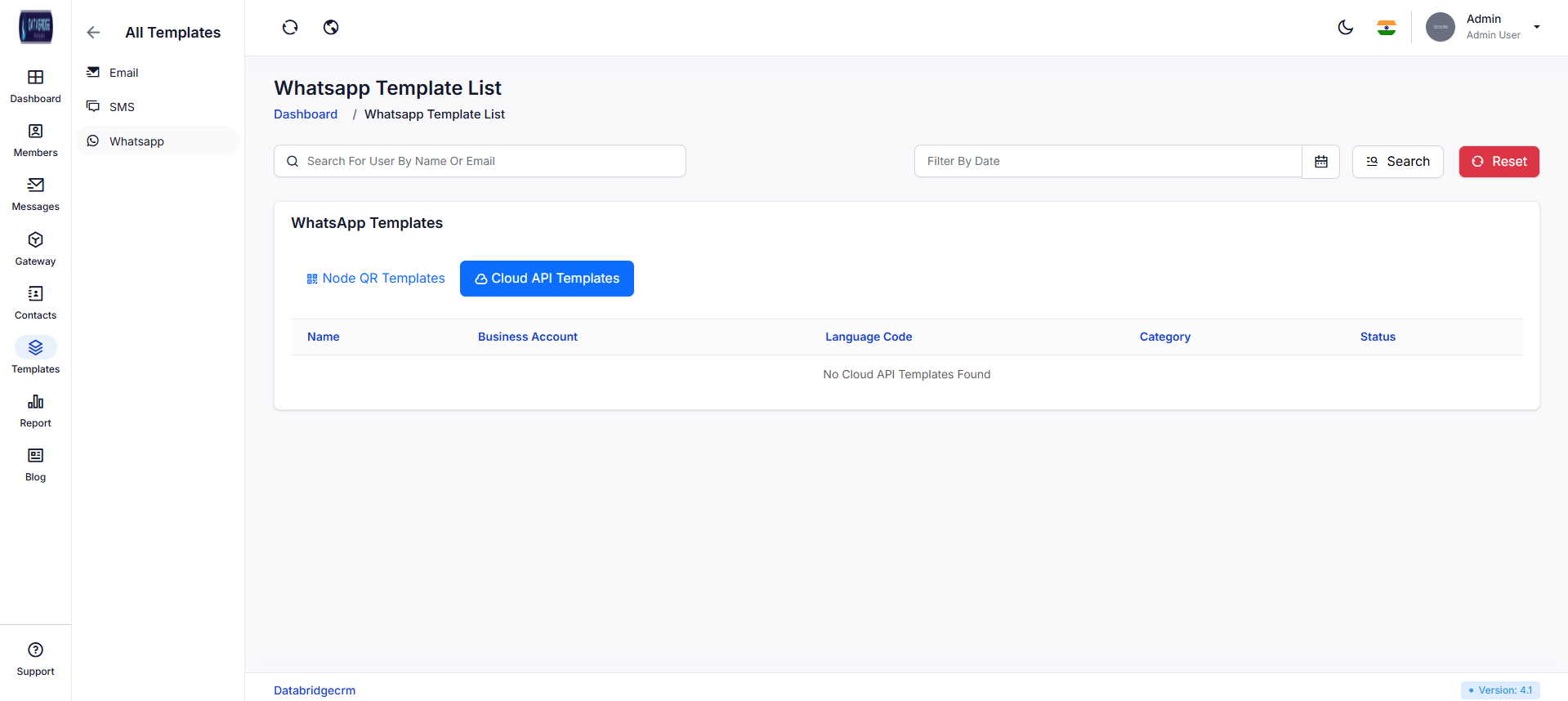
WhatsApp Template List(Cloud API Templates):
This screen displays WhatsApp templates integrated via Cloud API.
It helps manage business communication templates approved by WhatsApp.
Ensures structured and compliant messaging through official APIs.
Features:
-View Cloud API templates
-Business account association
-Language and category display
-Template status tracking
Functionality:
-Syncs templates with WhatsApp Cloud API
-Displays approved template details
-Enables template management for official messaging
-Ensures compliance with WhatsApp guidelines
This screen displays WhatsApp templates integrated via Cloud API.
It helps manage business communication templates approved by WhatsApp.
Ensures structured and compliant messaging through official APIs.
Features:
-View Cloud API templates
-Business account association
-Language and category display
-Template status tracking
Functionality:
-Syncs templates with WhatsApp Cloud API
-Displays approved template details
-Enables template management for official messaging
-Ensures compliance with WhatsApp guidelines
1
Template
2
WhatsApp
3
Cloud API Templates
Reports
The Reports module provides a centralized view of all system activities, including transactions, subscriptions, payments, affiliates, and withdrawals.It helps administrators monitor, analyze, and track data through organized logs and filtering options.This module ensures transparency, supports auditing, and enables better decision-making based on real-time insights.
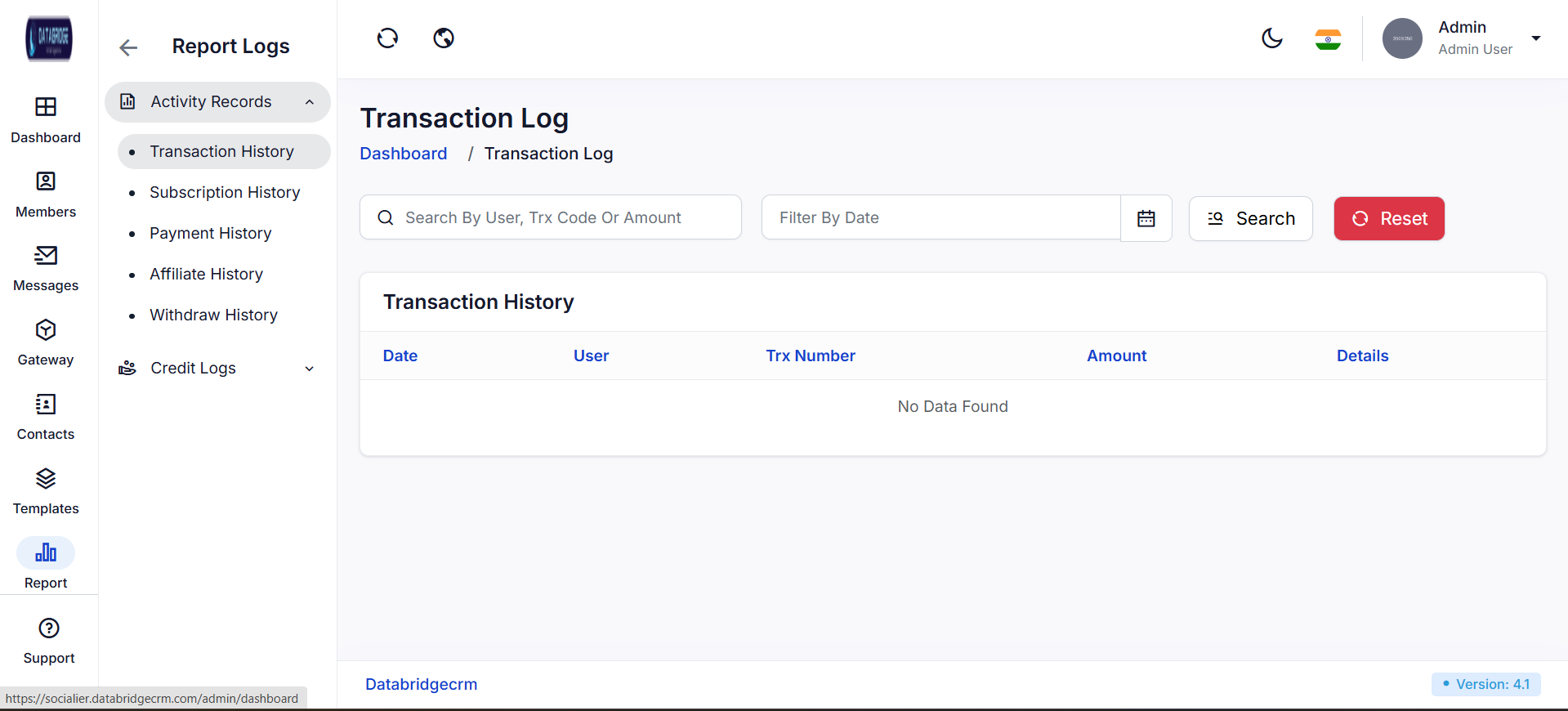
Transaction History:
This screen displays all transaction-related activities performed within the system.
It helps administrators track user transactions including transaction IDs, amounts, and details.
The screen provides filtering and search options for quick access to specific records.
Features:
-Search by user, transaction code, or amount
-Date-based filtering
-Transaction history table view
-Reset filter option
Functionality:
-Retrieves and displays transaction records from the system database
-Allows filtering based on date and search inputs
-Helps in auditing and tracking financial activities
-Provides detailed insights for each transaction entry
This screen displays all transaction-related activities performed within the system.
It helps administrators track user transactions including transaction IDs, amounts, and details.
The screen provides filtering and search options for quick access to specific records.
Features:
-Search by user, transaction code, or amount
-Date-based filtering
-Transaction history table view
-Reset filter option
Functionality:
-Retrieves and displays transaction records from the system database
-Allows filtering based on date and search inputs
-Helps in auditing and tracking financial activities
-Provides detailed insights for each transaction entry
1
Report
2
Activity Reports
3
Transaction History
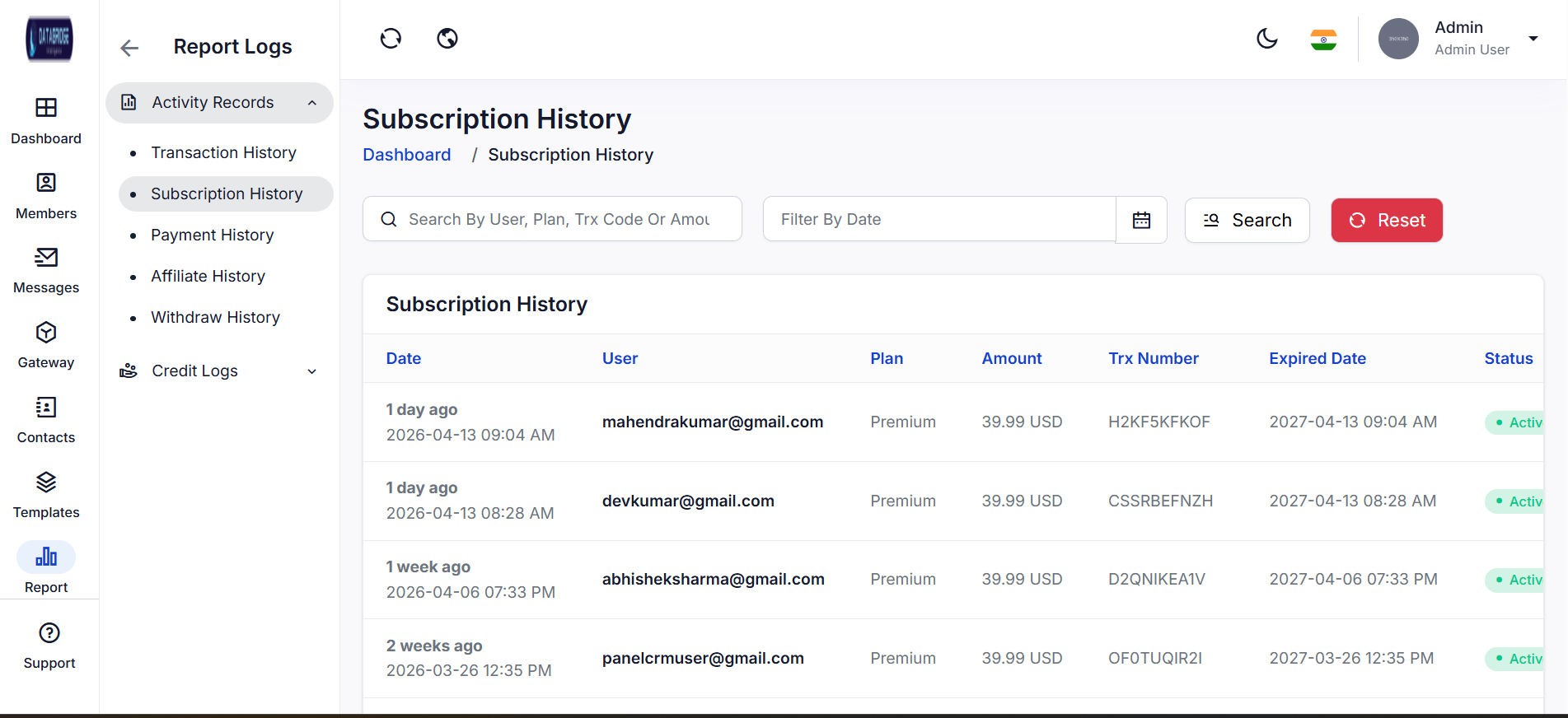
Subscription History:
This screen provides a complete overview of user subscription activities.
It displays plan details, subscription amounts, transaction IDs, and expiration dates.
Admins can monitor active and expired subscriptions efficiently.
Features:
-Search by user, plan, or transaction code
-Date filter functionality
-Subscription status indicator (Active/Inactive)
-Detailed subscription records
Functionality:
-Tracks all subscription purchases made by users
-Displays plan details along with validity period
-Enables filtering to analyze subscription trends
-Helps manage subscription lifecycle and renewals
This screen provides a complete overview of user subscription activities.
It displays plan details, subscription amounts, transaction IDs, and expiration dates.
Admins can monitor active and expired subscriptions efficiently.
Features:
-Search by user, plan, or transaction code
-Date filter functionality
-Subscription status indicator (Active/Inactive)
-Detailed subscription records
Functionality:
-Tracks all subscription purchases made by users
-Displays plan details along with validity period
-Enables filtering to analyze subscription trends
-Helps manage subscription lifecycle and renewals
1
Report
2
Activity Reports
3
Subscription History
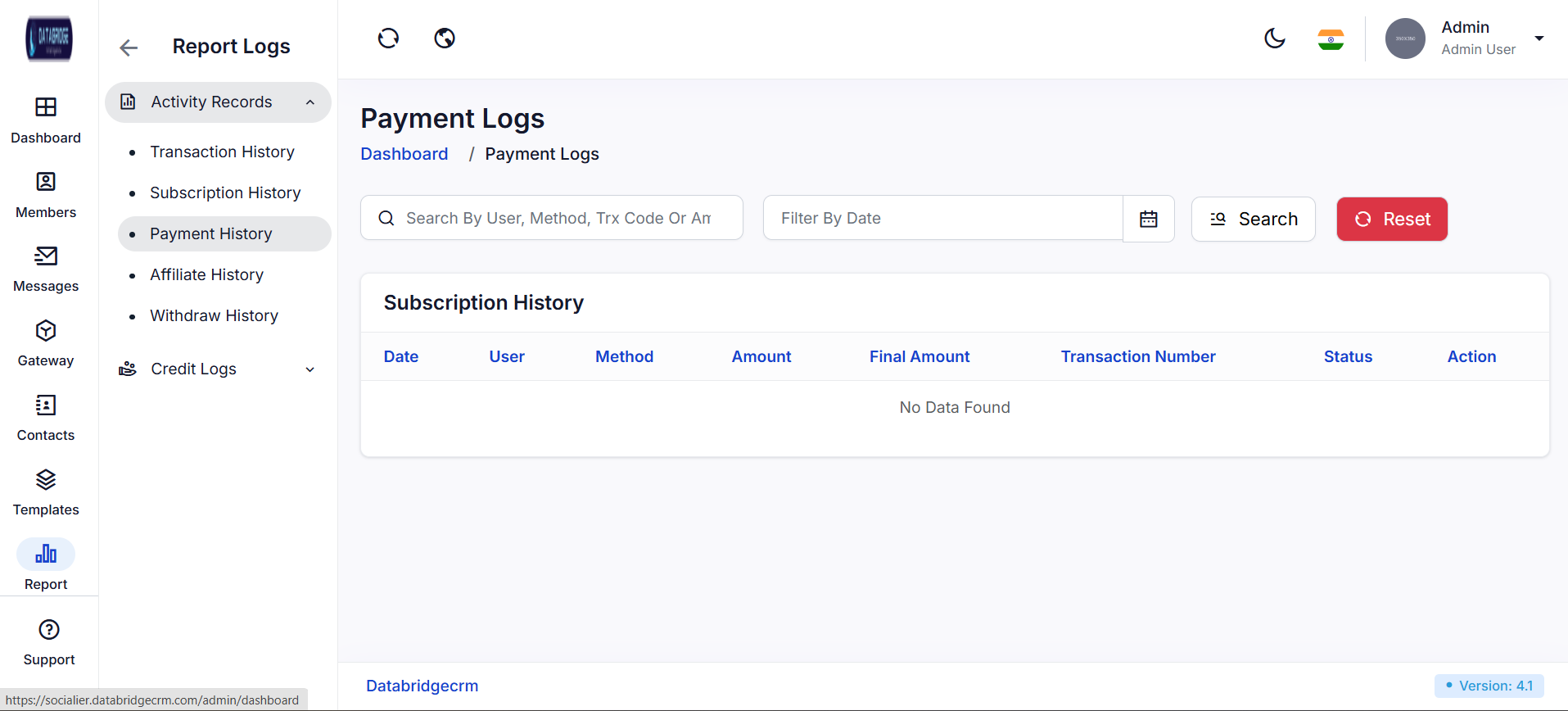
Payment History:
This screen records all payment transactions processed within the system.
It provides information about payment methods, amounts, and transaction details.
Useful for monitoring and verifying payment activities.
Features:
-Search by user, method, or transaction code
-Filter payments by date
-Displays payment method and final amount
-Transaction status tracking
Functionality:
-Stores and displays all payment-related logs
-Helps validate successful and failed transactions
-Allows administrators to audit financial records
-Supports filtering for detailed payment analysis
This screen records all payment transactions processed within the system.
It provides information about payment methods, amounts, and transaction details.
Useful for monitoring and verifying payment activities.
Features:
-Search by user, method, or transaction code
-Filter payments by date
-Displays payment method and final amount
-Transaction status tracking
Functionality:
-Stores and displays all payment-related logs
-Helps validate successful and failed transactions
-Allows administrators to audit financial records
-Supports filtering for detailed payment analysis
1
Report
2
Activity Reports
3
Payment History
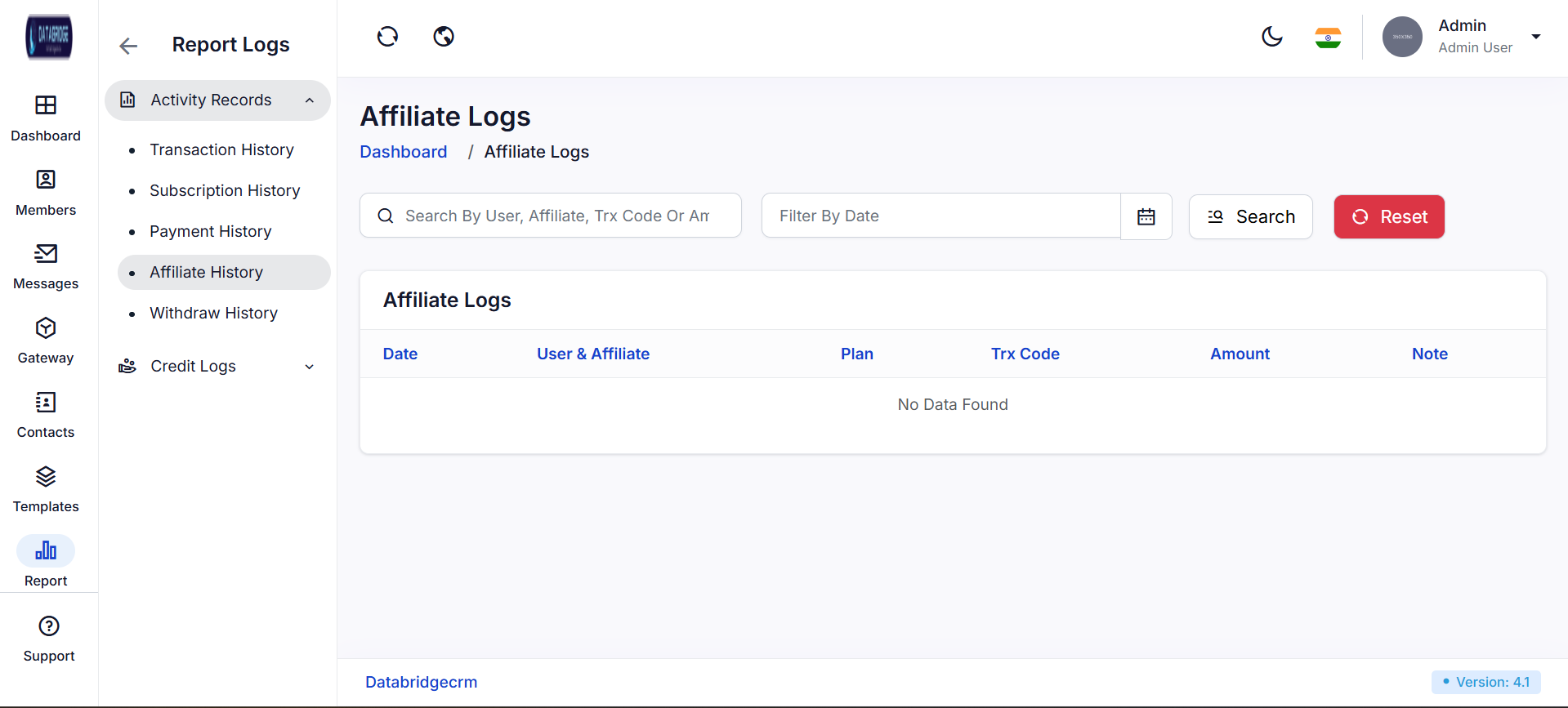
Affiliate History:
This screen tracks affiliate-related transactions and activities.
It provides insights into affiliate earnings, plans, and transaction records.
Helps manage and monitor referral-based revenue.
Features:
-Search by user, affiliate, or transaction code
-Date-based filtering
-Displays affiliate and user relationship
-Transaction amount and notes
Functionality:
-Tracks commissions generated through affiliate programs
-Displays detailed affiliate transaction records
-Helps in managing payouts and affiliate performance
-Enables filtering for better analysis
This screen tracks affiliate-related transactions and activities.
It provides insights into affiliate earnings, plans, and transaction records.
Helps manage and monitor referral-based revenue.
Features:
-Search by user, affiliate, or transaction code
-Date-based filtering
-Displays affiliate and user relationship
-Transaction amount and notes
Functionality:
-Tracks commissions generated through affiliate programs
-Displays detailed affiliate transaction records
-Helps in managing payouts and affiliate performance
-Enables filtering for better analysis
1
Report
2
Activity Reports
3
Affiliate History
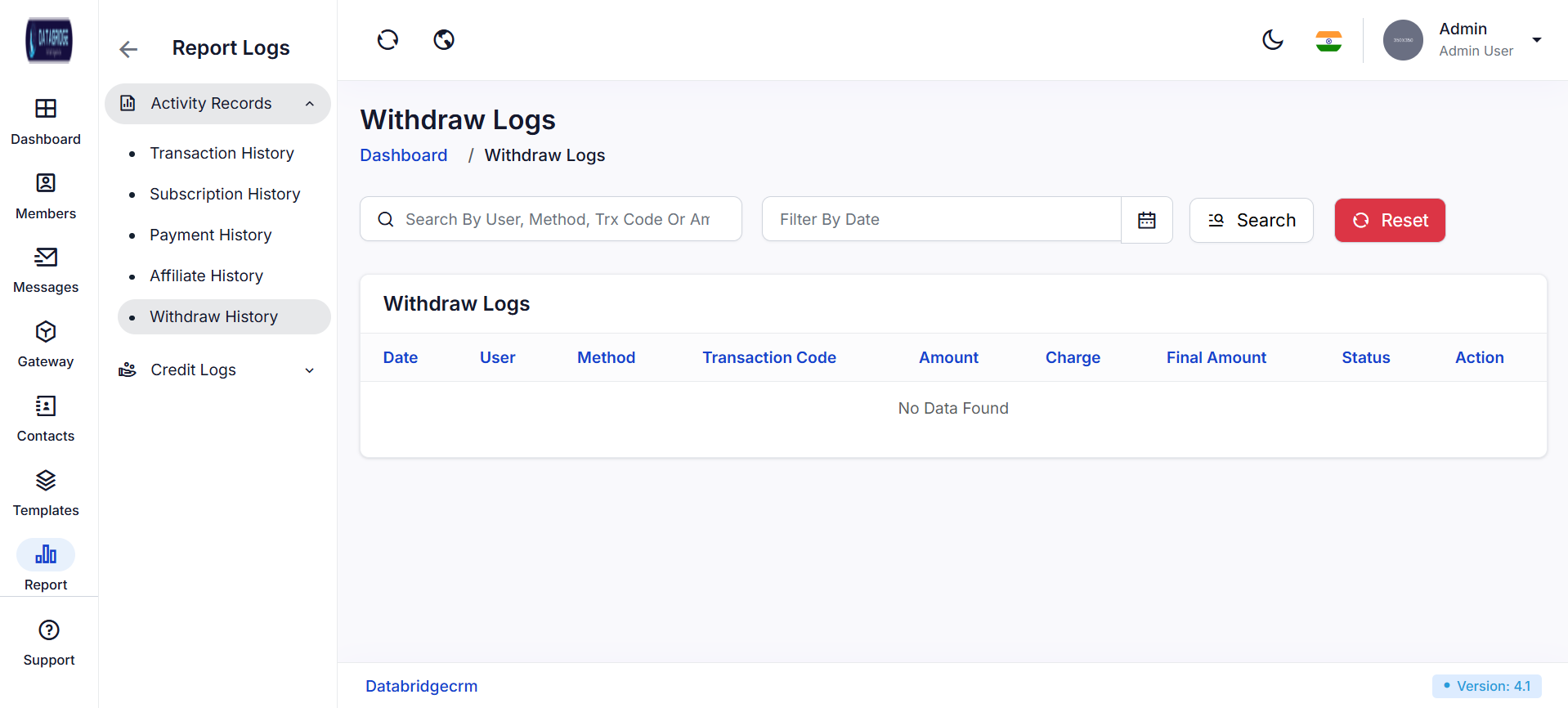
Withdraw History:
This screen displays all withdrawal requests made by users.
It includes details such as withdrawal method, charges, and final amount processed.
Useful for monitoring payout activities and ensuring transparency.
Features:
-Search by user, method, or transaction code
-Date filter option
-Displays charges and final payout amount
-Withdrawal status tracking
Functionality:
-Records all withdrawal transactions in the system
-Calculates and displays applicable charges
-Helps verify and process payout requests
-Enables admins to track withdrawal history efficiently
This screen displays all withdrawal requests made by users.
It includes details such as withdrawal method, charges, and final amount processed.
Useful for monitoring payout activities and ensuring transparency.
Features:
-Search by user, method, or transaction code
-Date filter option
-Displays charges and final payout amount
-Withdrawal status tracking
Functionality:
-Records all withdrawal transactions in the system
-Calculates and displays applicable charges
-Helps verify and process payout requests
-Enables admins to track withdrawal history efficiently
1
Report
2
Activity Reports
3
Withdraw History
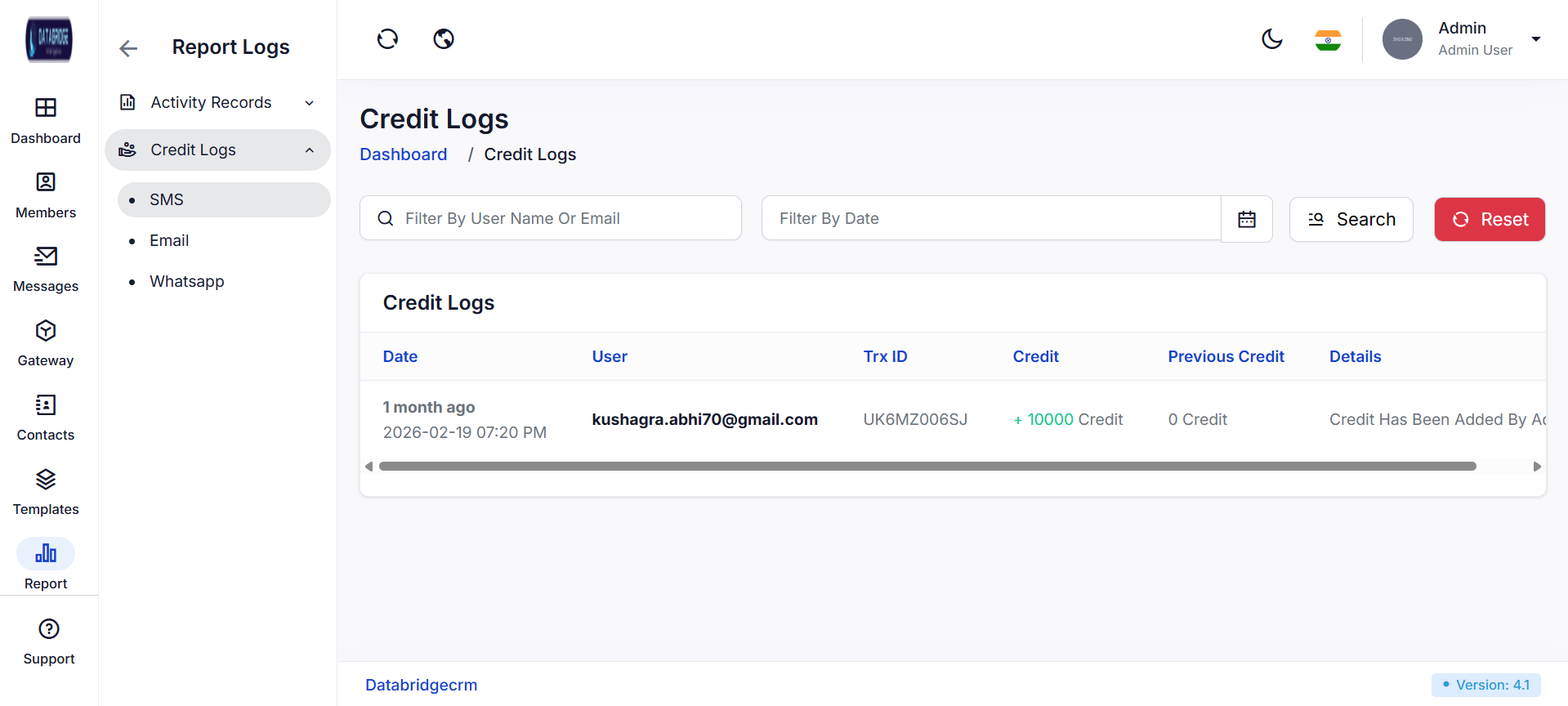
Credit Logs(SMS):
This screen displays all credit transactions related to SMS services within the system.
It provides detailed insights into credit additions, deductions, and overall usage by users.
Administrators can monitor SMS credit flow and ensure proper utilization of messaging resources.
Features:
-View SMS credit transaction history for all users
-Search and filter records by user name, email, or date
-Display transaction ID, credit amount, and previous balance
-Real-time tracking of credit updates
Functionality:
-Allows admins to track SMS credit allocation and usage
-Helps identify discrepancies in credit transactions
-Supports filtering to quickly find specific transaction records
-Ensures transparency in SMS credit management
This screen displays all credit transactions related to SMS services within the system.
It provides detailed insights into credit additions, deductions, and overall usage by users.
Administrators can monitor SMS credit flow and ensure proper utilization of messaging resources.
Features:
-View SMS credit transaction history for all users
-Search and filter records by user name, email, or date
-Display transaction ID, credit amount, and previous balance
-Real-time tracking of credit updates
Functionality:
-Allows admins to track SMS credit allocation and usage
-Helps identify discrepancies in credit transactions
-Supports filtering to quickly find specific transaction records
-Ensures transparency in SMS credit management
1
Report
2
Credit Log
3
SMS
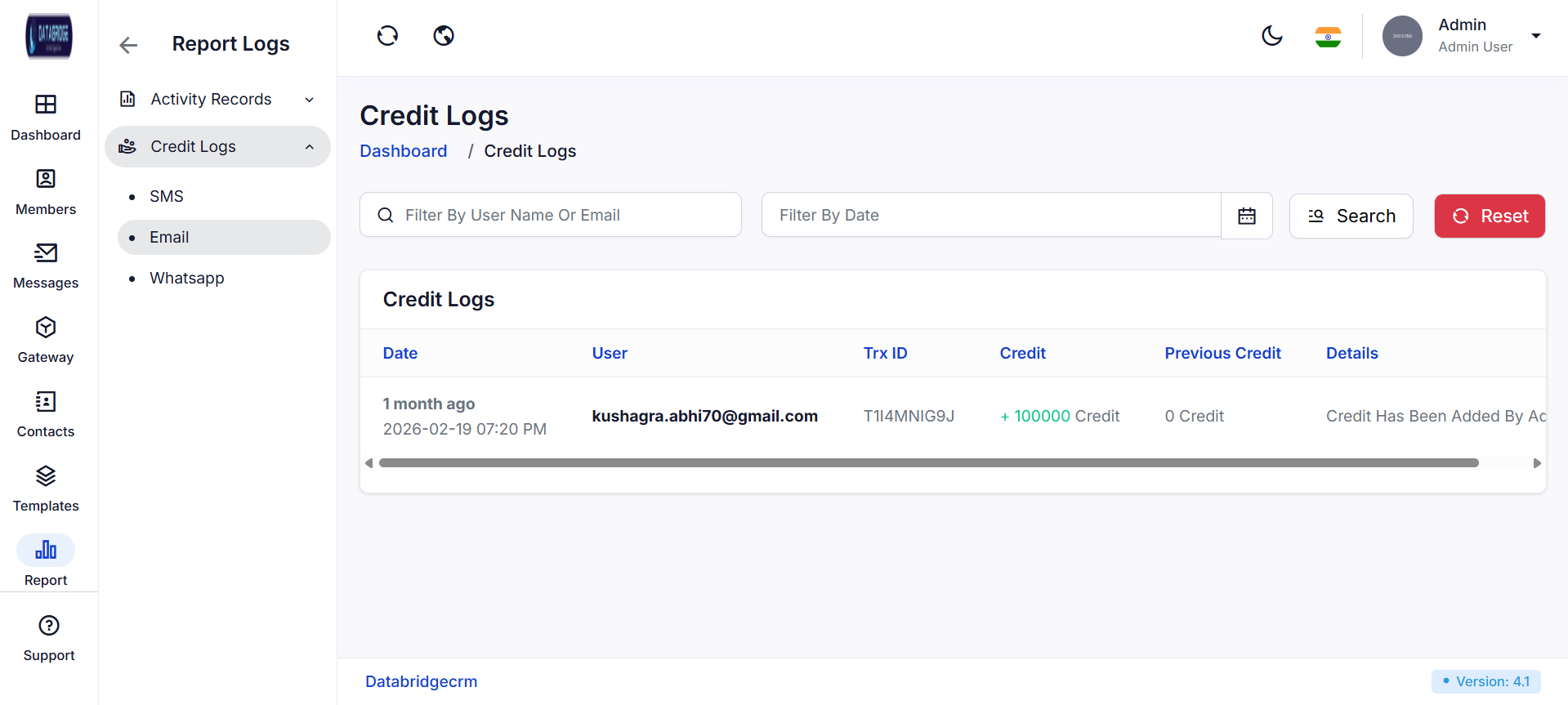
Credit Logs (Email):
This screen shows all credit-related activities for email services in the system.
It enables administrators to track how email credits are distributed and consumed.
The module ensures proper monitoring and control over email communication resources.
Features:
-Display email credit transaction logs
-Search and filter by user details and date range
-Shows transaction ID, credit changes, and previous credit balance
-Organized table format for easy readability
Functionality
-Tracks email credit usage across the platform
-Helps manage and audit credit allocation for email services
-Provides quick access to transaction history
-Improves control over email resource consumption
This screen shows all credit-related activities for email services in the system.
It enables administrators to track how email credits are distributed and consumed.
The module ensures proper monitoring and control over email communication resources.
Features:
-Display email credit transaction logs
-Search and filter by user details and date range
-Shows transaction ID, credit changes, and previous credit balance
-Organized table format for easy readability
Functionality
-Tracks email credit usage across the platform
-Helps manage and audit credit allocation for email services
-Provides quick access to transaction history
-Improves control over email resource consumption
1
Report
2
Credit Log
3
Email
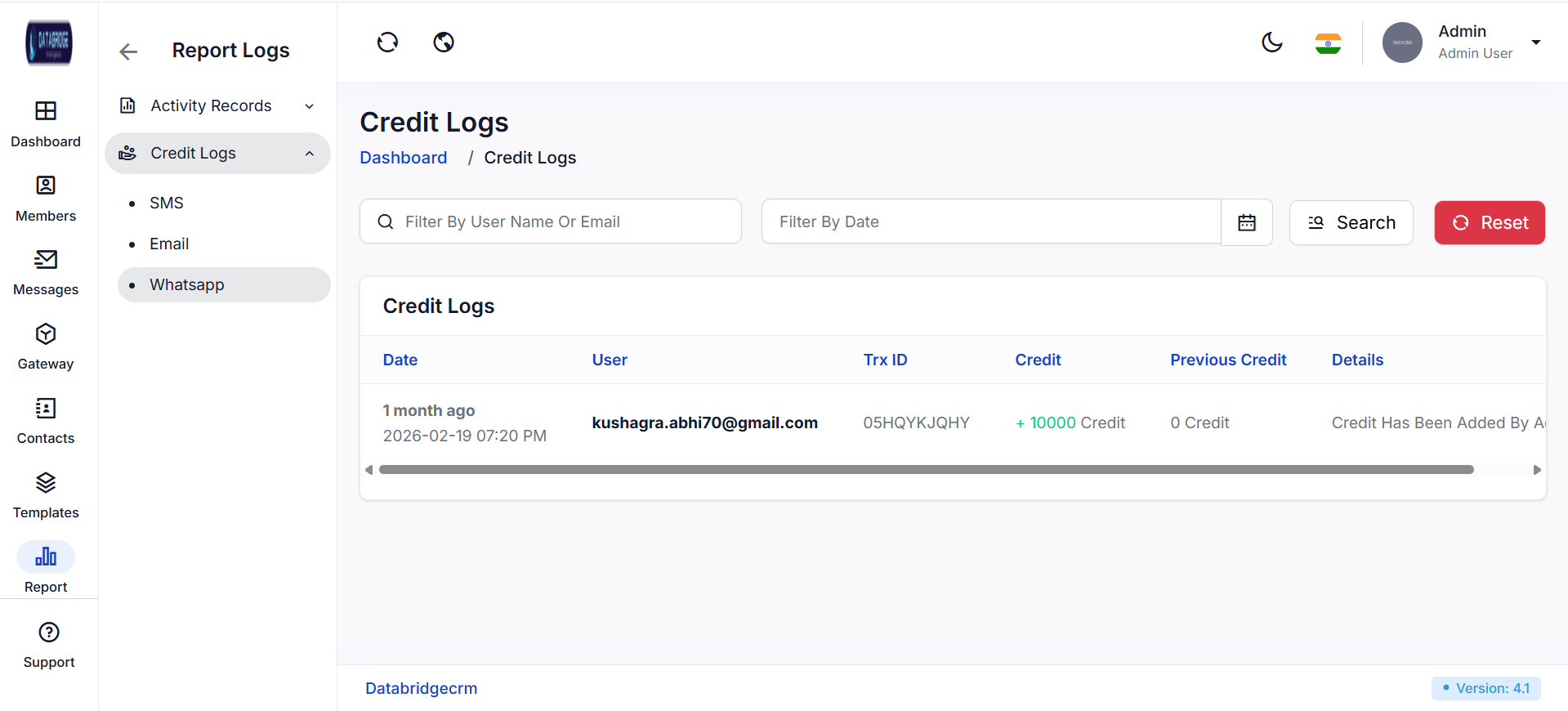
Credit Logs (WhatsApp):
This screen tracks all credit transactions associated with WhatsApp messaging services.
It provides visibility into credit usage, updates, and user-wise distribution.
Admins can use this module to manage and monitor WhatsApp communication credits effectively.
Features:
-View WhatsApp credit transaction history
-Filter data by user name, email, and date
-Displays transaction ID, credit amount, and previous balance
-Clean and structured data presentation
Functionality:
-Enables tracking of WhatsApp credit usage per user
-Helps in auditing and managing messaging credits
-Supports quick filtering and searching of records
-Ensures efficient management of WhatsApp communication resources
This screen tracks all credit transactions associated with WhatsApp messaging services.
It provides visibility into credit usage, updates, and user-wise distribution.
Admins can use this module to manage and monitor WhatsApp communication credits effectively.
Features:
-View WhatsApp credit transaction history
-Filter data by user name, email, and date
-Displays transaction ID, credit amount, and previous balance
-Clean and structured data presentation
Functionality:
-Enables tracking of WhatsApp credit usage per user
-Helps in auditing and managing messaging credits
-Supports quick filtering and searching of records
-Ensures efficient management of WhatsApp communication resources
1
Report
2
Credit Log
3
Functionality
Tickets
The Support Ticket module is used to manage and track all user queries, issues, and requests in a centralized system.It allows administrators to view, prioritize, and respond to tickets efficiently based on urgency levels.The module helps streamline communication between users and support teams for faster issue resolution.It ensures proper tracking, status updates, and organized handling of all support-related activities.
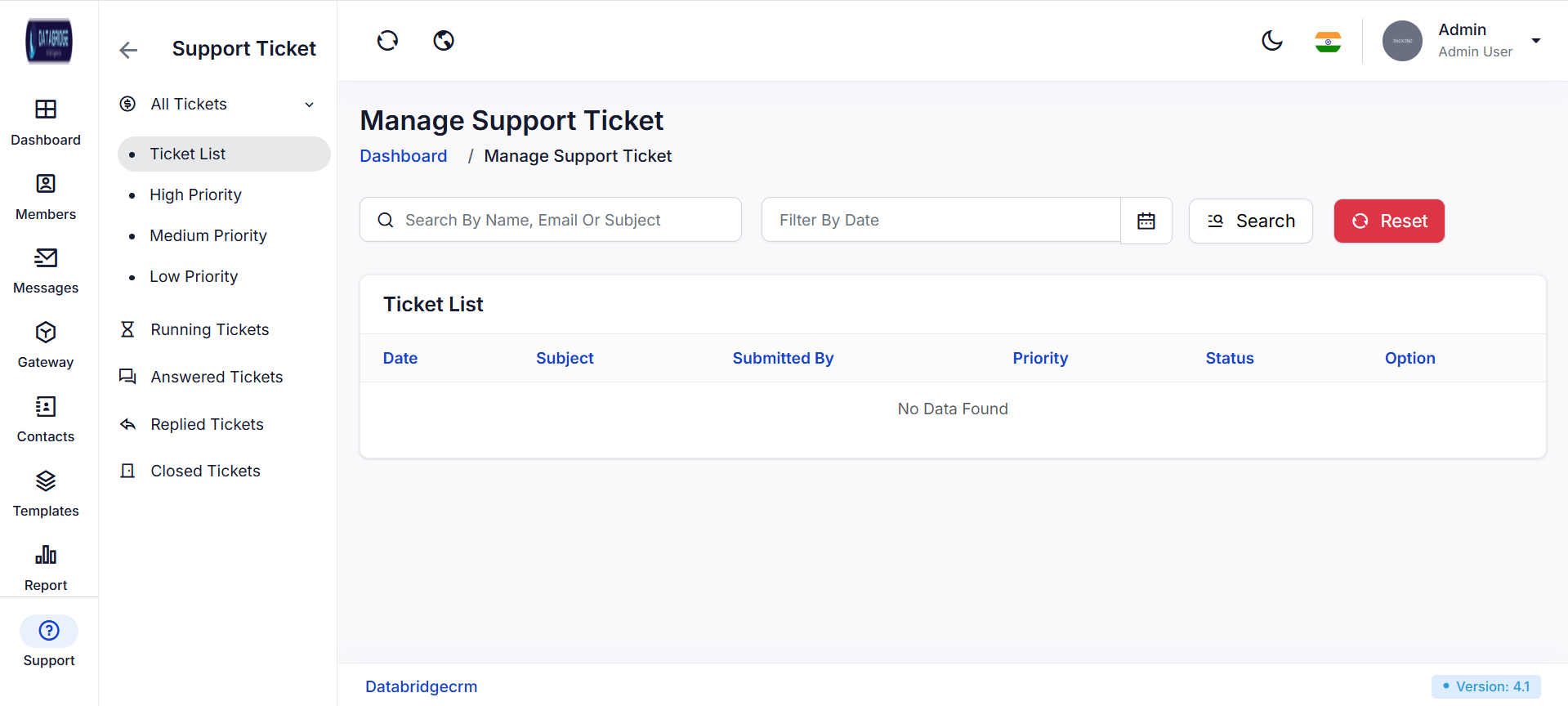
Ticket List (All Tickets):
This screen displays all support tickets generated within the system in a centralized view.
It allows administrators to monitor, manage, and track user issues efficiently.
The module provides an overview of ticket details such as subject, user, priority, and status.
Features:
-View complete list of support tickets
-Search tickets by name, email, or subject
-Filter tickets based on date
-Display ticket details like priority, status, and submission info
Functionality:
-Enables admins to monitor all incoming support requests
-Helps in organizing and managing tickets efficiently
-Allows quick search and filtering for better navigation
-Provides access to ticket actions like view, reply, or update
This screen displays all support tickets generated within the system in a centralized view.
It allows administrators to monitor, manage, and track user issues efficiently.
The module provides an overview of ticket details such as subject, user, priority, and status.
Features:
-View complete list of support tickets
-Search tickets by name, email, or subject
-Filter tickets based on date
-Display ticket details like priority, status, and submission info
Functionality:
-Enables admins to monitor all incoming support requests
-Helps in organizing and managing tickets efficiently
-Allows quick search and filtering for better navigation
-Provides access to ticket actions like view, reply, or update
1
Support
2
All Tickets
3
Ticket list
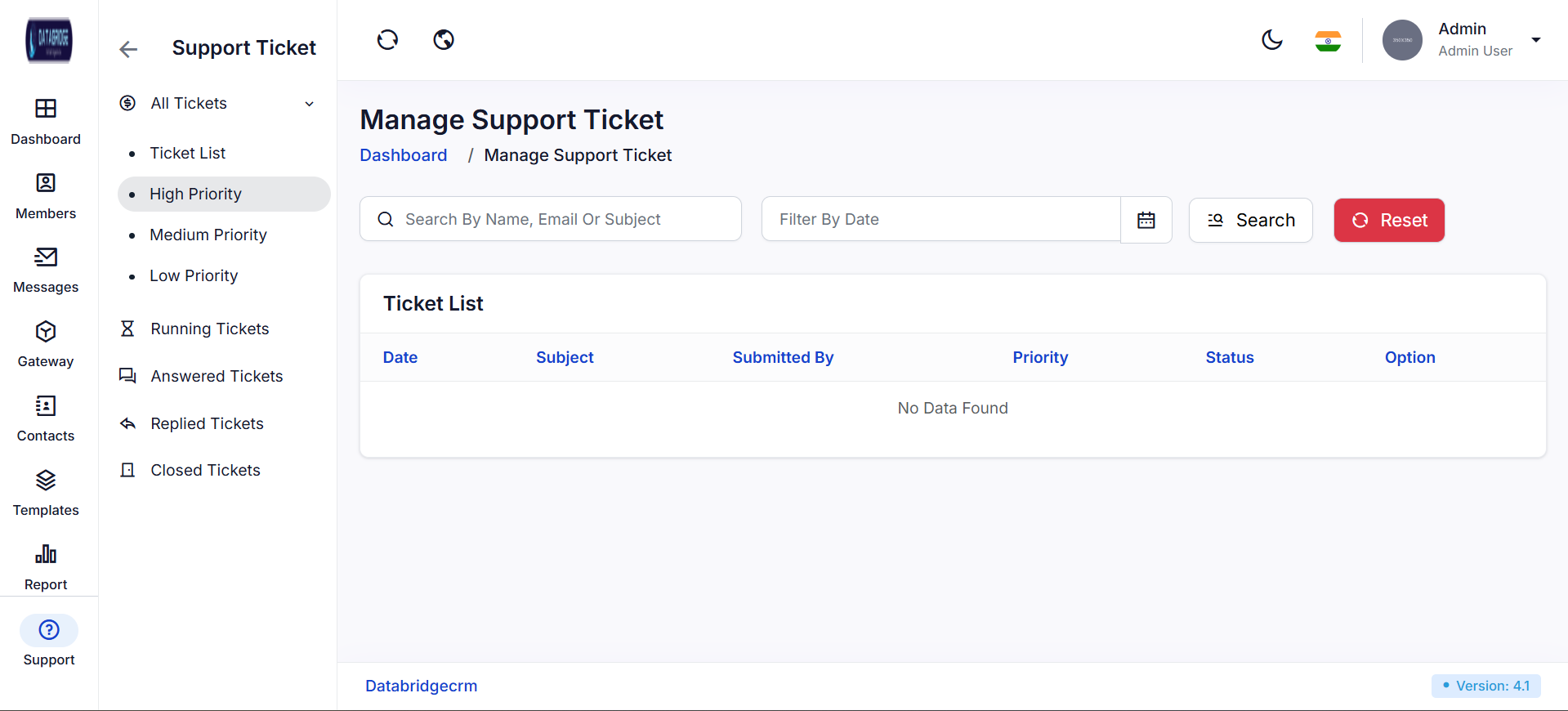
High Priority Tickets:
This screen shows all tickets marked with high priority that require immediate attention.
It helps administrators focus on critical issues and resolve them quickly.
The module ensures urgent problems are not overlooked.
Features:
-Display only high-priority tickets
-Search and filter options for quick access
-Shows ticket details like subject, user, and status
-Organized layout for urgent issue tracking
Functionality:
-Helps prioritize and handle critical support issues
-Enables faster response time for urgent tickets
-Allows filtering and searching for specific high-priority cases
-Improves overall support efficiency
This screen shows all tickets marked with high priority that require immediate attention.
It helps administrators focus on critical issues and resolve them quickly.
The module ensures urgent problems are not overlooked.
Features:
-Display only high-priority tickets
-Search and filter options for quick access
-Shows ticket details like subject, user, and status
-Organized layout for urgent issue tracking
Functionality:
-Helps prioritize and handle critical support issues
-Enables faster response time for urgent tickets
-Allows filtering and searching for specific high-priority cases
-Improves overall support efficiency
1
Support
2
All Tickets
3
High Priority
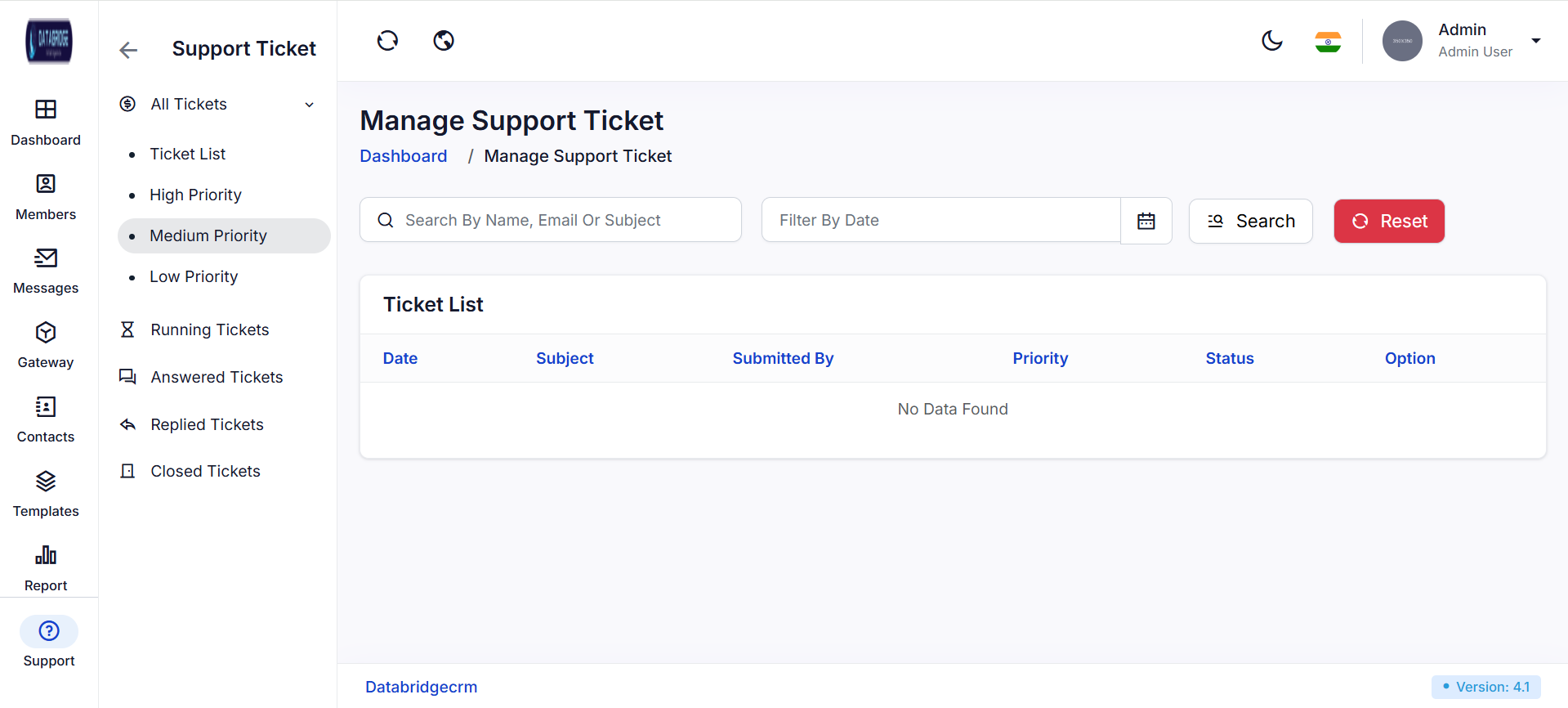
Medium Priority Tickets:
This screen lists all support tickets categorized under medium priority.
It helps in managing moderately important issues that require timely resolution.
The module ensures balanced handling of all support requests.
Features:
-View medium-priority tickets only
-Search and filter tickets easily
-Displays user details, subject, and ticket status
-Clean and structured ticket list view
Functionality
-Helps manage tickets that are important but not urgent
-Supports efficient workflow management
-Allows admins to track progress of ongoing issues
-Ensures timely resolution of medium-level concerns
This screen lists all support tickets categorized under medium priority.
It helps in managing moderately important issues that require timely resolution.
The module ensures balanced handling of all support requests.
Features:
-View medium-priority tickets only
-Search and filter tickets easily
-Displays user details, subject, and ticket status
-Clean and structured ticket list view
Functionality
-Helps manage tickets that are important but not urgent
-Supports efficient workflow management
-Allows admins to track progress of ongoing issues
-Ensures timely resolution of medium-level concerns
1
Support
2
All Tickets
3
Medium Priority
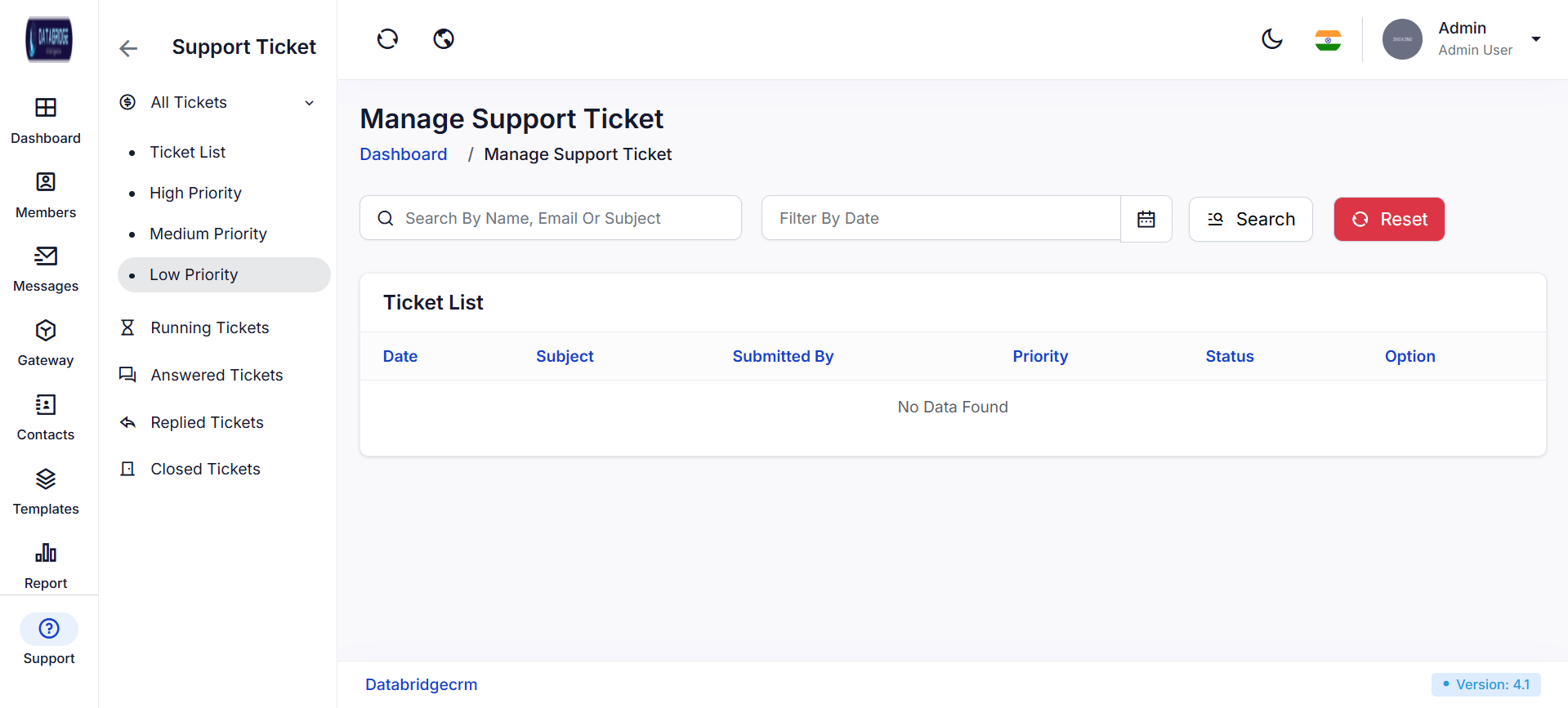
Low Priority Tickets:
This screen displays tickets marked as low priority, which require minimal urgency.
It helps administrators manage less critical issues without affecting high-priority workflows.
The module supports organized handling of all support levels.
Features:
-Display low-priority tickets only
-Search and filter options available
-Shows ticket subject, user, and status
-Simple and organized interface
Functionality
-Allows handling of non-urgent issues efficiently
-Helps in maintaining workflow balance
-Enables tracking and resolution of minor problems
-Supports filtering for quick access to tickets
This screen displays tickets marked as low priority, which require minimal urgency.
It helps administrators manage less critical issues without affecting high-priority workflows.
The module supports organized handling of all support levels.
Features:
-Display low-priority tickets only
-Search and filter options available
-Shows ticket subject, user, and status
-Simple and organized interface
Functionality
-Allows handling of non-urgent issues efficiently
-Helps in maintaining workflow balance
-Enables tracking and resolution of minor problems
-Supports filtering for quick access to tickets
1
Support
2
All Tickets
3
Low Priority
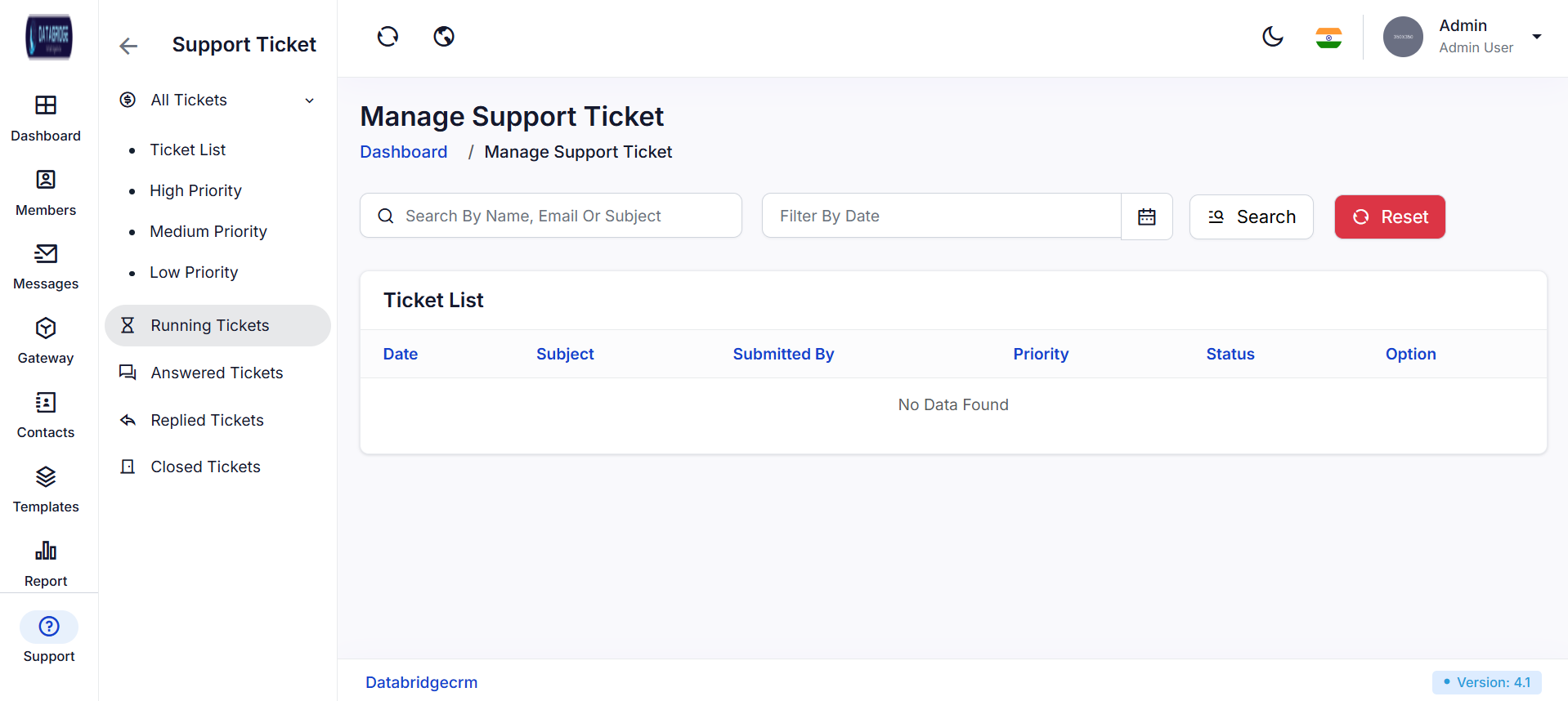
Running Tickets:
This screen displays all currently active or ongoing support tickets that are still in progress.
It helps administrators track unresolved issues and monitor their current status in real-time.
The module ensures that pending tickets are properly managed until completion.
Features:
View all running (active) support tickets
Search tickets by name, email, or subject
Filter tickets based on date
Displays ticket details like priority, status, and submitted user
Functionality:
-Allows admins to monitor ongoing support requests
-Helps ensure timely follow-up and resolution of issues
-Enables quick identification of pending tickets
-Supports efficient workflow management for active cases
Answered Tickets:
This screen shows tickets that have been responded to by the support team.
It helps track which user queries have received replies but may still be open.
The module ensures visibility of communication between users and support staff.
Features:
-View all answered tickets
-Search and filter functionality available
-Displays response status along with ticket details
-Organized list for easy tracking
Functionality:
-Helps monitor tickets that have been addressed
-Allows follow-up on user responses if required
-Tracks communication progress between admin and users
-Ensures no replied ticket is missed
Replied Tickets:
-This screen displays tickets where users have replied after an admin response.
-It helps administrators identify ongoing conversations that need further action.
-The module supports continuous interaction and issue resolution.
Features:
-View tickets with user replies
-Search and filter tickets easily
-Displays updated ticket status and user responses
-Structured ticket listing
Functionality:
-Helps track back-and-forth communication
-Enables admins to respond promptly to user replies
-Ensures smooth ticket conversation flow
-Improves response management efficiency
Closed Tickets:
This screen lists all support tickets that have been successfully resolved and closed.
It provides a record of completed issues for future reference and analysis.
The module ensures proper documentation of resolved support requests.
Features:
-View all closed tickets
-Search and filter options available
-Displays final status and resolution details
-Organized historical data
Functionality
-Maintains a record of resolved tickets
-Helps in analyzing past issues and solutions
-Provides reference for similar future problems
-Ensures proper closure and documentation of tickets
This screen displays all currently active or ongoing support tickets that are still in progress.
It helps administrators track unresolved issues and monitor their current status in real-time.
The module ensures that pending tickets are properly managed until completion.
Features:
View all running (active) support tickets
Search tickets by name, email, or subject
Filter tickets based on date
Displays ticket details like priority, status, and submitted user
Functionality:
-Allows admins to monitor ongoing support requests
-Helps ensure timely follow-up and resolution of issues
-Enables quick identification of pending tickets
-Supports efficient workflow management for active cases
Answered Tickets:
This screen shows tickets that have been responded to by the support team.
It helps track which user queries have received replies but may still be open.
The module ensures visibility of communication between users and support staff.
Features:
-View all answered tickets
-Search and filter functionality available
-Displays response status along with ticket details
-Organized list for easy tracking
Functionality:
-Helps monitor tickets that have been addressed
-Allows follow-up on user responses if required
-Tracks communication progress between admin and users
-Ensures no replied ticket is missed
Replied Tickets:
-This screen displays tickets where users have replied after an admin response.
-It helps administrators identify ongoing conversations that need further action.
-The module supports continuous interaction and issue resolution.
Features:
-View tickets with user replies
-Search and filter tickets easily
-Displays updated ticket status and user responses
-Structured ticket listing
Functionality:
-Helps track back-and-forth communication
-Enables admins to respond promptly to user replies
-Ensures smooth ticket conversation flow
-Improves response management efficiency
Closed Tickets:
This screen lists all support tickets that have been successfully resolved and closed.
It provides a record of completed issues for future reference and analysis.
The module ensures proper documentation of resolved support requests.
Features:
-View all closed tickets
-Search and filter options available
-Displays final status and resolution details
-Organized historical data
Functionality
-Maintains a record of resolved tickets
-Helps in analyzing past issues and solutions
-Provides reference for similar future problems
-Ensures proper closure and documentation of tickets
1
Supports
2
Running Tickets
1
Supports
2
Answered Tickets
1
Supports
2
Replied Tickets
1
Supports
2
Closed Tickets